Add Points By Entering Address
Add points to a map by entering an address.
Description
Add points to a feature class in a map by entering an address. This is a basic example of geocoding features with addresses. The geocoders you select in Locate can also work with place names and x-y coordinates.
Prerequisites
To perform portions of this workflow, you must have access to a geocoding service such as XY provider, the ArcGIS World Geocoding Service, or a similar geocoding service available on your organization’s portal.
An existing point feature class in the map.
Tools and commands used
- Map > Locate
Steps
From the Map tab, in the Inquiry group, click Locate
 .
.The Locate pane appears.
Type the address, place-name, or x,y coordinates you want to find in search bar.
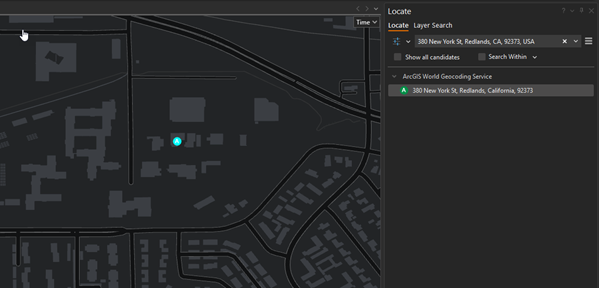
For example, enter 380 New York Street, Redlands, CA. As you type, suggestions appear in the drop-down menu based on your input. The suggestions are generated by locators set in Options.
Click one of the suggestions to go to that location on the map.
To modify suggestion parameters, perform the following:
Click Options
 , and select Provider Settings
In the Provider Settings options, check or uncheck Suggestions to configure, as necessary.
Click the Back To Locate Pane button to return to the Locate tab.
In the Search field, you can press Enter to search based on the text you enter in the search box, or you can click one of the suggestions to perform a search based on that text.
Right-click Add To Feature Class
 to add the selected point to an existing feature class in the map.
If the address is matched, the suggested result candidates will display in a list under the locator that returned them. In addition, they will display as labeled points on your map.
Related topics
Supported notation formats (ArcGIS Pro help topic)
Coordinate systems, map projections, and transformations (ArcGIS Pro help topic)