Download and open a documentation set
One of the two primary features of ArcGIS Documentation Center is the ability to download documentation sets for Esri products. The other is the ability to view documentation sets that have been downloaded. This topic describes how to download a documentation set and open it in your web browser.
Download a documentation set
The following steps describe how to download the documentation set.
Open ArcGIS Documentation Center.
Click the Library tab.
If you are not connected to the Internet, you will see a message indicating that you are offline and that no documentation sets are available for download.
If you are connected to the Internet, you should see a list of documentation sets that are available for download.
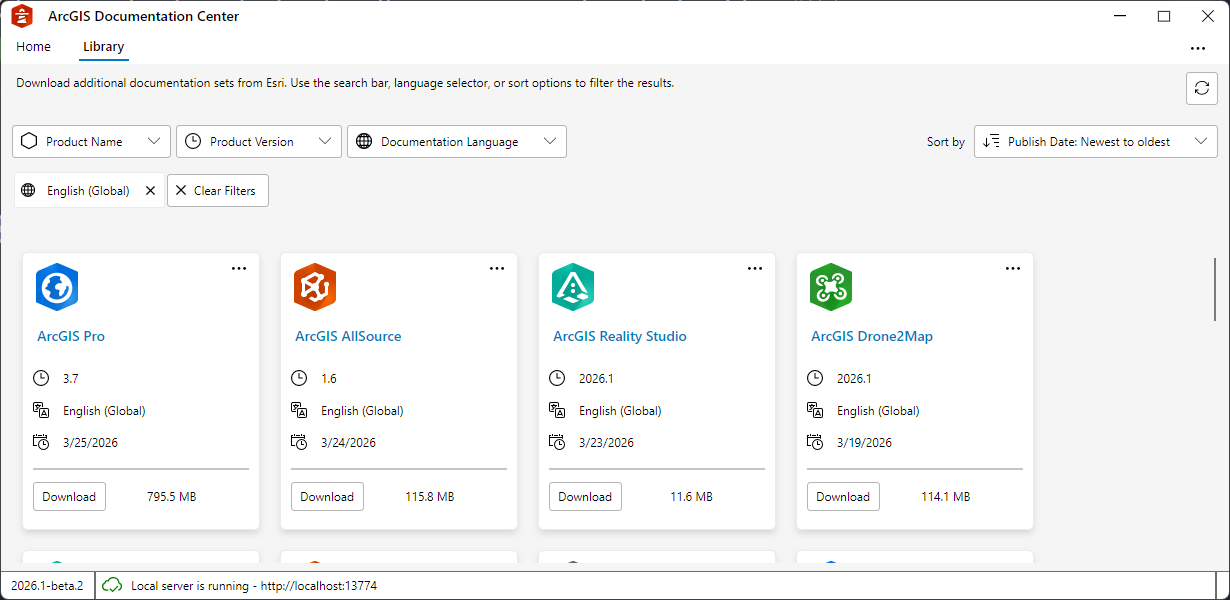
Find the documentation set you want to download.
You can use the filters to narrow down the list of documentation sets that are displayed. For example, you can filter by product name, product version, and language.
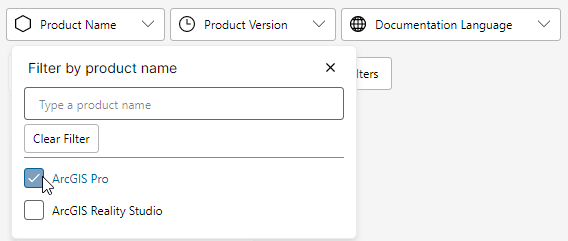
Note:
The language chosen for the ArcGIS Documentation Center user interface is used as the default filter for the documentation sets that are displayed. You can optionally remove the language filter to view all documentation sets that are downloaded.

If you are new to ArcGIS Documentation Center and planning to work offline, it is recommended you download its documentation set in the language of your choice.
Click the Download button on the card for the documentation set.
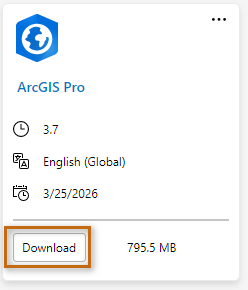
The documentation set is downloaded to the root folder.
Open a documentation set
After downloading a documentation set, you can open it in your web browser.
Click the Home tab.
Find the card for the documentation set you want to open.
- If you have downloaded multiple documentation sets, you can use the filters to narrow down the list. For example, you can filter by product name, product version, and language.
Click the Open button on the card.
The documentation set opens in your web browser.
You can browse the documentation set in your web browser like you would online help. However, since the documentation set is stored locally, you can access it even when you are not connected to the Internet.