Help within the application
Help within the application includes a Help tab on the ribbon as well as ScreenTips and messages that appear on the ArcGIS Drone2Map user interface.
Help tab
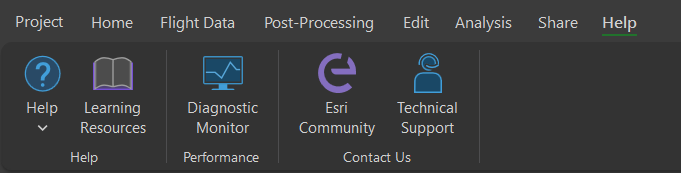
Click the Help tab on the ribbon to access documentation and learning resources, start Diagnostic Monitor, or contact Esri Community or Technical Support.
Context-sensitive help for the application
Hover over a button or tool on a ribbon tab to display a ScreenTip with information about the command.
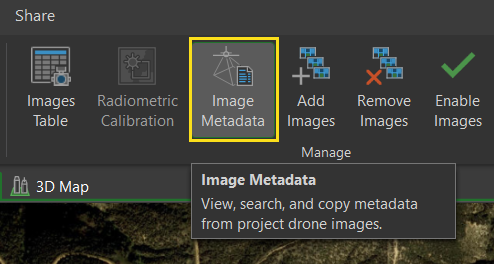
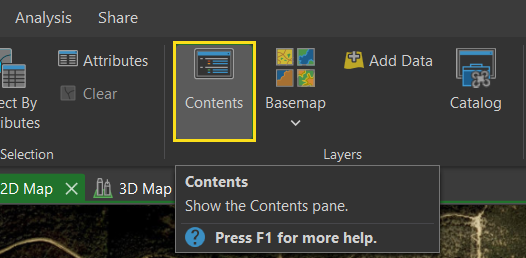
ScreenTips may be associated with a keyboard shortcut that opens a help topic. For example, pressing the F1 key while a ScreenTip for the Contents button  is displayed opens the Contents pane help topic.
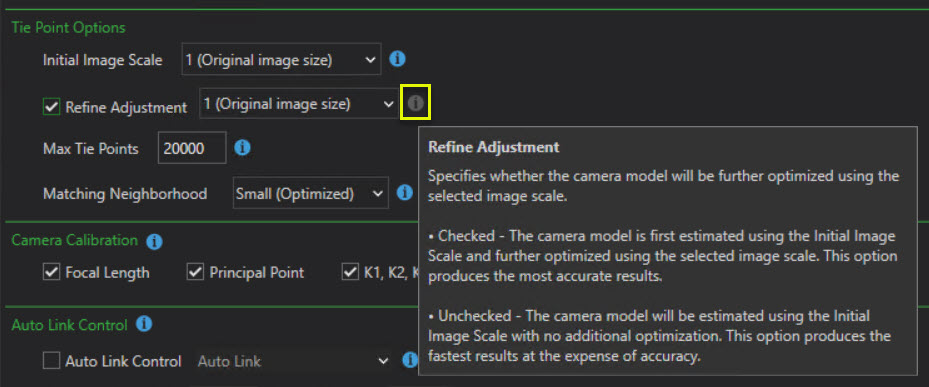
The Information icon  appears next to some elements of the user interface. When you hover over the icon, a ScreenTip appears.
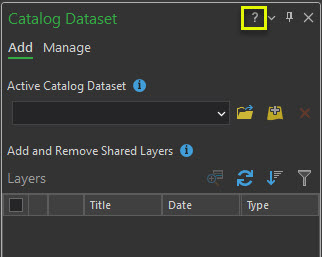
Some panes and windows have a question mark button at the top. When these panes or windows are active, you can click the button or press the F1 key to open a topic specific to that user interface element. For example, using this shortcut key when the Catalog Dataset pane is active opens the Use catalog datasets topic.
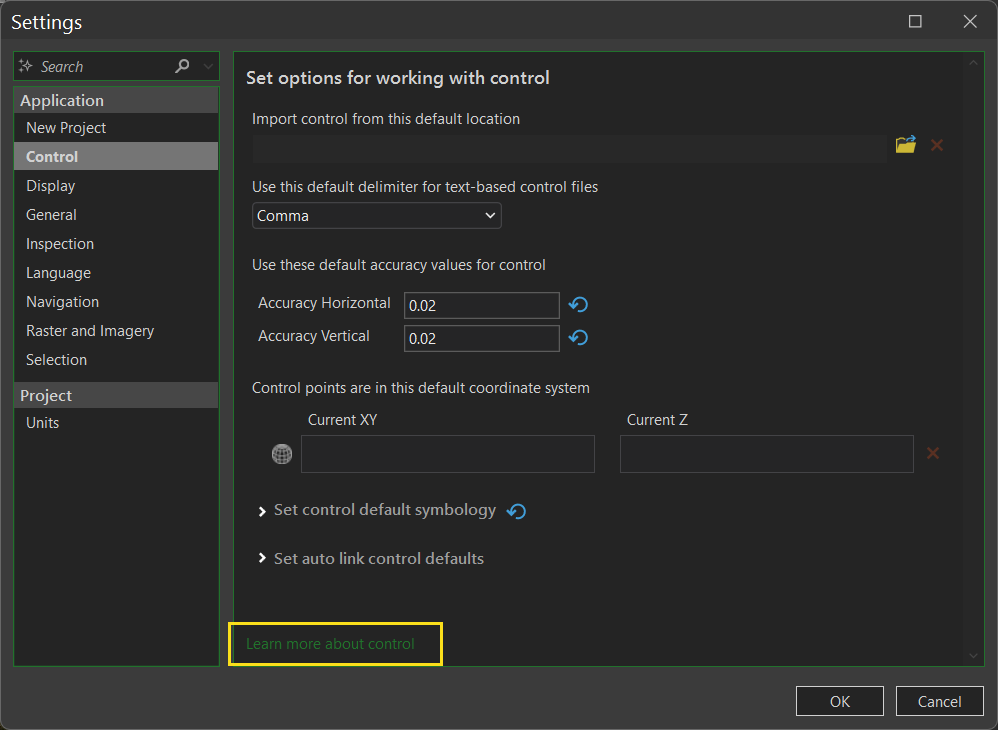
In addition, links to help system topics may also appear in panes or on dialog boxes.
Context-sensitive help during processing
When processing in ArcGIS Drone2Map, the processing status is displayed at the bottom of the Manage pane. Additional processing details can be viewed by opening the processing log. The processing log button  is found on the Home tab, under the Processing group.
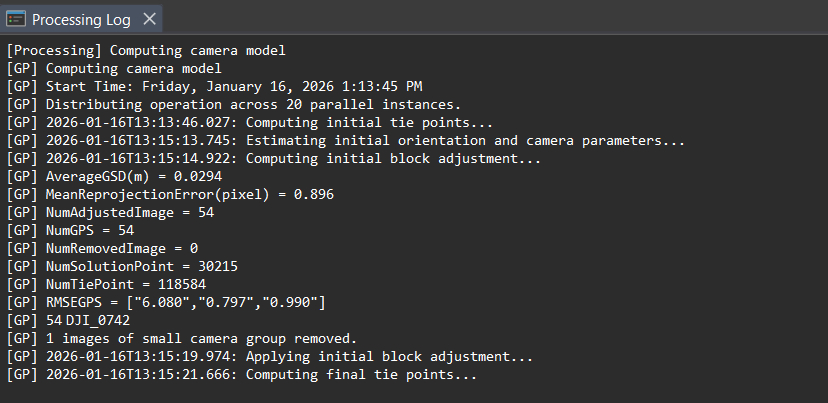
Any warnings, errors or general processing messages will appear within the processing log. This information can help when troubleshooting any issues that may occur during processing. To learn more about the different logging levels, see Logging levels in Drone2Map