ArcGIS Hub user workspace
The ArcGIS Hub user workspace is the central content management interface visible upon signing in to Hub. All behind-the-scenes workflows start in the workspace, including the following:
You can also create new ArcGIS Hub content, such as sites and pages, in the workspace. With an ArcGIS Hub Premium subscription, you can create additional content such as initiatives, projects, discussions, and events.
Watch the following video for a quick tour of the Hub workspace:
Workspace interface
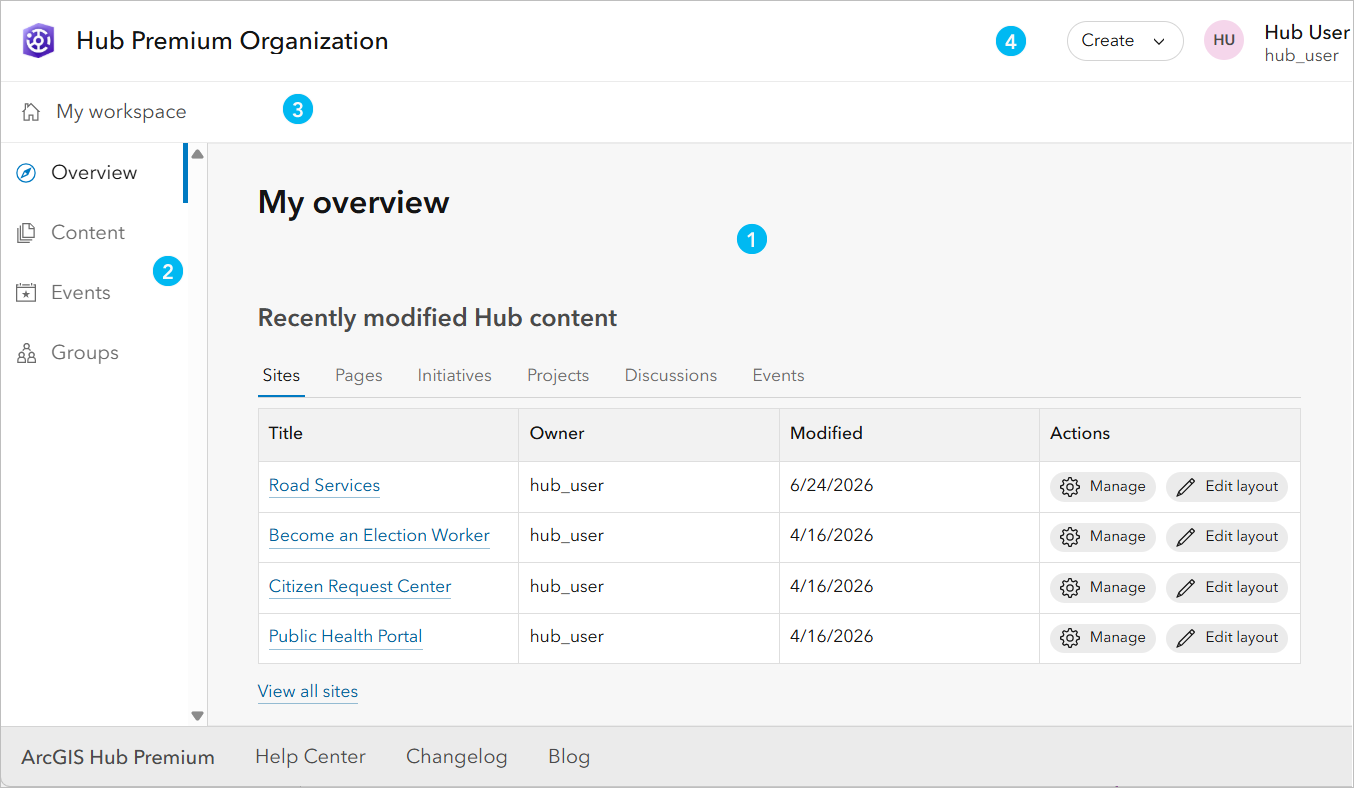
When you first sign in to ArcGIS Hub, you'll see the Overview page of your user workspace. You can select from a list of recently modified Hub content to begin viewing, editing, or managing an item. The side panel of your workspace allows you to manage aspects of your organization, such as member and group permissions.
The user workspace includes the main components shown in the image below and listed in the table below. The numbers in the image correspond to the numbers in the table.
| Icon | Description |
|---|---|
 |
The pane displays the tab you have selected. This image shows the Overview pane. |
 |
The side panel shows the tabs available to you. Click a tab to view the corresponding pane and update the configurations. |
 |
The workspace header displays the title of the item you are managing. You can click My workspace to return to the Overview tab of the user workspace. |
 |
The Create button is used to create or upload Hub content. When you click the button, a menu expands showing the types of content you can create. |
Managing an item
You can open content in the user workspace by clicking the Manage button  for an item in the overview table. If the item you want to manage is not listed in the table, you can use the Content pane to filter and search for the item.
The content opens on the Details pane. Other tabs include options for configuring the item's settings. The header will update with options to view the item, and if it is a site or page, edit its layout. Depending on the item and your permissions, you will see the following tabs on the side panel:
Dashboard—View engagement telemetry such as page views and sessions.
Details—Edit the metadata for your item.
Catalog—Configure a catalog of content for users to access from your item, and with ArcGIS Hub Premium, configure events for engagement.
Initiatives—When editing a project, associate your project with a larger-scale effort. Available with Hub Premium.
Projects—When editing an initiative, associate your initiative with smaller-scale goals. Available with Hub Premium.
Metrics—When editing a project or initiative, set measurable goals to track the progress of your effort. Available with Hub Premium.
Followers—Manage your site’s follower groups so community members can stay up to date on your content. Available with Hub Premium.
Settings— Configure sharing and toggle ArcGIS Hub Premium features such as the ArcGIS Hub assistant (beta).