ProConcepts Telecom Domain Network
The utility network is a comprehensive ArcGIS framework for modeling utility systems such as electric, gas, water, storm water, wastewater, and telecommunications. This topic introduces the telecom domain network API in the utility network and highlights key concepts and capabilities, including circuit management, unit identifiers, and tracing. The Pro SDK provides APIs that enable developers to work with and manage telecom domain networks effectively.
Language:      C#
Subject:       Utility Network
Contributor:   ArcGIS Pro SDK Team <arcgisprosdk@esri.com>
Organization:  Esri, https://www.esri.com
Date:         04/19/2026
ArcGIS Pro:    3.7
Visual Studio: 2026
In this topic
- Introduction
- Telecom Domain Network
- Telecom Element
- Circuit Management
- Equipment Management
- Trace and Export
Introduction
The utility network now supports telecom-specific asset modeling and operational workflows. Key enhancements include a new circuit management model, updated data management patterns, and revised APIs. The telecom domain network is designed to manage millions of circuits, address incomplete connectivity, and enable resource sharing, which differs from the traditional utility network domains.

The telecom domain network integrates with the existing utility network as follows:
- Existing utility network functionality remains unchanged because the telecom capabilities are additive.
- Existing domain networks, APIs, and client applications continue to operate without disruption.
- Telecom and traditional domain networks can coexist within the same utility network.
- Telecom-specific schema changes are introduced only when a telecom domain network is added to the dataset.
- The telecom domain network requires Utility Network version 8 or later.
This topic focuses on the Telecom Domain Network from the Pro SDK perspective and highlights the APIs used to work with telecom-specific capabilities. It assumes that readers are already familiar with the core utility network concepts described at Pro Concepts - Utility Network. Refer to the Utility Network Object Model: Telecom for a visual representation of the classes and their relationships described in this topic.
Telecom Domain Network
In the Pro SDK, the TelecomDomainNetwork class represents a telecom domain network within a utility network. It provides details on the circuit model, trace configuration, grouping policy, and other related properties. Unlike traditional utility networks such as gas, water, and electric, a telecom domain network does not include the abstractions of tiers, tier groups, and subnetworks. Instead, methods such as GetDiagramTemplateNames() and GetTraceConfiguration() are exposed at the telecom domain network level.

Furthermore, the telecom domain network introduces three system-managed circuit management tables: Circuit, CircuitSection, and Subcircuit. These tables replace the subnetwork model previously used in traditional domain networks. Although these tables are system-managed, users can still create or update user-defined attribute fields within them.

Users can access telecom domain network information from the utility network definition, as shown below.
if (!utilityNetwork.HasTelecomNetwork)
{
    Console.WriteLine("The utility network does not have a telecom domain network.");
}

// Get the Telecom Domain Network from the utility network definition
IReadOnlyList<DomainNetwork> domainNetworks = utilityNetwork.GetDefinition().GetDomainNetworks();
foreach (DomainNetwork domainNetwork in domainNetworks)
{
    if (domainNetwork is TelecomDomainNetwork telecomDomainNetwork)
    {
        return telecomDomainNetwork;
    }
}
The telecom domain network object is used to access telecom-specific information such as circuit properties, color schemes, wavelength schemes, divide and combine policies, and diagram templates as briefly illustrated in the code snippet below and described in the following sections.
// Use the domain network object to get information about the network
CircuitProperties circuitProperties = telecomDomainNetwork.CircuitProperties;
IReadOnlyList<WavelengthScheme> wavelengthSchemes = telecomDomainNetwork.WavelengthSchemes;
IReadOnlyList<DividePolicy> dividePolicies = telecomDomainNetwork.DividePolicies;
IReadOnlyList<CombinePolicy> combinePolicies = telecomDomainNetwork.CombinePolicies;
IReadOnlyList<string> diagramTemplateNames = telecomDomainNetwork.DiagramTemplateNames;
The CircuitProperties class stores user-defined circuit settings, such as the maximum number of hops between edges, the number of paths returned during tracing, import circuit status, and circuit location sharing status. The WavelengthScheme classes define wavelength schemes for the telecom domain network. The DividePolicy and CombinePolicy classes specify policies for dividing and combining circuit elements. The DiagramTemplateNames property lists available diagram templates for the telecom domain network.
Telecom companies identify individual fiber strands within a cable by the color of the strand and the tubes or sheaths that contain it. A color scheme consists of multiple groups that describe each level of the color scheme hierarchy. Telecom systems use many color schemes to identify cables and fibers consistently.
For example, a buffer tube contains multiple fibers, and different buffer tube colors and fiber colors are used to identify individual fibers. In the diagram below, three buffer tubes are assigned colors in a specific sequence: blue, orange, and green. Each buffer tube contains two fibers arranged in a defined order: blue and orange.
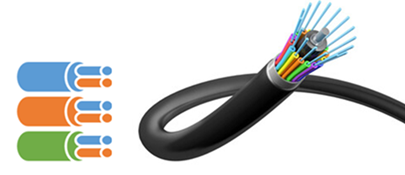
The ColorScheme class includes name, ID, and a collection of ColorSchemeGroup objects, establishing a one-to-many relationship between ColorScheme and ColorSchemeGroup. Each ColorSchemeGroup contains a name, labels, and capacity properties.
// Get the circuit color scheme information
IReadOnlyList<ColorScheme> colorSchemes = telecomDomainNetwork.ColorSchemes;
foreach (ColorScheme colorScheme in colorSchemes)
{
    string colorSchemeName = colorScheme.Name;
    int colorSchemeID = colorScheme.ID;
    IReadOnlyList<ColorSchemeGroup> colorSchemeGroups = colorScheme.Groups;
    foreach (ColorSchemeGroup group in colorSchemeGroups)
    {
        Console.WriteLine($"Color Scheme: {colorSchemeName}, Group: {group.Name}");

        // Labels
        IReadOnlyList<string> labels = group.Labels;
        foreach (string label in labels)
        {
            Console.WriteLine($"Label: {label}");
        }

        // Capacities
        IReadOnlyList<int> capacities = group.Capacity;
        foreach (int capacity in capacities)
        {
            Console.WriteLine($"Capacity: {capacity}");
        }
    }
}
Telecom Element
The TelecomElement class represents a row in a utility network associated with a telecom domain network, and it inherits from the Element class. TelecomElement includes FirstUnit and LastUnit properties that enable logical grouping of rows with shared attributes and topology by using a single record for non-spatial objects such as rows, edge objects, junction objects, and associations.
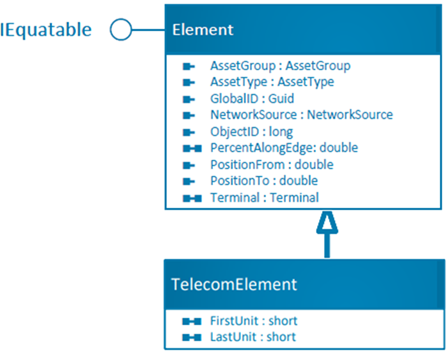
A telecom element can be created from an asset type and a global ID by using the utilityNetwork.CreateElement() method, as shown below:
TelecomElement element = utilityNetwork.CreateElement(assetType, new Guid(globalID)) as TelecomElement;
Circuit Management
Telecom companies use multiple circuits to create a service delivery path between two network elements. This set of components forms a signal path that connects specific start and stop points within the network. Telecom circuits can be defined either directly on the physical network infrastructure as physical circuits or logically on top of the physical network infrastructure as virtual circuits. Virtual circuits are often established between start and stop locations when the underlying physical network is unknown.
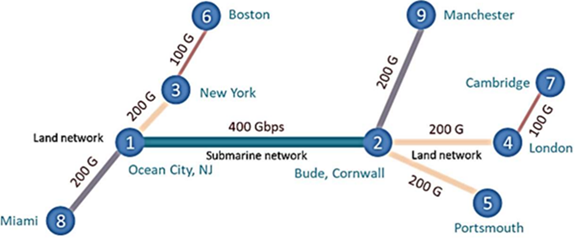
Circuit, CircuitSection, and Subcircuit
Each telecom domain network includes three system-managed tables: Circuit, CircuitSection, and Subcircuit. A circuit represents the set of components that define a signal path between two network elements, and telecom providers may manage hundreds of millions of such circuits to support service delivery.
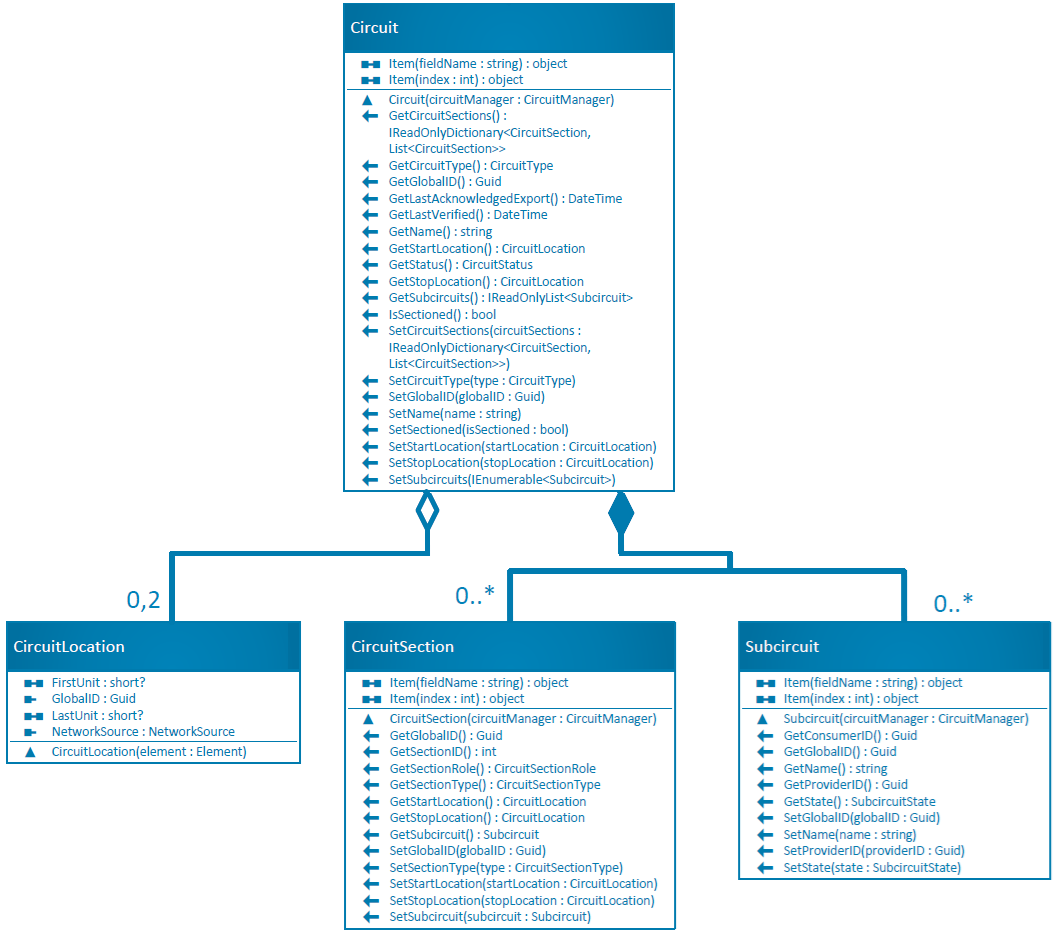
Circuit
In practice, a circuit is divided into sections, each representing a logical group of connected components identified by a trace operation. Each section has a defined start and stop location; barriers are not supported. Circuits can be physical, with tangible network components, or virtual, providing a dedicated path without physical elements. Users usually know only the endpoints of a virtual circuit, not the specific network details or route.
The Circuit class provides methods for getting and setting circuit properties such as name, type, status, locations, sections, and other relevant information.
// Create a sectioned virtual circuit object
Circuit circuit = new Circuit(circuitManager);
circuit.SetName("VirtualSectionedCircuit");
circuit.SetSectioned(true);
circuit.SetCircuitType(CircuitType.Virtual);
Circuit Section
The CircuitSection class describes the characteristics of circuit sections, including the unique ID of the section within a circuit, the physical or virtual section type, and the role of the section in the consuming circuit.
// Create a virtual circuit section object
CircuitSection circuitSection1 = new CircuitSection(circuitManager);
circuitSection1.SetStartLocation(new CircuitLocation(startElement));
circuitSection1.SetStopLocation(new CircuitLocation(stopElement));
circuitSection1.SetSectionType(CircuitSectionType.Virtual);

// Create a physical circuit section object
CircuitSection circuitSection2 = new CircuitSection(circuitManager);
circuitSection2.SetStartLocation(new CircuitLocation(startElement));
circuitSection2.SetStopLocation(new CircuitLocation(stopElement));
circuitSection2.SetSectionType(CircuitSectionType.Physical);
The sections can be connected in series or parallel within a circuit, as illustrated:
// Add sections in series
var seriesSection = new Dictionary<CircuitSection, List<CircuitSection>>
{
    { circuitSection1, new List<CircuitSection>() { circuitSection2 } },
    { circuitSection2, new List<CircuitSection>() { } }
};

circuit.SetCircuitSections(seriesSection);

// Add sections in parallel
var parallelSections = new Dictionary<CircuitSection, List<CircuitSection>>
{
    { circuitSection1, new List<CircuitSection>() },
    { circuitSection2, new List<CircuitSection>() }
};

circuit.SetCircuitSections(parallelSections);
Subcircuits
A subcircuit is a portion of a circuit that can be used to define another circuit. A circuit can be divided into any number of subcircuits as needed. These subcircuits, connected in parallel, can be used to share the capacity or resources of a circuit.
The Subcircuit class describes the name, consumer ID (the global ID of the circuit in the Circuit table that consumes the subcircuit), and provider ID (the global ID of the circuit in the Circuit table in which the subcircuit participates).
Subcircuit subcircuit1 = new Subcircuit(circuitManager);
subcircuit1.SetName("Subcircuit1");

Subcircuit subcircuit2 = new Subcircuit(circuitManager);
subcircuit2.SetName("Subcircuit2");

// Example GUID
subcircuit2.SetProviderID(new Guid("9B587BB4-FA30-4AC8-ACAC-4CB1BB087111"));

// Add subcircuits to the circuit object
circuit.SetSubcircuits(new List<Subcircuit> { subcircuit1, subcircuit2 });
Circuit Location
The CircuitLocation class represents the features and objects in the telecom domain that serve as start and stop locations. A CircuitLocation object is created by passing a TelecomElement to the constructor.
TelecomElement telecomElement = utilityNetwork.CreateElement(assetType, globalID) as TelecomElement;

// Use telecom element to create a circuit location
CircuitLocation circuitLocation = new CircuitLocation(telecomElement);
Circuit Manager
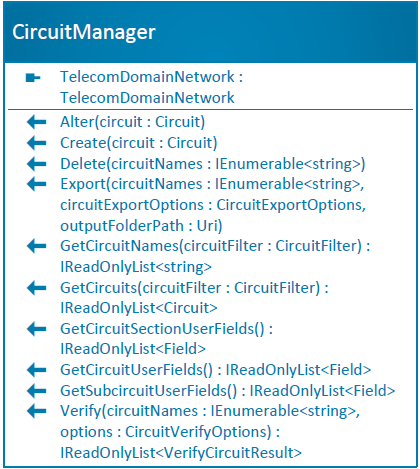
The CircuitManager class provides methods for creating, modifying, querying, verifying, and deleting circuits. You can retrieve a CircuitManager object by calling GetCircuitManager() on the UtilityNetwork class. It also provides methods for accessing and updating user-defined attributes for circuits, circuit sections, and subcircuits.
// Get the circuit manager from the utility network
CircuitManager circuitManager = utilityNetwork.GetCircuitManager(telecomDomainNetwork);
The Create method allows users to create a new circuit by using the circuit manager, as shown below.
// Create a new circuit
circuitManager.Create(circuit);
The GetCircuitNames and GetCircuits methods allow users to search for circuits using the flexible CircuitFilter class. This filter enables users to refine results by name, GUID, location, circuit location type, hierarchy, or status.
// Get circuit location from a telecom element
CircuitLocation location = new CircuitLocation(telecomElement);

// Circuit filter by location with specific hierarchy
CircuitFilter circuitFilter = new CircuitFilter([location], CircuitLocationTypeFilter.All) { Hierarchy = CircuitHierarchy.Providers };

// Get circuit names that match the filter
IReadOnlyList<string> circuitNames = circuitManager.GetCircuitNames(circuitFilter);

// Get circuits by names
IReadOnlyList<Circuit> circuits = circuitManager.GetCircuits(circuitNames);
The Alter method allows users to modify existing circuits by providing a modified circuit object. The method compares the modified circuit with the existing circuit and applies the necessary changes.
// Modify an existing circuit
Circuit modifiedCircuit = circuitManager.GetCircuits(new List<string> { circuitName }).FirstOrDefault();
modifiedCircuit.SetName("ModifiedCircuitName");
circuitManager.Alter(modifiedCircuit);
The Delete method allows users to delete one or more existing circuits by name.
// Delete circuits by name
circuitManager.Delete(new List<string> { circuitName });
The Verify method verifies a set of circuits and returns a collection of VerifyCircuitResult objects that contain error information, the circuit name, and synthesized geometry. The CircuitVerifyOptions class defines the options for a circuit verification, such whether to synthesize geometry for virtual sections with provided spatial reference, force verification even when the circuit is marked as clean, and other verification settings.
// Verify circuit
IReadOnlyList<VerifyCircuitResult> verificationResults = circuitManager.Verify(new List<string> {circuitName}, true);
Circuit verification updates the last verified timestamp and checks the circuit's validity so that its status can be updated. If validation succeeds, the circuit is marked as Clean. If validation fails, the method fails and the circuit is marked as Invalid. The following Circuit Status section describes the available circuit statuses and the operations used to transition between them.
Similarly, the Export method allows users to write circuit information, including circuit paths, circuit sections, and subcircuits, to a JSON file. The exported file can be used for data exchange with other systems or for backup purposes, as described in the Trace And Export section.
The CircuitManager class also provides methods for accessing user-defined circuit attributes as described in the next section.
User Attributes
The CircuitManager class provides the GetCircuitUserFields(), GetSubcircuitUserFields(), and GetCircuitSectionUserFields() methods to return the defined user fields for circuits, subcircuits, and circuit sections, respectively.
// Retrieve circuit, subcircuit, and circuit section attribute fields
IReadOnlyList<Field> circuitUserAttributeFields = circuitManager.GetCircuitUserFields();
IReadOnlyList<Field> subcircuitUserAttributeFields = circuitManager.GetSubcircuitUserFields();
IReadOnlyList<Field> sectionUserAttributeFields = circuitManager.GetCircuitSectionUserFields();

// Iterate through the attribute fields and read each value
foreach (Field field in circuitUserAttributeFields)
{
    var attributeValue = circuit[field.Name];
}
Circuits, circuit sections, and subcircuits can store
attribute values when creating a circuit or modify them later by calling the Alter method.
// Assign circuit attribute value
circuit["UserDescription"] = "This is a 100 MHz circuit";

// Update the circuit with the new attribute value
circuitManager.Alter(circuit);
Circuit Status
The status of a circuit depends on the operations performed, specifically whether modifications have occurred and whether verification has taken place. The table below outlines the possible circuit statuses.
| Status | Description |
| Dirty | Changes have been made to rows in the circuit tables (Circuit, Subcircuit, CircuitSection). |
| Clean | Circuit verification has been run after edits were made to the circuit, and the circuit is clean. |
| Deleted | A circuit has been logically deleted. |
| Invalid | The circuit has been updated, and error conditions exist. It cannot be verified until the errors are resolved. |
Equipment Management
In the telecom industry, equipment racks are common assets. A rack may contain multiple assemblies, such as switches, routers, and patch panels.

Telecom equipment, such as routers and switches, often contains multiple connectable units, such as ports and transceivers, which can connect to other equipment or to cables and fibers. The UnitIdentifier class uniquely identifies each connectable unit (content) and its parent equipment (container).
Unit Identifier
The UnitIdentifier class represents a container or its contents using NetworkSource and GlobalID. It is used to define connectivity associations, logically group junction objects, and manage container contents such as ports and slots for container equipment like racks or chassis.

To create a UnitIdentifier object, provide the NetworkSource and GlobalID of the equipment, as shown below.
// Get the NetworkSource for the telecom device
NetworkSource networkSource = utilityNetwork.GetDefinition().GetNetworkSource("TelecomDevice");

// Create a UnitIdentifier for a piece of equipment using its NetworkSource and GlobalID
UnitIdentifier containerUnitIdentifier = new UnitIdentifier(networkSource, containerGlobalID);
UnitIdentifier Manager
In addition to connecting cables and fibers to designated ports, users need to query ports and connections, reserve space for larger connectable units (contents), adjust equipment size, and reallocate space within equipment containers. The UnitIdentifierManager class streamlines these workflows by providing methods to divide and combine telecommunications elements, reserve/reset unit ranges for future needs, and query equipment contents.
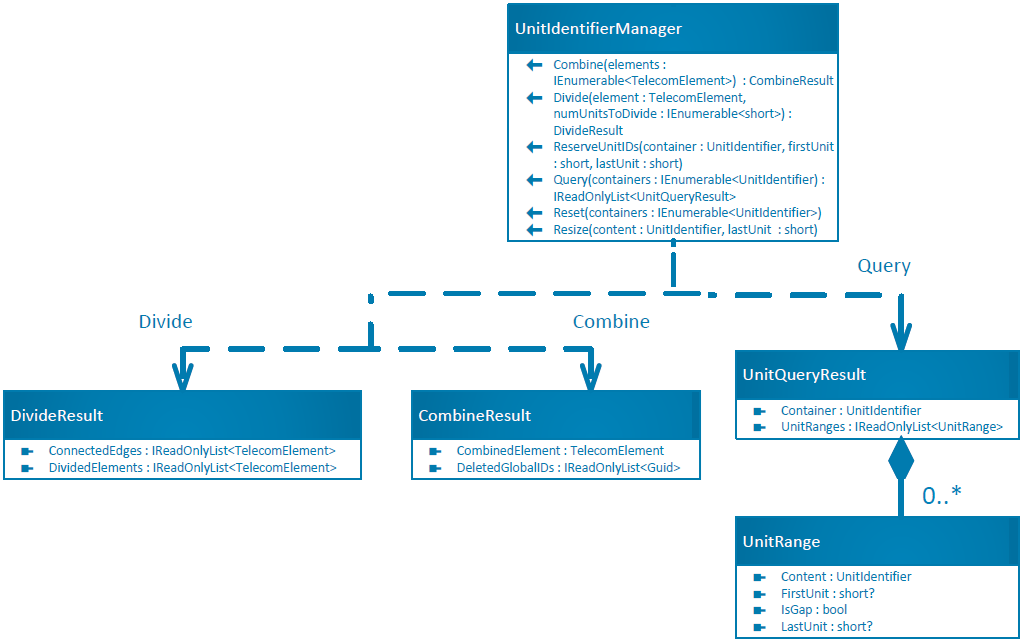
An instance of UnitIdentifierManager can be obtained from the UtilityNetwork class by calling the GetUnitIdentifierManager() method.
// Get the UnitIdentifierManager from the utility network
UnitIdentifierManager unitIdentifierManager = utilityNetwork.GetUnitIdentifierManager();
The UnitIdentifierManager provides the following methods for managing unit identifiers:
The Query method enables users to retrieve contents from multiple containers as a set of UnitQueryResult objects. Each result includes container details and a collection of content (UnitRange) within the container, including any gaps.
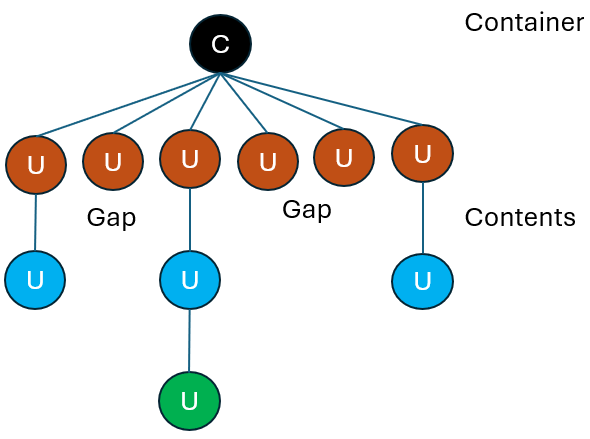
The UnitRange class describes content units within a container, such as ports in a switch or slots in a rack. Together, UnitRange and UnitIdentifier help organize junction objects and establish their logical connections. For example, you can represent a switch with 48 ports as a Container unit, using UnitRange objects for each port. This setup lets users manage connectivity for each port individually.
// Containers to query
UnitIdentifier containerUnitId = new UnitIdentifier(networkSource, globalID);

// Query the unit identifiers in the container
IReadOnlyList<UnitQueryResult> unitQueryResults = unitIdentifierManager.Query(new List<UnitIdentifier> { containerUnitId });

// Iterate through the query results
foreach (UnitQueryResult unitQueryResult in unitQueryResults)
{
  UnitIdentifier unitIdentifier = unitQueryResult.Container;
  IReadOnlyList<UnitRange> unitsInAContainer = unitQueryResult.UnitRanges;

  // Iterate through the unit ranges (contents) in the container
  foreach (UnitRange unitRange in unitsInAContainer)
  {
    UnitIdentifier contentUnitId = unitRange.Content;
    // True if the content is a gap (empty space reserved for installing a larger piece of equipment)
    bool isContentGap = unitRange.IsGap;

    short? firstUnit = unitRange.FirstUnit;
    short? lastUnit = unitRange.LastUnit;
  }
}
The ReserveUnitIDs method reserves a unit range in container equipment, creating a gap that allows users to prepare for installing a larger unit.
// Reserve a space in the container with unit range, firstUnit:2 to lastUnit:5
unitIdentifierManager.ReserveUnitIDs(containerUnitIdentifier, 2, 5);
This operation shifts existing records in the containment hierarchy of a unit container's NextUnitID sequence to reserve a range of units in a telecom domain network. When a gap is inserted at the end of the sequence, the NEXTUNITID attribute value for the unit container increases. If a gap is inserted into the middle of an existing sequence, the system will attempt to shift existing records to accommodate the reserved space.
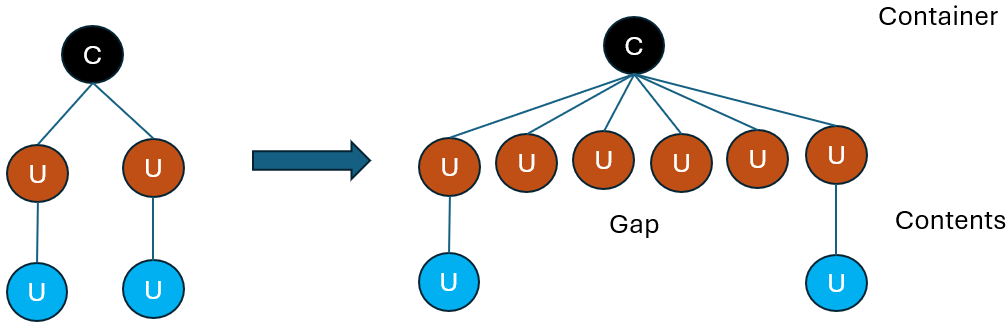
The Resize method changes the number of content units associated with container equipment, and the NEXTUNITID attribute value for the unit container changes accordingly.
// Create a UnitIdentifier for the content
UnitIdentifier content = new UnitIdentifier(networkSource, contentGlobalId);

// Update the number of units (contents) in an equipment container to 6 units
unitIdentifierManager.Resize(content, 6);
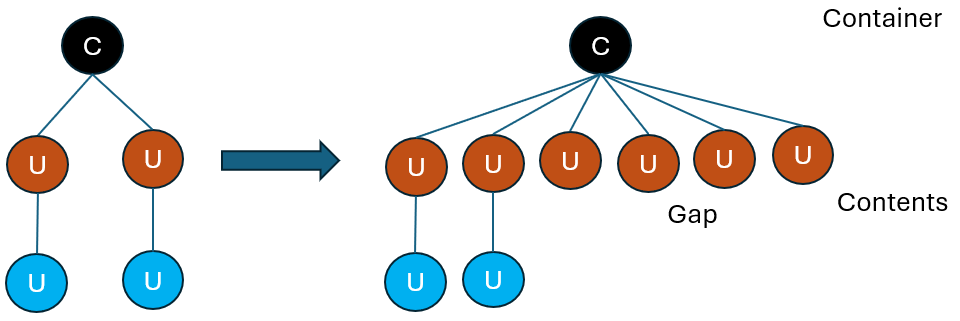
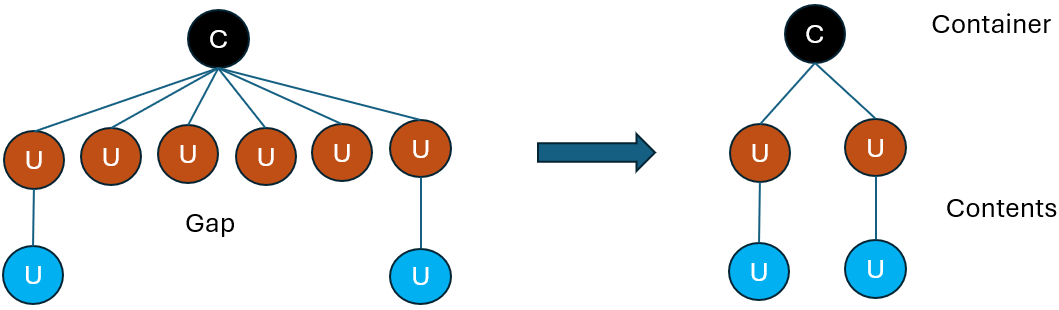
The Reset method removes gaps and condenses the unit space so that it remains contiguous within the equipment hierarchy.
// Reset all containers to remove gaps and make the unit space contiguous
unitIdentifierManager.Reset(new[] { containerUnitIdentifier  });
The Divide method divides a telecom element into multiple elements based on a set of units for each divided element. The DivideResult includes the new divided elements and new connected edges created between them.
// For example, a switch with 48 ports can be divided into 4  multiple elements.
DivideResult divideResult = unitIdentifierManager.Divide(telecomElement, new List<short>() { 16, 16, 8, 8 });
The Combine method combines multiple telecom elements into a single element based on their unit identifiers. The CombineResult includes a combined element and GlobalID of the deleted elements.
// Combine the previously divided switch elements back into a single element
CombineResult combineResult = unitIdentifierManager.Combine(new List<TelecomElement>() { telecomElement1, telecomElement2, telecomElement3, telecomElement4 });
Trace and Export
Unlike traditional utility networks, telecom domain networks contain mostly non-spatial features and have very high cardinality, with millions of telecom circuits compared to a few thousand electric circuits. In addition, the telecom data model supports complex containment hierarchies, logical grouping of non-spatial objects, and incomplete connectivity that can be resolved by inferring connections through containment. To support this model, the existing trace framework has been expanded to enable tracing through grouped edge and junction objects and to introduce two new trace types: Circuit and Path.
Virtual circuits are often established between start and stop locations where the physical network is unknown. As a result, a Path trace between the start and stop points of a virtual circuit will not succeed, and users should use a Circuit trace in that environment instead.
Trace configuration
Users can configure trace options for path and circuit traces, such as the number of paths (NumPaths, default: 2) and the maximum number of hops between edges (MaxHops, default: 100). Traces typically assume existing connectivity. The InferConnectivity option allows the system to infer connections between objects, even if some network features are not modeled, reducing the number of records. Setting SynthesizeGeometries = true enables the trace to infer geometry for both physical and virtual circuits.
// Trace configuration for telecom domain network
TraceConfiguration traceConfiguration = new TraceConfiguration()
{
    MaxHops = 100,
    NumPaths = 2,
    DomainNetwork = telecomDomainNetwork,
    InferConnectivity = true,
    SynthesizeGeometries =true,
};
For example, users may choose not to model every aspect of their telecom network, such as patch cables in a patch panel. They know that connectivity exists, but the exact details are not important for their workflow. They may also want to reduce the number of patch cable records in their system. Connectivity inference helps these users identify and model circuits even when some connectivity details are missing.
Path Trace
A path trace returns a sequence of non-repeating edges (fiber strands) and junctions (devices) that connect the start and stop locations (ports) in a network. It uses a set of starting locations to begin the trace and a set of stopping locations to end it. Path geometry can also be returned for visualization and validation. The following example demonstrates how to run a path trace.
Create start and stop locations for the path trace.
// Create start and stop locations for the path trace
TelecomElement startElement = utilityNetwork.CreateElement(assetType, startGuid) as TelecomElement;
TelecomElement stopElement = utilityNetwork.CreateElement(assetType, stopGuid) as TelecomElement;
List<TelecomElement> startingLocations = new List<TelecomElement>() { startElement };
List<TelecomElement> stoppingLocations = new List<TelecomElement>() { stopElement };
Set trace configuration for the telecom domain network.
// Set trace configuration for the telecom domain network
TraceConfiguration traceConfiguration = new TraceConfiguration()
{
    MaxHops = 100,
    NumPaths = 2,
    DomainNetwork = telecomDomainNetwork,
    InferConnectivity = true
};
Configure the trace argument with starting and stopping locations, and set the trace result type to
ResultType.Path.// Configure trace argument TraceArgument traceArgument = new TraceArgument(startingLocations) { StoppingLocations = stoppingLocations, Configuration = traceConfiguration, ResultTypes = new List<ResultType>() { ResultType.Path }, ResultOptions = new ResultOptions { IncludeGeometry = true } };Get the
PathTracerfrom the trace manager and execute the trace asynchronously.// Execute the path trace PathTracer pathTracer = traceManager.GetTracer<PathTracer>(); IReadOnlyList<Result> results = pathTracer.Trace(traceArgument, ServiceSynchronizationType.Asynchronous); // Iterate path trace results foreach (Result result in results) { if (result is PathResult pathResult) { IReadOnlyList<Path> paths = pathResult.Paths; foreach (Path path in paths) { Element startLocation = path.StartLocation; Element stopLocation = path.StopLocation; Geometry pathGeometry = path.Geometry; IReadOnlyList<PathConnectivity> pathConnectivities = path.PathConnectivities; foreach (PathConnectivity pathConnectivity in pathConnectivities) { Console.WriteLine($"Edge: {pathConnectivity.Edge.GlobalID}, Junction: {pathConnectivity.Junction.GlobalID}"); } } } else { Console.WriteLine("Unexpected result type."); } }
Circuit Trace
Unlike other trace types, which use the network index exclusively, circuit trace uses information from both the network index and the circuit tables (Circuit, CircuitSection, and Subcircuit). As a result, circuit trace can trace virtual circuits that are not represented in the network index. It can also use the network index to infer missing connectivity when identifying the path between the starting and stopping locations.
Circuits can be traced either by name or by location, such as a start or stop location. If a circuit is virtual, the geometry for the virtual section is shown as a line between the defining start and stop locations. The following example illustrates how to execute a circuit trace.
Get a circuit to start tracing.
// Get a circuit to start tracing by name
Circuit circuitToTrace = circuitManager.GetCircuits(new List<string> { circuitName }).FirstOrDefault();
Set trace configuration for the telecom domain network.
// Set trace configuration for the telecom domain network
TraceConfiguration traceConfiguration = new TraceConfiguration()
{
    MaxHops = 10,
    NumPaths = 5,
    DomainNetwork = telecomDomainNetwork,
    InferConnectivity = true,
    SynthesizeGeometries = true
};
Set the trace argument for the circuit result type (
ResultType.Circuit)// Configure trace argument for circuit trace TraceArgument traceArgument = new TraceArgument(circuitToTrace) { Configuration = traceConfiguration, ResultTypes = new List<ResultType> { ResultType.Circuit }, ResultOptions = new ResultOptions() { IncludeGeometry = true } };Execute the circuit trace.
// Execute the circuit trace
CircuitTracer circuitTracer = traceManager.GetTracer<CircuitTracer>();
IReadOnlyList<Result> results = circuitTracer.Trace(traceArgument);

// Iterate circuit trace results
foreach (Result result in results)
{
    if (result is CircuitResult circuitResult)
    {
        IReadOnlyList<CircuitPath> circuitPaths = circuitResult.CircuitPaths;
        foreach (CircuitPath circuitPath in circuitPaths)
        {
            Circuit circuit = circuitPath.Circuit;
            Path path = circuitPath.Path;
            IReadOnlyList<PathConnectivity> pathConnectivities = path.PathConnectivities;
            foreach (PathConnectivity pathConnectivity in pathConnectivities)
            {
                Console.WriteLine($"Edge: {pathConnectivity.Edge.GlobalID}, Junction: {pathConnectivity.Junction.GlobalID}");
            }

            Geometry geometry = circuitPath.Geometry;
            IReadOnlyDictionary<int, Path> sectionPaths = circuitPath.SectionPaths;
            foreach (KeyValuePair<int, Path> sectionPath in sectionPaths)
            {
                int sectionID = sectionPath.Key;
                Path sectionGeometry = sectionPath.Value;
                Console.WriteLine($"Section ID: {sectionID}, Section Geometry: {sectionGeometry.Geometry.ToJson()}");
            }
        }
    }
    else
    {
        Console.WriteLine("Unexpected result type.");
    }
}
Export
To export trace results to a JSON file, use the Export method in the CircuitManager class. Specify the circuit name, destination file path, and CircuitExportOptions, which determine whether to include the domain description, acknowledgments, trace configuration, trace results and options, and synchronization information as illustrated below.

// Circuit names to export
List<string> circuitNames = new List<string> { "LongIslandToLondonCircuit", "VirtualPhillyCircuit", "JacksonVilleToMaineCircuit" };

// Destination JSON file path for the exported circuit information
Uri circuitExportPath = new Uri(@"C:\Path\To\Your\Location");

// Get network sources for the trace result options
NetworkSource telcoDeviceNWSource = networkSources.First(f => f.Name.Contains("TelcoDevice"));
NetworkSource telcoCircuit = networkSources.First(f => f.Name.Contains("TelcoCircuit"));

// Set trace configuration
TraceConfiguration traceConfiguration = new TraceConfiguration()
{
  InferConnectivity = false,
  DomainNetwork = telecomDomainNetwork,
  IncludeContainers = true,
  IncludeContent = true,
  SynthesizeGeometries = false
};

// Set result options for the circuit export
ResultOptions resultOptions = new ResultOptions()
{
  IncludeGeometry = true,
  NetworkAttributes = networkAttributeNames.ToList(),
  ResultFields = new Dictionary<NetworkSource, List<string>>() { { telcoDeviceNWSource, ["NEXTUNITID", "PARTITIONID"] },
    { telcoCircuit, ["LongTestField", "TextTestField", "DateTestField"] }}
};

// Set circuit export options
CircuitExportOptions circuitExportOptions = new CircuitExportOptions()
{
  IncludeDomainDescriptions = true,
  ResultOptions = resultOptions,
  ResultTypes = new List<ResultType> { ResultType.Circuit, ResultType.Path },
  ServiceSynchronizationType = ServiceSynchronizationType.Asynchronous,
  SetAcknowledged = false,
  TraceConfiguration = traceConfiguration
};

// Export the circuit information to a JSON file
circuitManager.Export(circuitNames, circuitExportOptions, circuitExportPath);
Refer to the Circuit trace and Path trace section for more details on trace configuration and options.