ProGuide NET 10 Upgrade
Language:      C#
Subject:       Framework
Contributor:   ArcGIS Pro SDK Team <arcgisprosdk@esri.com>
Organization:  Esri, https://www.esri.com
Date:          04/20/2026
ArcGIS Pro:    3.7
Visual Studio: 2026
- Overview
- Migrating from .NET 8 to .NET 10
- Migrating from .NET Framework to .NET 10
- Developing new Add-ins for 3.7 and newer releases
- Drag/Drop Changes for .NET 10
Overview
At release 3.7, ArcGIS Pro moved to .NET 10, Microsoft's latest version of .NET (formerly known as ".NET Core") with Long Term Support, LTS.
- This is not a breaking change.
- There are no changes to Pro APIs that require re-compilation
- Add-ins deployed on ArcGIS Pro 3.0 - 3.6 will run on 3.7 and newer 3.x releases without re-compilation*.
*Please see the section on Copy/Paste in .Net 10
Migrating from .NET 8 to .NET 10
Migrating Add-ins and Configurations
For your ArcGIS Pro SDK .NET development going forward at 3.7+, to re-compile an Add-ins (or Managed Configuration) that was built on 3.3 through 3.6 against Pro 3.7+, please consult the following migration procedure. It generally applies to all .NET 8 Pro SDK 3.3 to 3.6 Add-ins and Configurations development projects even though only "add-ins" are explicitly mentioned. To recompile an add-in that was built on 3.0 through 3.2 (i.e. on .NET 6) it is recommended that you consult ProGuide .NET 8 Upgrade Migrating from .NET 6 to .NET 8 first.
Assuming that Pro 3.7+ has been installed...
- Upgrade your Visual Studio 2022 to Visual Studio version 18.4.1 or better (please refer to ArcGIS Pro SDK requirements). Ensure that you install .NET 10 as part of the Visual Studio update process.
- Change the target framework in your existing Visual Studio project to .NET 10
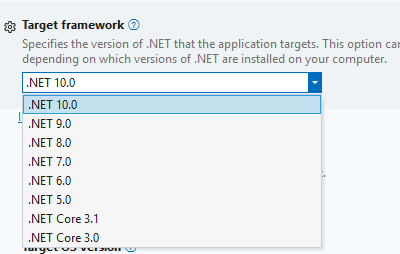
- Open the Config.daml file and change the desktopVersion attribute on the add-in Info tag to 3.7

- If your project is using the Pro SDK "Esri.ArcGISPro.Extensions" NuGet package, upgrade it to version 3.7 or better. If you get a
NU1202 Package Esri.ArcGISPro.Extensions30 3.7.0.xxxx is not compatible with net8.0-windows7.0error, it means you forgot to change your target framework to .NET 10 first. - If you are using the Microsoft.Windows.Compatibility NuGet, update it to version 10.0.5 or better.
- If your project is using any other NuGet packages, ensure they are compatible with .NET 10. Update as needed.
- If needed, run the "Fix Pro References" Pro SDK tool on your add-in.
- Recompile.
Note: if you see errors similar to the following:
Error	CS1705
Assembly 'ArcGIS.Desktop.Framework' with identity 'ArcGIS.Desktop.Framework, Version=13.7.0.0, Culture=neutral, PublicKeyToken=8fc3cc631e44ad86'
uses 'System.Runtime, Version=10.0.0.0, Culture=neutral, PublicKeyToken=b03f5f7f11d50a3a' which has
a higher version than referenced assembly 'System.Runtime' with identity 'System.Runtime, Version=8.0.0.0, Culture=neutral, PublicKeyToken=b03f5f7f11d50a3a'
   "YourProjectName here" ...
You have forgotten to change the target framework of your project from .NET 8 to .NET 10.
Migrating CoreHost applications
In order to migrate a CoreHost C# project that was developed for an older release of ArcGIS Pro, you simply have to change the project's "Target Framework" setting to the .NET release required by you current ArcGIS Pro release (see step 2. under the previous section). The following ArcGIS Pro releases require the following corresponding .NET releases when developing using the ArcGIS Pro SDK:
- ArcGIS Pro 3.7: .NET 10 is required
- ArcGIS Pro 3.3 - 3.6 require .NET 8
- ArcGIS Pro 3.0 - 3.2 require .NET 6
Note that once you rebuild under a new Target Framework you lose backward compatibility with any previous releases of ArcGIS Pro.
Building CoreHost applications with forward compatibility
The following discussion provides some guidelines you can follow to achieve forward compatibility with newer 3.x releases with your CoreHost standalone applications. To recap, "CoreHost" applications are simply .NET application exe's compiled against a target .NET framework matching the .NET version of the installed ArcGIS.Core.dll and ArcGIS.CoreHost.dll assemblies (at the time of compilation). They are named 'CoreHost' applications because of the dependency on the ArcGIS.CoreHost.dll to initialize the underlying Pro licensing and native libraries.
Deployment Mode
The default deployment mode in Visual Studio is Framework-dependent deployment. In Framework-dependent deployment, FDD, the resulting exe is configured to target a specific version of .NET and that targeted .NET runtime is required to be on the environment when the app (i.e. your "CoreHost" exe) runs. This is the most convenient way to compile and publish an exe as the app simply uses the runtime on the machine, assuming it is compatible, but does have the disadvantage in that it needs to be recompiled if the target runtime changes. In FDD, the dotnet.exe executable acts as the host for FDD applications. Dotnet.exe finds the correct runtime version, loads it, and then executes the application's entry point.
The converse publishing method is called Self-Contained Deployment, SCD, in which the application is compiled and published with all of the required .NET libraries, target runtime, and any app dependencies included with the exception of any native dependencies. SCDs have the advantage of not requiring the required .NET runtime to be installed on the target machine but they are much larger than an FDD application and probably need a custom installer to deploy them. Given that the Pro application must already be deployed on the target machine on which your CoreHost app exe will be running, the required .NET runtime will also be deployed, along with the ArcGIS.Core.dll and ArcGIS.CoreHost.dll assemblies, rendering any advantage of the self contained deployment method moot. SCD should not be used for CoreHost applications.
Assembly Resolving
Your CoreHost application requires references to the following ArcGIS Pro assemblies: ArcGIS.Core and ArcGIS.CoreHost. For purposes of forward compatibility, assembly resolution should be handled at runtime with an assembly resolver. To implement assembly resolving, you should:
- Set the Copy Local attribute to 'No'. The default is 'Yes'. (Right click on the
ArcGIS.Core.dllandArcGIS.CoreHost.dlldependencies in the VS solution explorer and select 'Properties') - Make sure 'Specific Version' is blank or set to 'No'.
- Do not add any Pro dependent code into your
Main(string[] args)method. Instead, delete the defaultHost.Initialize();line added in automatically by the CoreHost application project template and place it in a new method that your "Main" method will invoke. - Add the assembly resolution code from the CoreHostResolveAssembly sample into your application. Specifically, the line in Main that registers the assembly resolver:
currentDomain.AssemblyResolve += new ResolveEventHandler(ResolveProAssemblyPath);and the method/methods that contain the actual resolution code itself. - To update the target framework, the target framework should be changed in the Application properties and the CoreHost application recompiled.
Dotnet exec
Assuming you have followed all of the above steps for building your CoreHost app for forwards compatibility, you can potentially* avoid recompilation by invoking your (FDD) CoreHost application** directly from the command line or a script or shortcut via the dotnet exec command. Two options you can use with dotnet exec for this purpose are:
--fx-version <version>- where "version" is the (exact) installed .NET version to use to run the application. Usedotnet --list-runtimes --X64to list the installed runtimes.--roll-forward <value>where "value" is one ofLatestPatch,Minor,LatestMinor,Major,LatestMajor,Disable. Microsoft describes each value as follows:- LatestPatch: Rolls forward to the highest patch version with the same major and minor version.
- Minor: Rolls forward to the highest minor version if the requested minor version is missing.
- Major: Rolls forward to the highest major and minor version if the requested major version is missing.
- LatestMinor: Rolls forward to the highest available minor version, even if the requested version is present.
- LatestMajor: Rolls forward to the highest available major version, even if the requested version is present.
- Disable: Disables roll-forward; the application will only run if the exact specified version is found.
Generally speaking, "fx-version" will probably be the preferred option to use.
*It depends on what assemblies, NuGets, etc your application may be dependent on and "their" dependencies.
**You will be invoking the CoreHost output .dll, not the exe. When you compile a .NET application, there is both an output dll and exe. The dll is actually your compiled application code while the exe is the platform specific wrapper to launch it.
Here are some command line examples. The CoreHost application is called MyCoreHostApp. Refer to Select the .NET version to use for more information:
//Run MyCoreHostApp.dll using .NET version 10.0.5 - assumes 10.0.5 is installed on the machine or
//fx-version will fail
>dotnet exec --fx-version "10.0.5" "C:\Data\SDK\Test\MyCoreHostApp\bin\MyCoreHostApp.dll"

//Run MyCoreHostApp.dll using .NET with the highest patch version with the same major and minor version
//as MyCoreHostApp targets installed on the machine - assumes there is a patched version
//of the requested .NET MyCoreHostApp targets -with the same major and minor version- or "roll-forward" fails
>dotnet exec --roll-forward LatestPatch "C:\Data\SDK\Test\MyCoreHostApp\bin\MyCoreHostApp.dll"

//Run MyCoreHostApp.dll using .NET with whatever is the highest major version regardless of what the
//MyCoreHostApp targets. This will fail if the latest version of .NET on the machine is not compatible
//with MyCoreHostApp.dll
>dotnet exec --roll-forward LatestMajor "C:\Data\SDK\Test\MyCoreHostApp\bin\MyCoreHostApp.dll"

//Note:
//dotnet.exe is typically located at C:\Program Files\dotnet\dotnet.exe. If "C:\Program Files\dotnet" is
//not in your PATH you will have to add it or give a fullpath reference to dotnet.exe
Note: The community samples repository contains a command line app that allows you to automate the process of finding the correct release of .NET in order to ensure forward compatibility of your CoreHost application. You can find the sample here: RunCoreHostApp
Migrating from .NET 6 to .NET 10
Note: You may need to follow the procedure in ProGuide NET 8 Upgrade, Migrating from .NET 6 to .NET 8 to migrate to .NET 8 first. Otherwise, simply follow the steps above substituting .NET 6 for .NET 8.
If you are re-compiling a CoreHost console .exe that was created in .NET 6 and you see an error similar to the following:
Error  NETSDK1083
The specified RuntimeIdentifier `win10-x64` is not recognized. See https://aka.ms/netsdk1083 for more information.
Open your .csproj and ensure the following lines show the correct content. Change as needed:
<TargetFramework>net8.0-windows</TargetFramework>
<!--RuntimeIdentifier>win10-x64</RuntimeIdentifier --><!-- old - note win"10"-x64 -->
<RuntimeIdentifier>win-x64</RuntimeIdentifier><!-- new - "win10-x64" was changed to "win-x64" -->
For more information consult NETSDK1083: The specified RuntimeIdentifier is not recognized
Migrating from .NET Framework to .NET 10
If you have an add-in created using version 2.x and the .NET Framework, you will need to follow the procedure in the ProConcepts 3.0 Migration Guide to convert your project to Pro 3.x and .NET 6 first. Moving from 2.x to 3.x is a breaking change. With your add-in converted to a 3.x add-in, follow the procedure above, as necessary, to re-compile on Pro 3.7+ and .NET 10.
Developing new Add-ins for 3.7 and newer releases
- Upgrade Visual Studio to 18.4.1 at a minimum and make sure that .NET 10 is included (please refer to ArcGIS Pro SDK requirements).
- Upgrade your Pro and Pro SDK versions to 3.7+
- Create a new ArcGIS Pro SDK project in Visual Studio using the appropriate Pro SDK project template.
Drag/Drop Changes for .NET 10
Starting at .NET 9, and now at .NET 10, Microsoft .NET no longer includes support for the BinaryFormatter. This is due to security and vulnerability considerations: Microsoft BinaryFormatter migration guide and Announcement: BinaryFormatter is being removed in .NET 9 #98245. The BinaryFormatter was commonly used across the .NET platform for drag and drop and copy/paste. What this means in practice is that .NET code like the following, which interacts with the clipboard, will no longer work:
IDataObject dataObj = Clipboard.GetDataObject();
ArrayList array = dataObj.GetData(typeof(ArrayList)) as ArrayList; // Returns null in .NET 9+
...
However, content can be serialized to the clipboard as text. So, for example, the following code does work to retrieve content copied to the clipboard as text: Clipboard.GetText() and/or Clipboard.GetText(TextDataFormat.UnicodeText). Obviously, any custom add-in code using the clipboard will also be affected and would have to be recoded to work with .NET 10.
Specifically, when dealing with the dragInfo.Data property on the ArcGIS.Desktop.Framework.DragDrop.DragInfo class, the same behavior described above will be observed. As dragInfo.Data "points" to the underlying System.Windows.IDataObject object that was placed on the clipboard (via copy/paste or drag/drop), dragInfo.Data will no longer contain binary data, same as the underlying System.Windows.IDataObject it points to. Therefore, to support drag/drop between Pro instances, between an add-in and the Catalog view, and/or between an add-in and content dragged off Windows Explorer, the source and target must use text starting at .NET 10. Note, inter-application drag/drop from the map or layout TOC to an add-in is not affected. To be compatible with Pro, text being used to write to the clipboard must be the serialized/deserialized xml of the object or objects being dragged/dropped or copy/pasted.
The following code snippet shows the pattern 3.7+ add-ins should use when accessing dragInfo.Data. This code snippet was taken from the ArcGIS Pro SDK 'DragAndDrop' community sample. Note the following line: else if (dropInfo.Data is string xml) {. If the dropInfo.Data contains text, if it is xml, it can be deserialized into an array of ArcGIS.Desktop.Core.ClipboardItem before being accessed. In 3.6, and earlier, the array of ClipboardItem could be accessed directly - dropInfo.Data is List<ClipboardItem> clipboardItems. In 3.7+ and .NET 10, that line will always return false.
Here is the complete implementation of the Drop handler routine taken from the custom DragAndDropDockpane1ViewModel dock pane view model class in the Framework DragAndDrop sample:
public override async void OnDrop(DropInfo dropInfo)
{
  //eg, if you are accessing a dropped file
  string filePath = dropInfo.Items[0].Data.ToString();
  if (dropInfo.Data is List<ClipboardItem> clipboardItems) //Dropped from Catalog in 3.6 or earlier
                                                           //Will always be _false_ at 3.7 or later
  {
    var thisItem = clipboardItems.FirstOrDefault();
    var itemInfo = thisItem.ItemInfoValue.typeID;
    if (itemInfo != "database_fgdb") //Not a file gdb
    {
      dropInfo.Handled = false;
      ArcGIS.Desktop.Framework.Dialogs.MessageBox.Show($"Drag and drop File GDB only here");
      return;
    }
    Name = thisItem.CatalogPath;
  }
  else if (dropInfo.Data is string xml) //This is new for 3.7+!!! Note that it checks for type of "string"
                                        //-not- binary format as above
  {
    var serializer = new XmlSerializer(typeof(ClipboardItem[]));//Deserialize
    using (var reader = new StringReader(xml))
    {
      var clipBoardItems = (ClipboardItem[])serializer.Deserialize(reader);//returns null if dropInfo.Data
                                                                           //did not come from Pro
      // Use clipBoardItems as needed
      // For example, you can process the first item:
      var thisItem = clipBoardItems?.FirstOrDefault();
      if (thisItem != null)
      {
        var itemInfo = thisItem.ItemInfoValue.typeID;
        if (itemInfo != "database_fgdb") //Not a file gdb
        {
          dropInfo.Handled = false;
          ArcGIS.Desktop.Framework.Dialogs.MessageBox.Show($"Drag and drop File GDB only here");
          return;
        }
        Name = thisItem.CatalogPath;
      }
    }
  }
  else //Dropped from File Explorer
  {
    FileInfo file = new FileInfo(filePath);
    if (string.Compare(file.Extension, ".gdb", true) == 0) //.gdb
    {
      Name = filePath;
      dropInfo.Handled = true;
    }
    else //Not a .gdb
    {
      dropInfo.Handled = false;
      ArcGIS.Desktop.Framework.Dialogs.MessageBox.Show($"Drag and drop File GDB only here");
      return;
    }
  }

  GDBItems = await GetGDBItemsAsync();
  //set to true if you handled the drop
  dropInfo.Handled = true;

}