Advanced service properties
For some workflows, administrators may need to adjust properties of published geoprocessing services. These adjustments apply to both standalone servers and federated servers. Examples include the following:
Spatial analysis with large raster datasets that require substantial memory.
Uploading large input files for a web tool or geoprocessing service.
Performance optimization.
Custom logging requirements.
Obtaining additional diagnostic output when a geoprocessing service fails.
Controlling the visibility of individual tasks within a geoprocessing service.
Other common scenarios that require adjusting these properties include performance optimization, custom logging requirements, obtaining additional diagnostic output when a geoprocessing service fails, and controlling the visibility of individual tasks within a geoprocessing service.
Most of the properties described below can only be configured using the Administrator REST API. Once you or your administrator have access to the Administrator REST API, you need to edit the service properties for every geoprocessing service you need to modify.
Change the heap size
The heap size property controls the maximum file size that can be provided from the client when it accesses the web tool or geoprocessing service from ArcGIS Pro, along with the maximum memory a geoprocessing service can use. The heap size can be set at the server level for all geoprocessing services, or set for a single service.
Changing the heap size for individual service provides better performance than changing the heap size for all services on the entire server. For each service, the default heap size is 64 MB. If you have an input file or feature class larger than the default size, change the service heap size as follows:
Access the Edit the service properties endpoint for the geoprocessing service you need to modify. Typically, it will be
https://organization.example.com/serverwebadaptor/admin/services/servicename.GPServer/edit.Examine the existing
frameworkProperties, typically near the bottom among all the service properties.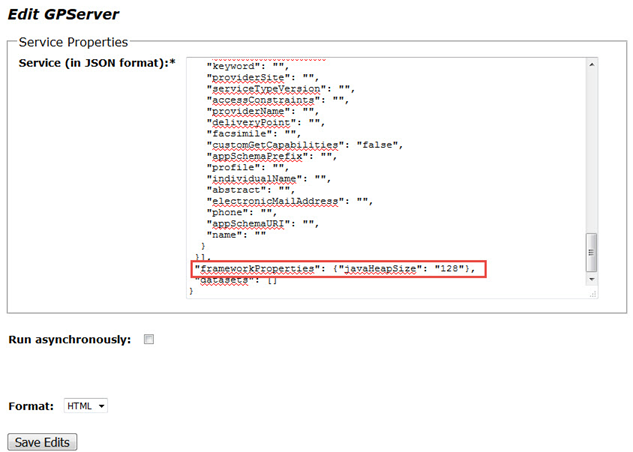
If
javaHeapSizeis not listed in theframeworkProperties, add{"javaHeapSize":"128"}example. IfjavaHeapSizeis included, increase the value to the appropriate amount.Click Save Edits to save and finish editing.
To change the heap size for all geoprocessing services on the entire server, complete the following steps. By default, the server object component (SOC) maximum heap size is set to 64 MB. Increase it an appropriate amount.
Access the edit machines endpoint. Typically, it is at
https://organization.example.com/serverwebadaptor/admin/machines/machinename/editIncrease the value of SOC maximum heap size (in MB).
Click Save Edits to finish editing.
Set the upload size
The upload size setting controls the file size that can be uploaded by clients connecting to the service through a REST end point. These clients are typically web clients using the service through a custom web app. By default, the limit is set to 2 GB. Use this setting to provide an appropriate default to prevent large uploads for the service.
To set the upload size, access the Edit the service properties endpoint for the geoprocessing service you need to modify. Typically, it will be https://organization.example.com/serverwebadaptor/admin/services/servicename.GPServer/edit. Update the value of the maxUploadFileSize property. A sample entry restricting the maximum file upload size to 100 MB will be "maxUploadFileSize": 100,.
Note:
When publishing a web tool, ensure that the Uploads check box in the Configuration panel of Share As a Web Tool is checked. Alternatively, enable this setting on an existing service through ArcGIS Server Manager on the Capabilities settings page of the service.
Set the upload type
Only certain files can be uploaded to a web tool. These files are restricted by their extension type, which is set at the service level.
To set the upload type, access the Edit the service properties endpoint for the geoprocessing service you need to modify. Typically, it will be https://organization.example.com/serverwebadaptor/admin/services/servicename.GPServer/edit. Update the allowedUploadFileTypes property by adding the file extensions you want to allow. A sample property allowing .kml and .gpx files is "allowedUploadFileTypes": ".kml,.gpx".
Note:
When publishing a web tool, ensure that the Uploads check box in the Configuration panel of Share As a Web Tool is checked. Alternatively, enable this setting on an existing service through ArcGIS Server Manager on the Capabilities settings page of the service.
Change the maximum domain count
The maxDomainCodeCount setting controls the number of domains that will be returned with a service response. The domain descriptions match to a code returned with the feature output response. This setting has a default of 1000. If the output features have more than 1,000 participating domains, no domain information will be returned. Returning domain information may increase the size of the response. If domains are not required, set this value to 0 or to a value less than the number of domains in a service.
To change the maximum domain count, access the Edit the service properties endpoint for the geoprocessing service you need to modify. Typically, it will be https://organization.example.com/serverwebadaptor/admin/services/servicename.GPServer/edit. and update the maxDomainCodeCount property and set the maximum limit. A sample of restricting the maximum domain count to 50 will be "maxDomainCodeCount": 50,.
Local temp folder
The local temp folder is a directory where ArcGIS Server writes intermediate output when the server participates in a cluster with more than one machine, or the directories are referenced using a UNC path. This can improve performance by avoiding the writing of intermediate data to a UNC path scratch geodatabase or scratch folder. When complete, results are copied from the local temp folder to the jobs directory, which can be a UNC path. A typical local temp folder for an ArcGIS Server on Windows can be c:/Users/arcgisuser/AppData/Local/Temp/system/servicename_gpserver/jobID/scratch. Currently, this temp folder location cannot be changed after your server deployment.
Reuse jobs directory for synchronous services
If your web tool is based on a synchronous geoprocessing service, you can reuse the jobs directory for better performance by applying "reusejobdir": "true". Normally, each time you execute a synchronous geoprocessing service, there will be a jobs folder created in the arcgisjobs folder on your server machine. Upon completion, ArcGIS Server will delete that jobs folder. By setting the reusejobdir property to true, the jobs folder will remain even after a job finishes execution. This can save time creating a scratch GDB and a scratch folder for the next execution, hence providing some performance benefits. Optionally, when you set this property back to "false", or remove this property, contact your administrator to delete any existing jobs folder for this service.
Access the Edit the service properties endpoint for the geoprocessing service you need to modify. Typically, it will be https://organization.example.com/serverwebadaptor/admin/services/servicename.GPServer/edit.
The following is a simplified JSON showing the reusejobdir property. Other properties have been hidden to highlight the change relevant to this property.
{
    "serviceName": "sample",
    "type": "GPServer",
    "other_properties": "other_values",
    "properties": {
        "other_properties": "other_values",
        "reusejobdir": true,
        "executionType": "Synchronous"
    },
    "portalProperties": {},
    "extensions": []
}
Write messages to the ArcGIS Server log
If a web tool is published to ArcGIS Server 11.3 or later, you can include a copy of the messages from the web tool in the ArcGIS Server log. The ArcGIS Server log message level will match the web tool message level. For a web tool message, there are three levels—error, warning, and info—that match severe, warning, and info, respectively, in ArcGIS Server. Manually set web tool messages using script tool messages. Many geoprocessing tools also include preset messages. To ensure that messages are properly logged in ArcGIS Server, specify the server log settings accordingly.
Access the Edit the service properties endpoint for the geoprocessing service you need to modify. Typically, it will be https://organization.example.com/serverwebadaptor/admin/services/servicename.GPServer/edit.
A simplified JSON showing the logGPMessages property. Other properties have been hidden to highlight the change relevant to this property.
{
    "serviceName": "sample",
    "type": "GPServer",
    "other_properties": "other_values",
    "properties": {
        "other_properties": "other_values",
        "logGPMessages": true,
        "executionType": "Asynchronous"
    },
    "portalProperties": {},
    "extensions": []
}
Return results in special cases
When an asynchronous geoprocessing service or a web tool based on an asynchronous geoprocessing service fails or is canceled, no results are available. If such a web tool or geoprocessing service is published to ArcGIS Server 11.5 or later, you can still enable ArcGIS Server to return the results if you are accessing them through the results or result resources in the ArcGIS REST API. This feature is not available when using a synchronous geoprocessing service or a web tool based on a synchronous geoprocessing service. You cannot access the results in ArcGIS Pro for failed or canceled jobs either.
To set the saveRESTResultsOnFailOrCancel property, access the Edit the service properties endpoint for the geoprocessing service you need to modify. Typically, it will be https://organization.example.com/serverwebadaptor/admin/services/servicename.GPServer/edit.
A simplified JSON showing the saveRESTResultsOnFailOrCancel property. Other properties have been hidden to highlight the change relevant to this property.
{
    "serviceName": "sample",
    "type": "GPServer",
    "other_properties": "other_values",
    "properties": {
        "other_properties": "other_values",
        "saveRESTResultsOnFailOrCancel": true,
        "executionType": "Asynchronous"
    },
    "portalProperties": {},
    "extensions": []
}
Block certain tools
When publishing web tools or geoprocessing services, it may be necessary to disable or block access to specific tasks. Starting at ArcGIS Server 11.5, add the blockedTools or allowedTools property to the service properties to block specific tools.
Use the blockedTools property to make specific tools unavailable. Use the allowedTools property to make only specific tools available; all other tools will be inaccessible. Use either property for convenience. To specify a task, use either the name or the display name of the task. When a task has a name that matches another task's display name, both tasks will be recognized and blocked or allowed together.
Access the Edit the service properties endpoint for the geoprocessing service you need to modify. Typically, it will be https://organization.example.com/serverwebadaptor/admin/services/servicename.GPServer/edit.
A simplified JSON showing the blockedTools property with multiple task names to block. Multiple names are separated by semicolons.
{
    "serviceName": "sample",
    "type": "GPServer",
    "other_properties": "other_values",
    "properties": {
        "other_properties": "other_values",
        "blockedTools": "extractData;bufferInputs",
        "executionType": "Synchronous"
    },
    "portalProperties": {},
    "extensions": []
}