Rename a route
 Available with the Linear Referencing license.
You can change the name of a route or the name of a line without affecting any other attributes using the Rename Route tool.
Renaming a route or a line changes all related records across all time slices. For a renamed route, the operation updates the fields configured to store the route name for associated events across all time slices to maintain the association. When renaming a line in a line network, the routes in a derived network (if one is configured) and the associated events with the derived route name field are also impacted.
Route renaming scenarios
The examples below demonstrate the impact of renaming a route in nonline and line networks.
Before renaming a route
In the following scenario, Route1 has two records with different starting and ending measures. The first record has a starting date of 1/1/2000 and an ending date of 1/1/2010 with a measure range of 0 to 18. The second record has a starting date of 1/1/2010 and an ending date of 1/1/2020 with a measure range of 0 to 20.
The following diagram shows the route and its associated event from 1/1/2000 to 1/1/2010:

The following diagram shows the route and its associated events from 1/1/2010 to 1/1/2020:

The following table provides details about Route1 before it is renamed:
| Route Name | From Date | To Date | From Measure | To Measure |
|---|---|---|---|---|
| Route1 | 1/1/2000 | 1/1/2010 | 0 | 18 |
| Route1 | 1/1/2010 | 1/1/2020 | 0 | 20 |
The following table provides details about the associated line event before the route is renamed:
| Event ID | Route Name | From Date | To Date | From Measure | To Measure |
|---|---|---|---|---|---|
| Event1 | Route1 | 1/1/2000 | 1/1/2010 | 5 | 15 |
| Event1 | Route1 | 1/1/2010 | 1/1/2020 | 5 | 20 |
The following table provides details about the associated point event before the route is renamed. Point1 has one event record.
| Event ID | Route Name | From Date | To Date | Measure |
|---|---|---|---|---|
| Point1 | Route1 | 1/1/2010 | 1/1/2020 | 19 |
After renaming a route
After renaming Route1 to RouteA, all of the route records have RouteA as the new route name, and the associated events have RouteA as the associated route name.
The following diagram shows the renamed route and its associated event from 1/1/2000 to 1/1/2010:

The following diagram shows the renamed route and its associated events from 1/1/2010 to 1/1/2020:

The following table provides details about Route1 after it is renamed RouteA. The route has two time records.
| Route Name | From Date | To Date | From Measure | To Measure |
|---|---|---|---|---|
| RouteA | 1/1/2000 | 1/1/2010 | 0 | 18 |
| RouteA | 1/1/2010 | 1/1/2020 | 0 | 20 |
The following table provides details about the associated line event after the route is renamed. Event1 has two event records.
| Event ID | Route Name | From Date | To Date | From Measure | To Measure |
|---|---|---|---|---|---|
| Event1 | RouteA | 1/1/2000 | 1/1/2010 | 5 | 15 |
| Event1 | RouteA | 1/1/2010 | 1/1/2020 | 5 | 20 |
The following table provides details about the associated point event after the route is renamed. Point1 has one event record.
| Event ID | Route Name | From Date | To Date | Measure |
|---|---|---|---|---|
| Point1 | RouteA | 1/1/2010 | 1/1/2020 | 19 |
Before renaming a route on a line
In the following scenario, one of three routes, L1R1, on a line in a line network is renamed.
The following diagram shows the routes from 1/1/2000 to <Null>. Three line events are associated with the routes on the line. Event1 is a spanning event with measures from 2.5 on L1R1 to 15.5 on L1R3. Event2 and Event3 are nonspanning events on L1R1 and L1R3, respectively.
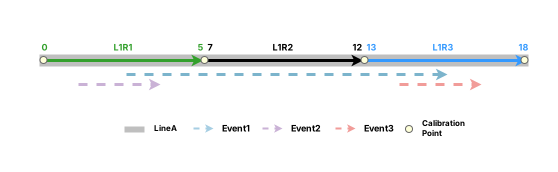
The following table provides details about the routes before L1R1 is renamed:
| Line Name | Route Name | From Date | To Date | From Measure | To Measure |
|---|---|---|---|---|---|
| LineA | L1R1 | 1/1/2000 | <Null> | 0 | 5 |
| LineA | L1R2 | 1/1/2000 | <Null> | 7 | 12 |
| LineA | L1R3 | 1/1/2000 | <Null> | 13 | 18 |
The following table provides details about the associated spanning line event, Event1, before the route is renamed:
| Event ID | From Date | To Date | From Route Name | To Route Name | From Measure | To Measure |
|---|---|---|---|---|---|---|
| Event1 | 1/1/2000 | <Null> | L1R1 | L1R3 | 2.5 | 15.5 |
The following table provides details about the associated nonspanning line events before the route is renamed:
| Event ID | Route Name | From Date | To Date | From Measure | To Measure |
|---|---|---|---|---|---|
| Event2 | L1R1 | 1/1/2000 | <Null> | 1.25 | 3.75 |
| Event3 | L1R3 | 1/1/2000 | <Null> | 14.25 | 16.5 |
After renaming a route on a line
The following diagram shows the routes after L1R1 is renamed L1R1new:
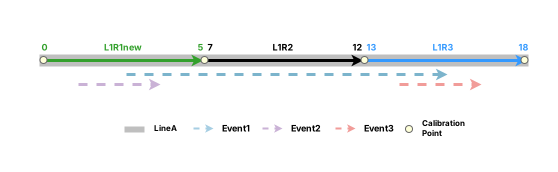
The following table provides details about the routes after L1R1 is renamed L1R1new:
| Line Name | Route Name | From Date | To Date | From Measure | To Measure |
|---|---|---|---|---|---|
| LineA | L1R1new | 1/1/2000 | <Null> | 0 | 5 |
| LineA | L1R2 | 1/1/2000 | <Null> | 7 | 12 |
| LineA | L1R3 | 1/1/2000 | <Null> | 13 | 18 |
The following table provides details about the associated spanning line event after the route is renamed:
| Event ID | From Date | To Date | From Route Name | To Route Name | From Measure | To Measure |
|---|---|---|---|---|---|---|
| Event1 | 1/1/2000 | <Null> | L1R1new | L1R3 | 2.5 | 15.5 |
The following table provides details about the associated nonspanning line events after the route is renamed:
| Event ID | Route Name | From Date | To Date | From Measure | To Measure |
|---|---|---|---|---|---|
| Event2 | L1R1new | 1/1/2000 | <Null> | 1.25 | 3.75 |
| Event3 | L1R3 | 1/1/2000 | <Null> | 14.25 | 16.5 |
Line renaming scenario
The examples below demonstrate the impact of renaming a line in a line network that also has a derived network.
Before renaming the line
In the following scenario, renaming a line in a line network changes the routes on the line that have a line name configured, a route in the derived network, and the associated events with a derived route name configured. LineA has two gapped routes, Lgap1 and Lgap2, and two associated point events, Point1 and Point2.
The following diagram shows the routes from 1/1/2000 to 1/1/2010:

The following diagram shows the routes from 1/1/2010 to 1/1/2020:

The following table provides details about the routes on LineA before it is renamed:
| Line Name | Route Name | From Date | To Date | From Measure | To Measure |
|---|---|---|---|---|---|
| LineA | Lgap1 | 1/1/2000 | 1/1/2010 | 0 | 6 |
| LineA | Lgap1 | 1/1/2010 | 1/1/2020 | 0 | 2 |
| LineA | Lgap2 | 1/1/2000 | 1/1/2010 | 7 | 12 |
| LineA | Lgap2 | 1/1/2010 | 1/1/2020 | 2.5 | 12 |
The following table provides details about the associated point event layer and its event records:
| Event ID | From Date | To Date | Route Name | Measure | Derived Route Name |
|---|---|---|---|---|---|
| Point1 | 1/1/2000 | 1/1/2010 | Lgap1 | 4.5 | LineA |
| Point1 | 1/1/2010 | 1/1/2020 | Lgap2 | 4 | LineA |
| Point2 | 1/1/2000 | 1/1/2010 | Lgap2 | 10.5 | LineA |
| Point2 | 1/1/2010 | 1/1/2020 | Lgap2 | 10.5 | LineA |
The following table provides details about the routes in the derived network based on the line network above before the line is renamed:
| Route Name | From Date | To Date |
|---|---|---|
| LineA | 1/1/2000 | 1/1/2010 |
| LineA | 1/1/2010 | 1/1/2020 |
After renaming the line
The following diagram shows the routes from 1/1/2000 to 1/1/2010 after the line is renamed LineANew:
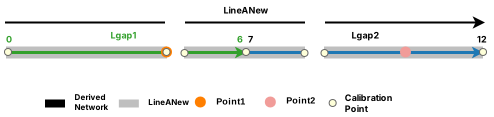
The following diagram shows the routes from 1/1/2010 to 1/1/2020 after the line is renamed LineANew:
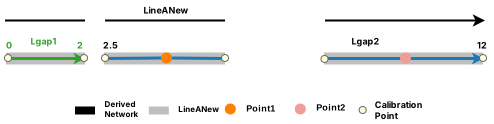
The following table provides details about the routes on LineANew after it is renamed:
| Route Name | Line Name | From Date | To Date | From Measure | To Measure |
|---|---|---|---|---|---|
| Lgap1 | LineANew | 1/1/2000 | 1/1/2010 | 0 | 6 |
| Lgap1 | LineANew | 1/1/2010 | 1/1/2020 | 0 | 2 |
| Lgap2 | LineANew | 1/1/2000 | 1/1/2010 | 7 | 12 |
| Lgap2 | LineANew | 1/1/2010 | 1/1/2020 | 2.5 | 12 |
The following table provides details about the associated point event layer and its event records:
| Event ID | Route Name | From Date | To Date | Measure | Derived Route Name |
|---|---|---|---|---|---|
| Point1 | Lgap1 | 1/1/2000 | 1/1/2010 | 4.5 | LineANew |
| Point1 | Lgap2 | 1/1/2010 | 1/1/2020 | 4 | LineANew |
| Point2 | Lgap2 | 1/1/2000 | 1/1/2010 | 10.5 | LineANew |
| Point2 | Lgap2 | 1/1/2010 | 1/1/2020 | 10.5 | LineANew |
The following table provides details about the routes in the derived network based on the line network above:
| Route Name | From Date | To Date |
|---|---|---|
| LineANew | 1/1/2000 | 1/1/2010 |
| LineANew | 1/1/2010 | 1/1/2020 |
Rename a route in an LRS Network
To rename a route using the Rename Route tool  , complete the following steps:
Open a map in an ArcGIS Pro project and navigate to the location where you want to rename a route.
On the Linear Referencing tab, in the Tools group, click Rename
.The Rename Route pane appears.
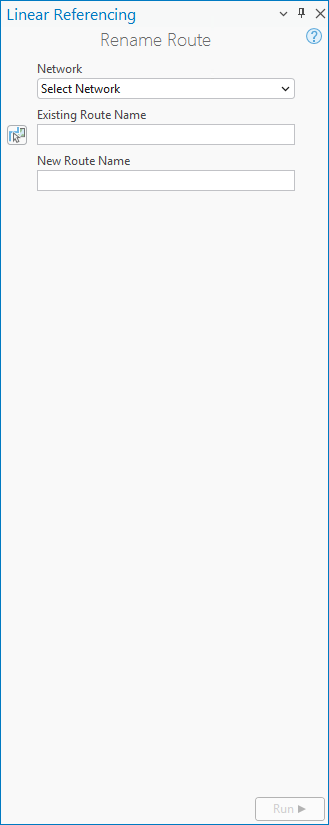
Click the Network drop-down arrow, and choose the LRS Network that contains the route to rename.
Note:
The LRS Network must be configured to store route names.
If the chosen LRS Network is a line network, the Rename Field section includes both the Route Name and Line Name buttons for route and line renaming options.
To rename a line, follow the steps in the next section.
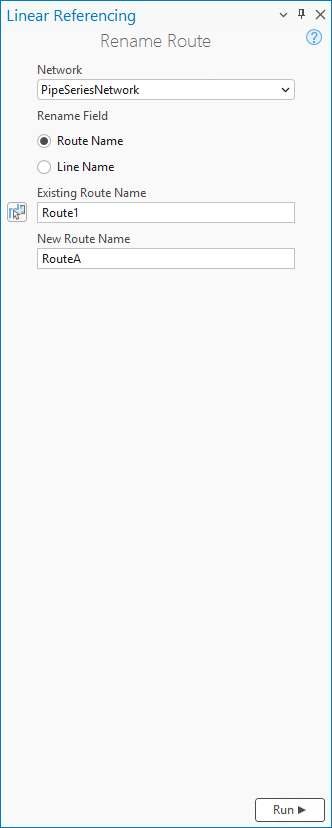
If the chosen LRS Network is a nonline network, only the Existing Route Name and New Route Name text boxes appear.
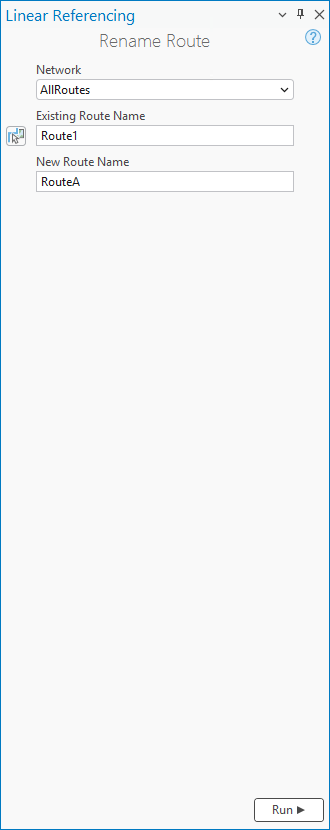
Specify the route to be renamed by doing one of the following:
Provide the route name in the Existing Route Name text box.
Click Choose route from map
 and click the route on the map to be renamed.
Provide the new route name in the New Route Name text box.
Click Run.
The route is renamed.
Rename a line in a line network
To rename a line using the Rename Route tool , complete the following steps:
Open the map in an ArcGIS Pro project and navigate to the location where you want to rename a line.
On the Linear Referencing tab, in the Tools group, click Rename
.The Rename Route pane appears.
Click the Network drop-down arrow, and choose the line network that contains the line to rename.
The Rename Field section appears.
Click Line Name in the Rename Field section.
The Existing Line Name and New Line Name text boxes appear.
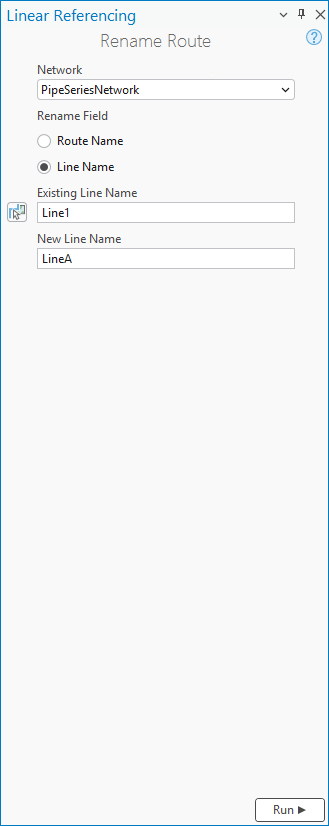
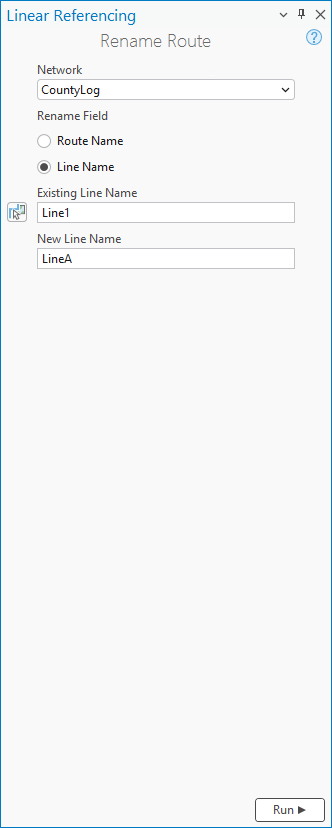
Specify the line to rename by doing one of the following:
Provide the line name in the Existing Line Name text box
Click Choose line from map
and click a route on the line on the map.
Provide the new line name in the New Line Name text box.
Click Run.
The line is renamed.