Locate diagram features in other diagrams that are associated with the same network elements
To search for diagram features associated with the same network features or network objects as those currently selected in the active diagram, run the Apply To Diagrams command on the Network Diagram tab in the ribbon.
Tip:
Apply To Diagrams operates on the diagrams that share the same workspace as the active diagram and are open at the time it performs, that is, on the network diagram layers referenced in the maps—diagram maps, scene maps, or standard maps—that are presently open. To retrieve other diagrams currently not open that reference diagram features associated with the same network features or network objects as those selected in the active diagram, you can first run the Find Diagrams function  on the Network Diagram contextual tab, and then open those diagrams and use Apply To Diagrams
  to locate and select those diagram features in all the opened diagrams where they are referenced.
By default, the Apply To Diagrams process works in all the maps—diagram maps, scenes maps, or standard maps—that are presently open and reference a diagram layer unless you specify one particular opened map. It runs according to the Propagate reduced or collapsed elements when applying selection from or to diagram maps and Zoom to the selected resulting features options. It also depends on whether the Persist aggregations is enabled on the templates related to the source and destination diagrams.
The steps below detail how you can search for diagram features associated with particular network features:
Make sure that among the maps currently open in your project, there are diagram maps or standard maps referencing network diagram layers related to the utility network or trace network you are working with.
Click a diagram map tab to set this diagram as the active map.
Select the diagram features you want to locate in other open diagrams.
On the Network Diagram tab, click the Network Diagrams Options dialog launcher
 at the lower right corner of the Selection group to open the Network Options dialog box. Then, verify or set up the selection options under the Propagation section:
Check the Propagate reduced or collapsed elements when applying selection from or to diagram maps option so the process selects diagram features associated with the same network features and network objects as those currently selected in the active diagram, whether those network features and network objects are reduced or collapsed in the source and destination diagrams.
Conversely, uncheck this option if you want the process to only select diagram features associated with the network features and network objects that are visibly represented in the source and destination diagrams.
Check Zoom to the selected resulting features if you want the process to automatically zoom in on the set of features selected in the processed diagram maps at the end.
Click Apply To Diagrams
if you want the process to operate in all the opened diagrams.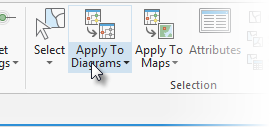
Or click a diagram in the drop-down list below to operate in one particular opened diagram.
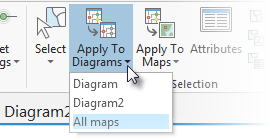
All the retrieved diagram features are selected in the diagram maps.
Note:
The process only operates on feature layers that are selectable in the diagram maps. Verify whether your diagram map layers are selectable when no diagram features are selected or only part of the diagram features you expected are selected.
Make sure the Propagate reduced or collapsed elements when applying selection from or to diagram maps option is checked so the process operates from and to diagram features that are aggregated in the active diagram or in the destination diagram maps.
The Persist aggregations option configured for the templates related to the both active diagram and destination diagrams also determines whether diagram features will become selected in the destination diagrams. With the Persist aggregations option disabled on the active diagram's template, no aggregated diagram features will become selected in none of the destination diagrams. With the Persist aggregations option enabled on the active diagram's template, the aggregated diagram features in the destination diagrams will become selected in the only two following situations:
They are clearly represented in the destination diagram
The Persist aggregations option is enabled on the template related to the destination diagrams in which they can be aggregated too, or not.
Note also that starting with ArcGIS Enterprise 12.1 and ArcGIS Pro 3.7, connectivity associations and system junctions that are collapsed or reduced in network diagrams are no longer maintained as aggregated network elements. This change applies whatever the Persist aggregations option on the related templates and impacts the selection results when running the Apply To Diagrams command as explained below:
Working with previous versions and starting with an active diagram where connectivity associations and system junctions were aggregated, these connectivity associations and system junctions could become selected in the destination diagrams where they were clearly represented after you click the Apply To Diagrams command. Now, starting from any newly generated source diagram or any existing source diagram after its update and clicking Apply To Diagrams, these connectivity associations and system junctions are no longer selected in the destination diagrams.
Working with previous versions, the active diagram showed connectivity associations and system junctions. You selected such a connectivity association or system junction in this diagram and clicked Apply To Diagrams. If there were diagram features in the destination diagrams that aggregated this connectivity association or system junction, they became selected in those diagrams. Now, they are no longer selected in newly generated destination diagrams or in existing destination diagrams after their updates.