Clip features using other features
The Clip tool  cuts visible features where they overlap with other features. You can clip all editable features using selected features or clip selected target features with selected input features. This tool is available in the Modify Features pane.
The tool includes several clip methods that allow you to either delete or keep the resulting features within or outside the boundary of the cut features. Additionally, you can preserve the geometry of features that share coincident boundaries or split and preserve all features.
When you use this tool, consider the following:
A buffer distance greater than zero (0) previews the buffer in the map.
When using the Discard (Remainder) method
 , the optional Keep coincident setting preserves the geometry of features that share coincident boundaries.
Clipping a z-aware feature preserves the angular pitch of its segments and assigns interpolated z-values to new vertices.
Clip all editable features
Check the Clip all editable features check box to clip all visible features where they overlap with the selected features. This setting hides the Input Features and Target Features tabs.
Open the map containing the features to be edited or add the layer to the map.
Tip:
Before editing, confirm the layers you are editing are editable, snap settings add efficiency and accuracy to your workflow, and the coordinate system assigned to the active map is suitable for the type of edits you're performing.
For a basic checklist of settings, see Configure settings for editing.
On the ribbon, click the Edit tab. In the Features group, click Modify
 .
.The Modify Features pane appears.
Click the Clip tool
.To find the tool, expand Divide, or type Clip in the Search text box.
The tool opens and the Select one or more points, lines or polygons tool
 automatically runs.
Check the Clip all editable features check box at the bottom of the tool pane.
Select the features that will be used to clip the overlapping features.
The selected features appear in the selection view.
To refine the selection, right-click a feature in the selection view and choose Unselect
 or Only Select This
  .
.Click the Buffer Distance box, type a buffer distance, and set the units.
Feature type Buffer values Polygons Specify a distance of zero (0) or greater. A buffer distance of zero (0) cuts the features where they overlap a polygon boundary. Points and lines Specify a buffer distance greater than zero (0). Choose one of the following clip methods:
Method Description Discard (Remainder) Delete the resulting features within the boundary of the cut features. To preserve the geometry of features that share coincident boundaries, check the Keep coincident check box. Preserve 
Preserve the resulting features within the boundary of the cut features. Contain 
Preserve the resulting features within the boundary of the cut features and delete all features outside the clip boundary. Split 
Split the overlapping features and preserve all features. Click Clip.
Clip selected target features using input features
Uncheck the Clip all editable features check box to clip selected target features where they overlap with the selected input features. To manage the selection sets, right-click a selected feature in the Input Features or Target Features tab, and click the corresponding command to move it to the other tab.
Open the map containing the features to be edited or add the layer to the map.
Tip:
Before editing, confirm the layers you are editing are editable, snap settings add efficiency and accuracy to your workflow, and the coordinate system assigned to the active map is suitable for the type of edits you're performing.
For a basic checklist of settings, see Configure settings for editing.
On the ribbon, click the Edit tab. In the Features group, click Modify
.The Modify Features pane appears.
Click the Clip tool
.To find the tool, expand Divide, or type Clip in the Search text box.
The tool opens and the Select one or more points, lines or polygons tool
automatically runs.Uncheck the Clip all editable features check box at the bottom of the tool pane.
The Input Features and Target Features tabs appear.
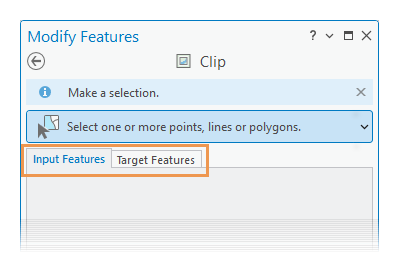
Click the Input Features tab, and select the features that will be used to clip the target features.
The selected features appear in the Input Features tab selection view and highlight in the map with dashed boundaries and hatched lines.
To change a selected input feature to a target feature, right-click it and click Move to Target.
To refine the selection, right-click a feature in the selection view and choose Unselect
or Only Select This .Click the Buffer Distance box, type a buffer distance, and set the units.
Feature type Buffer values Polygons Specify a distance of zero (0) or greater. A buffer distance of zero (0) cuts the features where they overlap a polygon boundary. Points and lines Specify a buffer distance greater than zero (0). Click the Target Features tab, and select the features that are to be clipped by the input features.
Alternatively, if input features are already selected, click the Select Target Features tool
to select all editable and visible features that overlap the input features. This tool appears at the bottom of the selection view and is available only if features are currently selected on the Input Features tab.The selected features appear in the Target Features tab selection view and highlight in the map with dashed boundaries and hatched lines.
To change a selected target feature to an input feature, right-click it and click Move to Input.
To refine the selection, right-click a feature in the selection view and choose Unselect
or Only Select This .Choose one of the following clip methods:
Method Description Discard (Remainder) Delete the resulting features within the boundary of the cut features. To preserve the geometry of features that share coincident boundaries, check the Keep coincident check box. Preserve Preserve the resulting features within the boundary of the cut features. Contain Preserve the resulting features within the boundary of the cut features and delete all features outside the clip boundary. Split Split the overlapping features and preserve all features. Caution:
If you change the clip method or the input selection after making a target selection, confirm that the target selection is correct or reselect the target features.
Click Clip.