Configure the editing toolbar
The editing toolbar appears when a specific editing tool or construction tool is active. It contains tools and commands for the active tool that are commonly used to complete a workflow. You can configure its size and location non-graphically or use the on-screen overlay.
Configure the toolbar
On the ribbon, click the Edit tab. In the Manage Edits group, click Settings
 .
.The Editor Settings dialog box appears.
On the Editor Settings dialog box, click the User Interface tab, and expand Toolbar.
Check the Show the editing toolbar on the map check box. This shows the toolbar in the active map while editing.
To hide the toolbar, uncheck this setting.
Note:
If an active editing tool uses the editing toolbar, the associated tools and commands are available on the mini toolbar above the context menu when you right-click the active map.
In the Position section, choose one of the following toolbar locations.
Left
Vertically on the left.
Bottom
Horizontally at the bottom.
Right
Vertically on the right.
In the Size section, choose one of the following display sizes.
Small
24 by 24 pixels
Medium
32 by 32 pixels
Large
48 by 48 pixels
To magnify a portion of the toolbar when you hover over a button, check Magnify Toolbar.
Uncheck this setting to disable the magnifying pointer.
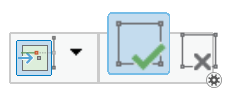
Click OK.
Configure the toolbar on-screen
To show the editing toolbar, show the Create Features pane and click a feature template construction tool.
Alternatively, show the Modify Features pane, click Vertices
 and select a polyline or polygon feature.
On the toolbar, click Configure tool feedback options
.To cancel this command and close the overlay, click anywhere on the map.
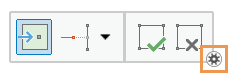
The on-screen overlay appears in the map.
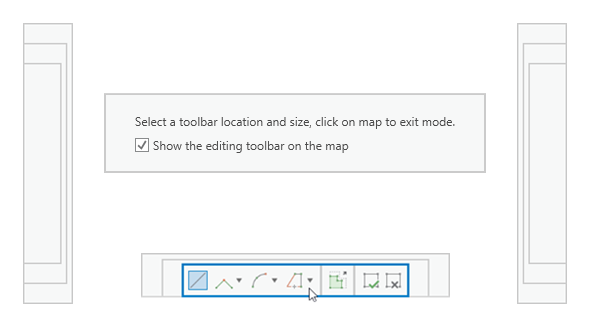
To hide the toolbar, uncheck the Show the editing toolbar on the map check box.
To show the toolbar, configure the toolbar on Editor Settings dialog box.
Note:
The mini toolbar is always available above the context menu when you right-click a map if an associated editing tool is active.
Hover over a preview frame to preview a size and location.
When a preview frame shows the size and location you want to use, click the preview.
The toolbar updates and the on-screen overlay disappears.