Create segments by streaming vertices
The Streaming tool  creates vertices at defined intervals as you move the pointer across a map. It is commonly used to create freehand shapes such as rivers or tree canopies. It is available in the Create Features pane with line and polygon editing templates.
For steps to use this tool in a stereo map, see Stream 3D lines in a stereo map.
The streaming tolerance defines the least distance in map units that the pointer must move before a new vertex is created. The default setting is zero (0) and creates overlapping vertices. You can change this setting at any time while streaming vertices.
When you stream vertices, consider the following:
The Simplify option is turned on by default. This creates the least number of vertices needed to define the resulting geometry. To stream vertices at fixed intervals defined by the stream tolerance, turn off this setting.
The Use snapping settings option is turned off by default. Press the spacebar to temporarily turn on snapping while streaming vertices.
The Group vertices for Undo sketch operations option is enabled by default and is set to 50 vertices for each Undo group
 .
.
Stream vertices
To stream vertices, click the Streaming tool on a line or polygon editing template tool palette. If a different construction tool is active, press the F8 key or right-click and choose the tool from the context menu.
To pause streaming and continue sketching with a different tool, click the map. To resume streaming, press F8 . The F8 key acts as a toggle that allows you to switch between streaming vertices and sketching geometry with other construction tools and commands.
To stream vertices, complete the following steps:
Open the map containing the layer where the feature will be stored or add the layer to the map.
Tip:
Before editing, confirm the layers you are editing are editable, snap settings add efficiency and accuracy to your workflow, and the coordinate system assigned to the active map is suitable for the type of edits you're performing.
For a basic checklist of settings, see Configure settings for editing.
On the ribbon, click the Edit tab. In the Features group, click Create
 .
.The Create Features pane appears.
Click a line or polygon editing template, and click the Streaming tool
.If a different construction tool is active, press the F8 key, or right-click and choose the tool from the context menu.
Tip:
Click the Active Template button
 on a tool palette to override attribute values or change tool settings. Most polygon construction tools can be set to automatically modify existing polygons on the same layer and prevent overlaps.
Click the map and move the pointer across the map to stream vertices.
Click the map to pause streaming and create the last vertex.
Click Finish
 or press the F2 key to finish sketching.
Change streaming options
You can change tool options while the streaming tool is active. Right-click and choose Streaming Options  or press O. Changes are applied to new vertices.
To change streaming tool options, complete the following steps:
Click a line or polygon editing template, and click the Streaming tool
.If you're actively sketching geometry with another construction tool, press the F8 key to switch to streaming.
Right-click the map and choose Streaming Options
or press O.The Streaming Options dialog box appears.
To change the streaming tolerance, type the new value in map units in the Streaming tolerance text box, and set the units.
The default tolerance is zero (0) and creates overlapping vertices.
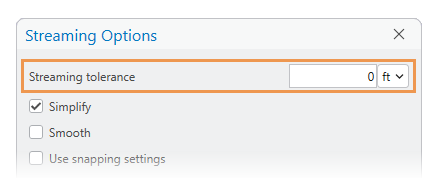
To change how the tool constructs geometry, check or uncheck the following options:
Setting Description Simplify Check this option to create the least number of vertices needed to define the resulting geometry. This is the default setting. Uncheck this option to create vertices at fixed intervals specified by the streaming tolerance. Smooth Check this option to create segments as Bézier curves. Uncheck this option to create straight segments. To enabled or disabled snapping while streaming and use the spacebar to temporarily suspend this setting, check or uncheck the Use snapping settings check box.
Setting Description Checked Keep snapping enabled while streaming and press the spacebar to temporally turn off snapping. Not checked Disable snapping while streaming and press the spacebar to temporally turn on snapping. This is the default setting. To specify the number of vertices to be grouped as one Undo step
, check or uncheck the Group vertices for Undo sketch operations check box.Setting Description Checked Group the specified number of vertices into a single Undo step. The default number is 50. Not checked Don't group vertices and Undo each vertex. Click OK to close the dialog box and resume streaming.
Keyboard shortcuts
Keyboard shortcuts for this tool are described in the following table:
Create by streaming
|
Keyboard shortcut |
Action |
Comment |
|---|---|---|
|
O |
View or change optional settings. |
Open the Streaming options dialog box. |
|
F8 |
Start or stop streaming. |
Begin or stop streaming. |
|
Spacebar |
Temporarily turn snapping on or off. |
By default, snapping is automatically turned off until the sketch is finished and temporarily turned on with the Spacebar. You can invert this setting and turn on snapping by default and use the Spacebar to temporarily turn it off. |