Configure the reference grid
The reference grid  is a configurable square pattern overlay that helps you align features and visualize distances as you modify or create features. You can configure grid spacing, rotation, elevation for 3D local scenes, snapping and inference, and display and visibility settings.
Change general settings
You can change general settings, including grid spacing, major line intervals, rotation, and grid elevation for 3D local scenes.
Hover over Grid
on the status bar at the bottom of the active map or scene, and click Editor Settings  .
.- Alternatively, on the ribbon, click the Edit tab. In the Manage Edits group, click Settings
 .
.
- Alternatively, on the ribbon, click the Edit tab. In the Manage Edits group, click Settings
Click the Grid tab and expand General.
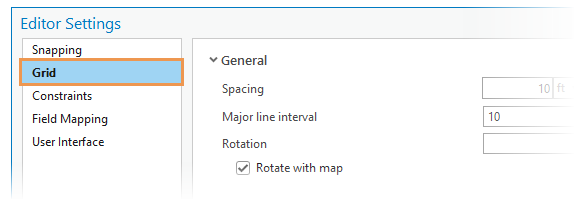
Change one or more of the following settings:
Spacing
Specify the distance and units between grid lines.
Major line interval
Display major grid lines at the specified interval. Major grid lines appear darker and can provide a visual reference when compared to the minor grid lines.
Rotate with map
Automatically rotate the grid when you rotate the map.
Elevation
Specify the z-value height at which the grid appears in a 3D scene.
Note:
This setting is available only with 3D local scenes.
Set snapping and inference
Snapping and inference settings customize how the pointer snaps to the grid and infers 90 degree constraints.
Hover over Grid
on the status bar at the bottom of the current map, and click Editor Settings .- Alternatively, on the ribbon, click the Edit tab. In the Mangage Edits group, click Settings .
- Alternatively, on the ribbon, click the Edit tab. In the Mangage Edits group, click Settings
Click the Grid tab and expand Snapping and inference.
Change one or more of the following settings:
Snap to grid
Snap the pointer to grid lines and grid intersections based on the active snap settings.
Infer from grid
Snap the pointer perpendicular to a grid line from the previous vertex. This can be useful for quickly sketching orthogonal lines such as square or rectangular features.
Set display and visibility
Display and visibility settings customize the appearance of the grid lines, display scale settings for 2D maps, and grid fill options for 3D local scenes.
Hover over Grid
on the status bar at the bottom of the current map, and click Editor Settings .- Alternatively, on the ribbon, click the Edit tab. In the Mangage Edits group, click Settings .
- Alternatively, on the ribbon, click the Edit tab. In the Mangage Edits group, click Settings
Click the Grid tab and expand Display and visibility.
Change one or more of the following settings:
Grid lines
Display the grid as contiguous lines or as grid points at all intersections.
In beyond
Specify the minimum display scale at which the grid is visible in a map.
Out beyond
Specify the maximum display scale at which the grid is visible in a map.
Dynamic scaling
Display a secondary grid at a larger scale when zooming out exceeding the Out beyond display scale setting.
Note:
This setting is available only with 2D maps.
Grid fill
Display grids in 3D local scenes as shaded sketch planes.
Note:
This setting is available only with 3D local scenes.