Move a feature to a specified location
The Move To tool  moves selected features to a coordinate location or by an offset direction and distance. This tool is available in the Modify Features pane.
When you use this tool, consider the following:
The selection anchor appears at the center (centroid) of the envelope for the entire selection set.
Tool parameters for Z and 3D pitch values are available only when z-aware features are selected.
To move a feature to a specified location, complete the following steps:
On the ribbon Edit tab, click Modify
 in the Features group.
The Modify Features pane appears.
In the Modify Features pane, click Move To
.To find the tool, expand Alignment, or type Move To in the Search text box.
In the tool pane, click Make a selection
 and select one or more features.
To change the selection method click the drop-down arrow.
Tip:
To remove features from the selection in the pane selection view, right-click a feature and click Unselect
 , or click Only Select This
  to keep the feature and remove all others from the selection.
The selected features appear in the selection tree view, and the Method drop-down options, and Values parameter boxes appear in the pane.
Click the Method drop-down arrow and choose one of the following methods:
Absolute
Move features to a specified x,y,z coordinate location.
Delta
Move features by a specified x,y,z distance from the current location.
Direction/Distance
Move features in a specified direction, 3D angular pitch, and distance.
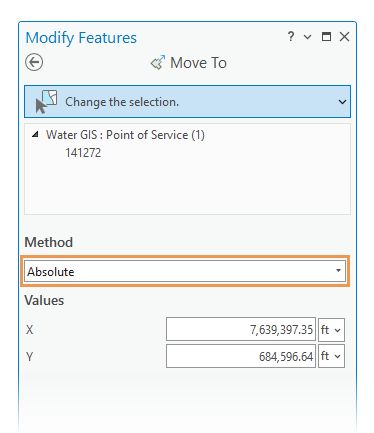
In the Values section, type the appropriate values.
Click Move To.