Resize aviation annotation
 Available with Aviation Charting license.
The process of generating an aeronautical chart driven by an automated workflow can sometimes lead to clutter and conflicting or crowded Aviation chart annotation. The Aviation Resize command helps solve this problem. The tool allows you to quickly change the scale of a selected annotation feature during the inspection of a chart.
Before using the Aviation Resize command, review the following prerequisites. Once configured, these can be modified later:
Ensure that you have Aviation Charting data in your geodatabase, which contains the AIS_AOI or AOI table and at least one of the following:
AIS_ExtractionQuery or ExtractionQuery
AIS_Preferences or Preferences
Ensure that the annotation feature class is feature-linked to a relevant feature class, such as a cartographic feature class (with suffix _C)
Determine which annotation class from the annotation feature class that the Aviation Resize command will be used with.
Use the Aviation Resize command in ArcGIS Pro
To update aviation annotation using the Aviation Resize command, complete the following steps:
Add an annotation feature class to the map, ensuring that it has only one annotation class selected.
On the Edit tab, in the Tools group, click the Annotation button
 and select an annotation feature class.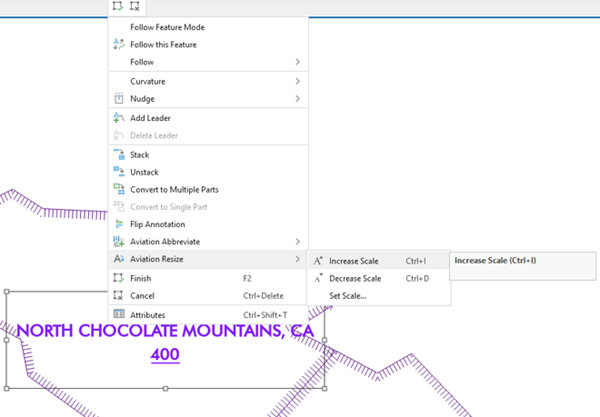
In this example, the ADHP_C_A annotation feature is selected. The selected annotation feature is from the Airports annotation class. Right-click the selected annotation feature class, and from the annotation context menu, point to Aviation Resize
 and click Increase Scale to increase the scale of the label.
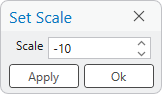
You can also decrease the scale using the Decrease Scale option, or enter a specified value to increase or lower the scale by with the Set Scale option.