Export an encrypted exchange set
 Available with ArcGIS Maritime license.
You can use the S-100 Exchange Set Editor tool to establish encryption and data protection in an existing exchange set by adding a user permit file to it.
To encrypt and export an exchange set, complete the following steps:
Load the exchange catalog into ArcGIS Pro using the S-100 Exchange Set Editor tool.
Browse to the location of the
USER_PERMIT.txtfile.Click this file in Microsoft File Explorer, and click Open.
Verify that the User Permit element has been added to the navigation section of the S-100 Exchange Set Editor pane.
Click the file element under dataDiscoveryMetadata to view its attributes in the editing section, and ensure that compressionFlag and dataProtection are checked.
When a user permit is loaded, the compressionFlag and dataProtection parameters are automatically checked.
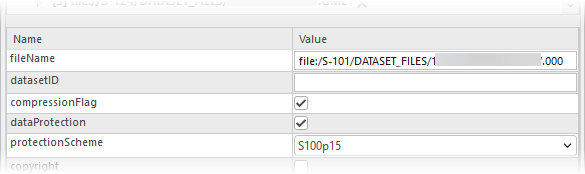
You can now edit the exchange set.
Once all edits are complete, click Export to export the exchange set.
In the File Explorer window that opens, choose the output location.
Click Select Folder.
Provided the export occurs without error, the Exchange set created successfully message appears.
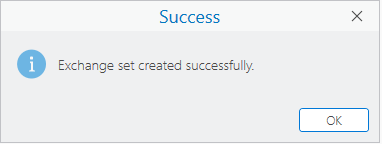
Open the folder where the exchange set was exported to review its files.
An encrypted export produces three items in this directory: The S100_ROOT folder and the
PERMIT.SIGNandPERMIT.XMLfiles.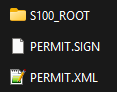
Double-click the S100_ROOT folder in File Explorer to reveal the contents of this directory.
This folder contains the exchange catalog (CATALOG.XML) updated with the information provided in the S-100 Exchange Set Editor pane. The folder also contains the CATALOG.SIGN file, which certifies that this is a valid exchange catalog, along with a subfolder for each S-100 product specification data type included in the exchange set.