Set S-100 scale band
 Available with ArcGIS Maritime license.
You can use the tools in the S-100 Set Scale Band group, on the Maritime S-100 tab, to filter data by choosing a low scale value and a high scale value.
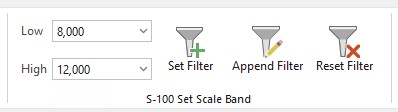
These values are used in a definition query on either a set of layers or, if the map is selected, the query applies to all maritime layers in the Contents pane.
When choosing filter values, consider the following:
You can type a custom value in the combo boxes.
The low value represents the largest-scale data and is included in the query.
The high value represents the smallest-scale data included in the query that is less than or equal to this value.
Choosing a low value that is larger than the high value automatically changes the high value to the next larger numeric value. This maintains the logical consistency of both fields.
Similarly, choosing a high value that is lower than the low value automatically changes the low value to maintain consistency.
Set the S-100 scale band
To set filter values using the tools in the S-100 Set Scale Band group and set a definition query, complete the following steps:
Start ArcGIS Pro.
Open a new or existing project.
Add data from an S-100 geodatabase to the map.
The Maritime S-100 tab appears.
Click the name of the map in the Contents pane.
When you select a map, the definition query is set for all maritime layers in the map.
Alternatively, you can choose individual layers to apply the filter to a specific set of layers.
On the Maritime S-100 tab, in the S-100 Set Scale Band group, click the Low drop-down arrow and choose a value.
Tip:
You can also type a value in the Low combo box. The value must contain only numeric characters.
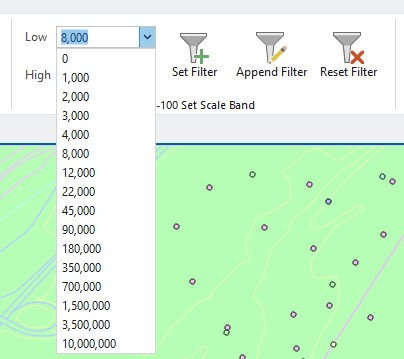
In the S-100 Set Scale Band group, when the low or high value is set above or below the other, the values are automatically adjusted to maintain a logical range. For example, if the high value is set to 2,000 and the low value is updated to 4,000, the high value is automatically adjusted to 8,000.
Optionally, if you do not want to use the default high value, click the High drop-down arrow and choose a value.
Tip:
You can also type a value in the High combo box. The value must be greater than or equal to the low value and must contain only numeric characters.
Click Set Filter
 .
.The definition query is applied to the layers selected in the Contents pane, and the data is filtered on the map according to the specified scale bands.
Optionally, to append the filter with an additional scale band, choose new low and high values and click Append Filter
 .
.You can also use the Append Filter option
to apply a scale band filter to additional layers and add it to an existing query.To check the definition query, right-click any layer that the filter is applied to and click Properties, and then click Definition Query to review the scale bands included in the filter.
If any of the layers had existing definition queries before applying the scale filter, a new definition query is created and appended to any existing queries.
Remove a definition query
To remove a definition query from selected layers using the Reset Filter tool, complete the following steps:
In the Contents pane, select the layers or the map for which you want to remove a definition query.
Click the Maritime S-100 tab.
In the S-100 Set Scale Band group, click Reset Filter
 .
.This removes the set scale band query from the selected layers or map and removes any appended queries.
If any of the layers had existing definition queries before applying the scale filter, the definition queries are reapplied.