Manage job properties
 Available with Workflow Manager license.
You can view and manage job properties in the Workflow pane in ArcGIS Pro. You must be assigned to the job's current step or be the job owner to manage a job's properties.
Note:
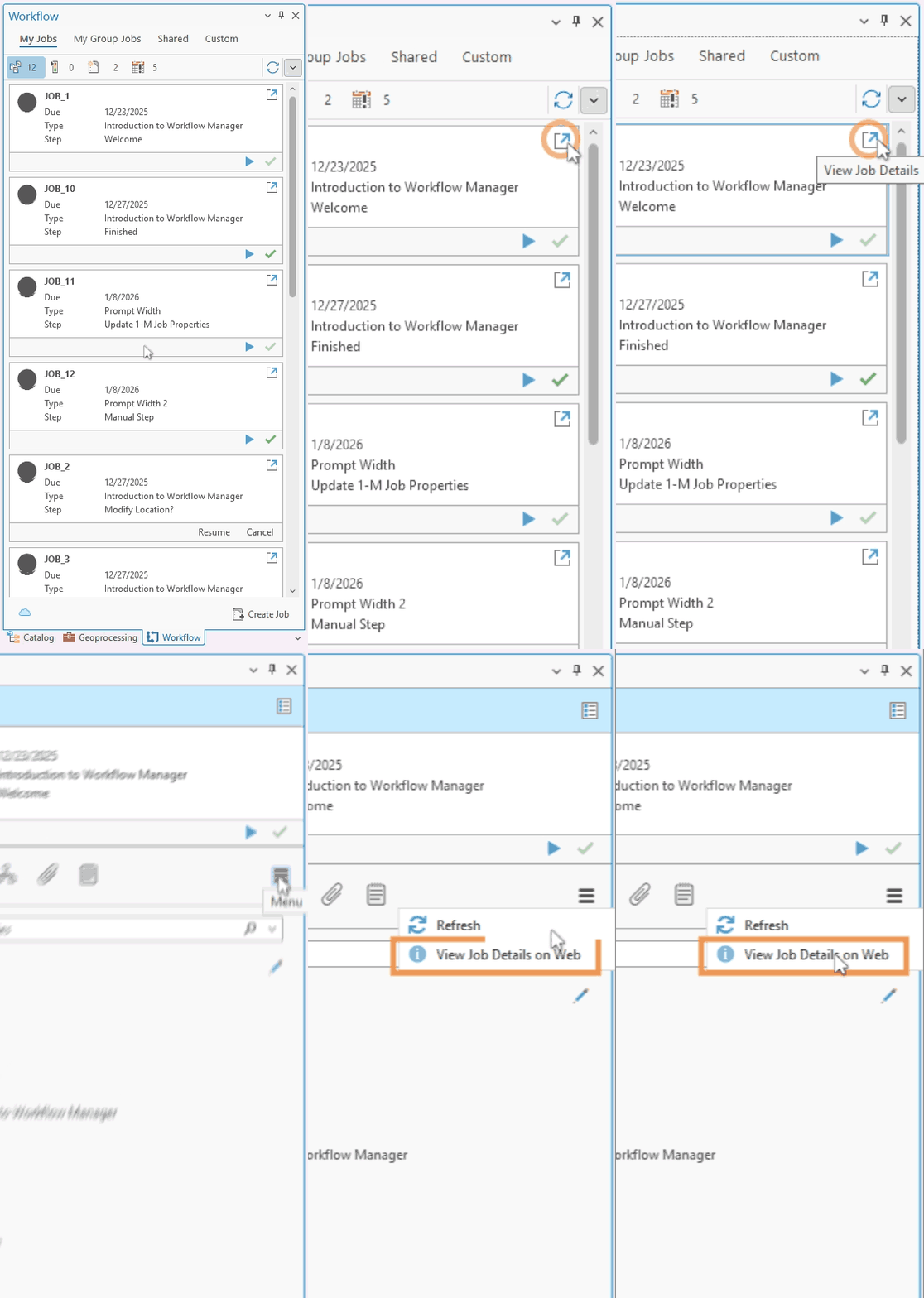
You can also view and manage a job's properties in the ArcGIS Workflow Manager web app by clicking View Job Details  for a job, then Menu
  , and View Job Details on Web.
The following table describes the job properties that you can view and manage in the Workflow pane:
| Job property type | View | Manage |
|---|---|---|
| One-to-one job properties |  |
|
| One-to-many job properties | |
|
| One-to-one feature layer properties | |
|
| One-to-many feature layer properties | |
|
| Survey123 properties | |
|
Complete the following steps to edit a job's properties:
In the Workflow pane, click View Job Details
for the job that contains the properties you want to edit.The job's properties appear in the Workflow pane.
Note:
If you don’t have sufficient privileges, View Job Details
is not available in the Workflow pane.Tip:
Assign to Self
 appears in the Assignment section of the Workflow pane and allows you to assign the job to yourself if you have sufficient privileges and you are listed in the job's assignable users list.
Click Edit Job Details
 .
.Note:
If you don’t have sufficient privileges, Edit Job Details
is not available in the Workflow pane.Update job properties as necessary.
Note:
Job properties that aren't configured to be editable can't be updated.
Click Save
 to save the changes.
The updated values appear in the Workflow pane.
Note:
If the information in the Workflow pane is out of date, click Menu
and click Refresh  .
.The Closed By property appears starting at ArcGIS Pro 3.7. If the property is expected but does not appear, confirm with your workflow item administrator that the the workflow item's schema is using version 26.1.0.0 or later.