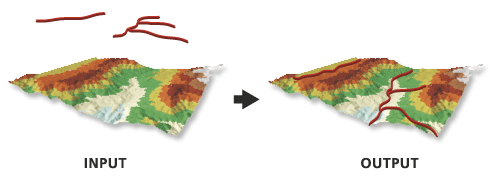
This tool creates 3D features using height values derived from overlapping portions of the input surface. A 3D polygon will only store z-values on its perimeter, since the interior of a 3D polygon will be randomly defined when it is rendered. For this reason, 3D polygons are generally not suitable for representing nonplanar height information. To generate a true representation of the surface, use the Interpolate Polygon To Multipatch tool.
Any curved line or polygon segments will be densified based on the Sampling Distance parameter value. If a sampling distance is not defined, this value will be derived from the input surface. For a raster, the default sampling size will be the raster's cell size. For a TIN, terrain, or LAS dataset, the default sampling will be based on the edges produced by the triangulated surface. If the curve is shorter than the sampling size, the curve will be simplified into a two-point line using its start and end points.
When using natural neighbors interpolation, consider specifying a sampling distance that's equal to or above half of the average point spacing of the data points in the surface.
When using the Interpolate Vertices Only parameter, features with vertices that fall outside the data area of the surface will not be part of the output unless the input surface is a raster and the nearest neighbor interpolation method is used.
If the input feature class contains m-values, the output feature class will also contain m-values, and the original vertex m-values will be preserved.
The surface that will be used for interpolating z-values.
LAS Dataset Layer; Mosaic Layer; Raster Layer; Terrain Layer; TIN Layer; Image Service
Input Features
The input features that will be processed.
Feature Layer
Output Feature Class
The feature class that will be produced.
Feature Class
Sampling Distance
(Optional)
The spacing at which z-values will be interpolated. By default, this is a raster dataset's cell size or a triangulated surface's natural densification.
Double
Z Factor
(Optional)
The factor by which z-values will be multiplied. This is typically used to convert z linear units to match x,y linear units. The default is 1, which leaves elevation values unchanged. This parameter is not available if the spatial reference of the input surface has a z-datum with a specified linear unit.
Double
Method
(Optional)
Specifies the interpolation method that will be used to determine elevation values for the output features. The available options depend on the surface type.
Bilinear—The value of the query point will be determined using bilinear interpolation. This is the default when the input is a raster surface.
Nearest Neighbor—The value of the query point will be determined using nearest neighbor interpolation. With this method, surface values will only be interpolated for the input feature's vertices. This option is only available for a raster surface.
Linear—Elevation values will be obtained from the plane defined by the triangle that contains the x,y-location of a query point. This is the default interpolation method for TIN, terrain, and LAS datasets.
Natural Neighbors—Elevation values will be obtained by applying area-based weights to the natural neighbors of a query point.
Conflate Minimum Z—Elevation values will be obtained from the smallest z-value found among the natural neighbors of a query point.
Conflate Maximum Z—Elevation values will be obtained from the largest z-value found among the natural neighbors of a query point.
Conflate Nearest Z—Elevation values will be obtained from the nearest value among the natural neighbors of a query point.
Conflate Z Closest To Mean—Elevation values will be obtained from the z-value that is closest to the average of all the natural neighbors of a query point.
String
Interpolate Vertices Only
(Optional)
Specifies whether the interpolation will only occur along the vertices of an input feature, ignoring the sample distance option.
Checked—Interpolation will only occur along the vertices.
Unchecked—Interpolation will occur using the sampling distance. This is the default.
Boolean
Pyramid Level Resolution
(Optional)
The z-tolerance or window-size resolution of the terrain pyramid level that will be used. The default is 0, or full resolution.
Double
Preserve features partially outside surface
(Optional)
Specifies whether features with one or more vertices that fall outside the raster's data area will be retained in the output. This parameter is only available when the input surface is a raster and the nearest neighbor interpolation method is used.
Checked—Each vertex that falls outside the raster surface will have its z-value derived from the trend of z-values calculated for the vertices within the raster surface and will be retained in the output.
Unchecked—Features with at least one vertex that falls outside the raster surface will be skipped in the output. This is the default.
Boolean
Interpolate m-values for densified vertices
(Optional)
Specifies whether m-values for line and polygon vertices added through densification will be interpolated from original input vertices.
When applied, m-values for densified vertices are interpolated along the original segment between two existing vertices that have m-values. If either of the original vertices lacks an m-value, the m-values of all newly added vertices along that segment are set to NaN.
Checked—The m-values for densified vertices will be interpolated.
Unchecked—The m-values for densified vertices will not be interpolated. This is the default.
The surface that will be used for interpolating z-values.
LAS Dataset Layer; Mosaic Layer; Raster Layer; Terrain Layer; TIN Layer; Image Service
in_feature_class
The input features that will be processed.
Feature Layer
out_feature_class
The feature class that will be produced.
Feature Class
sample_distance
(Optional)
The spacing at which z-values will be interpolated. By default, this is a raster dataset's cell size or a triangulated surface's natural densification.
Double
z_factor
(Optional)
The factor by which z-values will be multiplied. This is typically used to convert z linear units to match x,y linear units. The default is 1, which leaves elevation values unchanged. This parameter is not available if the spatial reference of the input surface has a z-datum with a specified linear unit.
Double
method
(Optional)
Specifies the interpolation method that will be used to determine elevation values for the output features. The available options depend on the surface type.
BILINEAR—The value of the query point will be determined using bilinear interpolation. This is the default when the input is a raster surface.
NEAREST—The value of the query point will be determined using nearest neighbor interpolation. With this method, surface values will only be interpolated for the input feature's vertices. This option is only available for a raster surface.
LINEAR—Elevation values will be obtained from the plane defined by the triangle that contains the x,y-location of a query point. This is the default interpolation method for TIN, terrain, and LAS datasets.
NATURAL_NEIGHBORS—Elevation values will be obtained by applying area-based weights to the natural neighbors of a query point.
CONFLATE_ZMIN—Elevation values will be obtained from the smallest z-value found among the natural neighbors of a query point.
CONFLATE_ZMAX—Elevation values will be obtained from the largest z-value found among the natural neighbors of a query point.
CONFLATE_NEAREST—Elevation values will be obtained from the nearest value among the natural neighbors of a query point.
CONFLATE_CLOSEST_TO_MEAN—Elevation values will be obtained from the z-value that is closest to the average of all the natural neighbors of a query point.
String
vertices_only
(Optional)
Specifies whether the interpolation will only occur along the vertices of an input feature, ignoring the sample distance option.
VERTICES_ONLY—Interpolation will only occur along the vertices.
DENSIFY—Interpolation will occur using the sampling distance. This is the default.
Boolean
pyramid_level_resolution
(Optional)
The z-tolerance or window-size resolution of the terrain pyramid level that will be used. The default is 0, or full resolution.
Double
preserve_features
(Optional)
Specifies whether features with one or more vertices that fall outside the raster's data area will be retained in the output. This parameter is only available when the input surface is a raster and the nearest neighbor interpolation method is used.
PRESERVE—Each vertex that falls outside the raster surface will have its z-value derived from the trend of z-values calculated for the vertices within the raster surface and will be retained in the output.
EXCLUDE—Features with at least one vertex that falls outside the raster surface will be skipped in the output. This is the default.
Boolean
interpolate_m_value
(Optional)
Specifies whether m-values for line and polygon vertices added through densification will be interpolated from original input vertices.
When applied, m-values for densified vertices are interpolated along the original segment between two existing vertices that have m-values. If either of the original vertices lacks an m-value, the m-values of all newly added vertices along that segment are set to NaN.
INTERPOLATE_M_VALUE—The m-values for densified vertices will be interpolated.
NO_INTERPOLATE_M_VALUE—The m-values for densified vertices will not be interpolated. This is the default.
Boolean
Code sample
InterpolateShape example 1 (Python window)
The following sample demonstrates the use of this tool in the Python window.
from arcpy.sa import *
InterpolateShape("my_tin", "roads.shp", "roads_interp.shp")
InterpolateShape example 2 (stand-alone script)
The following sample demonstrates the use of this tool in a stand-alone Python script.
# Name: InterpolateShape_Ex_02.py
# Description: This script demonstrates how to use InterpolateShape on the 2D
# features in a target workspace.
# Requirements: Spatial Analyst extension

# Import system modules
import arcpy
from arcpy.sa import *

# Set the analysis environments
arcpy.env.workspace = "C:/arcpyExamples/data"

# Set the local variables
inFeatureClass = "point.shp"
inSurface = "dtm_tin"
OutFeatureClass = "point_interp.shp"
method = "NEAREST"

# Run the tool
InterpolateShape(inSurface, inFeatureClass, OutFeatureClass, 15, 1, method, True)