Button user input variable
A button user input variable value is populated by the app user after a button is pressed in a project. The app user enters the value; however, the project author must define the buttons and fields to which button variables will apply.
A button user input variable is different from a project user input variable, as values are entered by the user after pressing a button. Up to ten button user inputs can be applied to each project button, with each updating a specified field.
Properties of the button user input variable are as follows:
Label—Text that will appear as the title of the project user input page in the app.
Input type—Can be single-line text, multiline text, date time, or choice list. You can add, delete, and reorder choices. Optionally, you can allow free text entry with choice lists. You can specify a default value and date range with the date time input type.
Apply hint—Display hint text on the project user input page in the app. This is not applicable when configured with a range or coded value domain.
Apply an input mask—Define the format for data entry using characters and symbols to define an input mask.
Required—Specifies whether the mobile app user must provide the user input value after a button is pressed.
Note:
When applying a user input to a feature layer with required fields, ensure that its required property is set to true to avoid submission errors.
Show barcode scanner—Use the barcode scanner on the input dialog box for text field entry.
Note:
The following formats are supported: QR CODE, UPC A, UPC E, EAN 8, EAN 13, CODE 39, and CODE 128.
Show user input dialog box—Specifies whether the button user input is shown at the start or end of data capture. This applies to buttons that capture line and polygon features; it does not apply to point buttons.
Depending on field type, different user input variable parameters are available:
String—User input label, display as multiline, single line, or choice list, hint, input mask (required).
Integer—User input label (required).
Double—User input label (required).
Date—User input label (required).
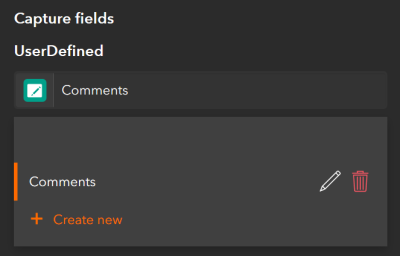
A button user input can be configured by the project author on the Data tab for each button. To assign a button user input variable to a capture field of a button, on the Data tab, from the drop-down menu of the capture field, select Button user input and select Create new.
If you create a button user input for a field that has a domain (either coded value or range), the choices are presented to the user as a single choice list. Free text cannot be entered when a coded value domain is present. When a range domain is present, data entry is limited by the range.