Show the layer legend card
You can show an expanded layer legend on an ArcGIS for SharePoint map and temporarily pin it to the map.
To display the legend for all layers in the Layers list, complete the following steps:
From the map tools, click the Layers button
 .
.The Layers pane appears with the Layers tab active by default.
In the Layers list, click the Show legend card button
 .
.A legend of the current map layers is pinned to the right of the map. All layers on the map, whether visible
 or hidden
  , are shown on the legend. Applied style settings, such as color ramps or point icons, are shown in descending order of frequency or gradient format for each layer.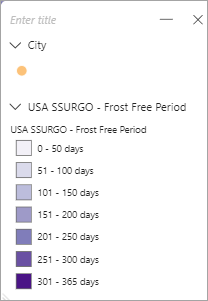
Click the Collapse button
 next to a layer to hide the layer's features from the expanded legend.
Click the Expand button
 to show the features again.
To remove a layer or category from the legend, hover over the layer to activate the button, and click Remove
 .
.To add a removed layer or category back to the legend, click Show legend card
again.To close the legend, click Close
 .
.