Calculate Fields by Regular Expression
 Available in real-time and big data analytics.
The Calculate Fields by Regular Expression tool  extracts, reformats, or validates text patterns in incoming data. The tool uses regular expressions to pattern-match string values in specified fields and can replace matched substrings with a literal string or a portion of the pattern match using a backreference. The tool can write to new or existing fields.
Examples
Use regular expression pattern matching to validate your data. Street addresses, phone numbers, email addresses, and globally unique identifiers (GUIDs) stored as string values all follow patterns that regular expressions can match.
The following are example use cases for the tool:
Extract street, city, state, and ZIP or ZIP+4 values from well-formatted street addresses.
Verify that phone numbers are complete and include the area code and expected number of digits.
Match GUID values to expected patterns to validate the data value and format.
Parse email addresses into usernames, first and last names, domains, and top-level domains.
Usage notes
Note the following when working with the tool:
This tool operates on string attribute values retrieved from input data records. If an input layer does not have any string fields, the tool displays a validation error.
This tool only calculates string values as output. To convert an output string to another data type such as an integer or date, also run the Calculate Field or the Map Fields tool in your real-time analytic.
You can specify multiple regular expression patterns in a single instance of the tool to target different portions of an input string and produce multiple output values.
Use the Output string parameter to specify a string literal without quotes except when specifying a backreference. The text of a string literal may include spaces.
Use a backreference to recall a matched portion of a target string within a capturing group. The syntax used to specify a backreference is a dollar sign and capture group index. For example,
$1,$2,$3.When configured with the New field option, the tool creates a new attribute field and writes its calculated string to that field.
When configured with the Existing field option, the tool writes the calculated value back to the chosen Input field parameter, replacing the original value in that field.
Parameters
The following table describes the parameters for the tool:
|
Parameter |
Description |
Data type |
|---|---|---|
|
Input field |
The field that contains the value to which the tool applies the regular expression. A string field must be chosen. |
String |
|
Expression |
A regular expression pattern to be applied to the field specified in the Input field parameter. You cannot run the real-time analytic until you correct any syntax errors that the tool validation identifies. |
String |
|
Output string |
The text that the tool constructs and writes to the Output field parameter when the pattern specified in the Expression parameter matches. The value can include unquoted literal text, spaces, and backreferences, such as |
String |
|
Output field (Conditional) |
The name of a new string attribute field the tool creates. This parameter appears only when you choose the New field option while adding a field calculation. You can use the New field option to create a new string field using a regular expression. When you choose the Existing field option while adding a field calculation, the tool writes output back to the Input field parameter, replacing the original text. You can use the Existing field option to update existing string field values using a regular expression. |
String |
How the tool works
The Calculate Fields by Regular Expression tool applies regular expression pattern matching to text in a specified Input field parameter.
The Output string parameter specifies the text the tool outputs.
This tool supports capture groups, which allow you to remember part of a pattern and later recall it using a backreference to extract matched text. Consider the following examples:
Use multiple capture groups to isolate and reorder substrings within a target string.
Replace all instances of a substring matching a specific pattern with a literal or empty string.
Calculate derivative values by combining text from a capture group with literal text and spaces.
Velocity parses standard regular expressions. Refer to the Related resources section to learn more about regular expression syntax.
Phone number validation
Tool configurations that include multiple Expression parameter values can use capture groups to isolate and write portions of a phone number to different fields. Use backreferences in each Output string parameter entry to write values to a new output field.
The following input table contains phone numbers:
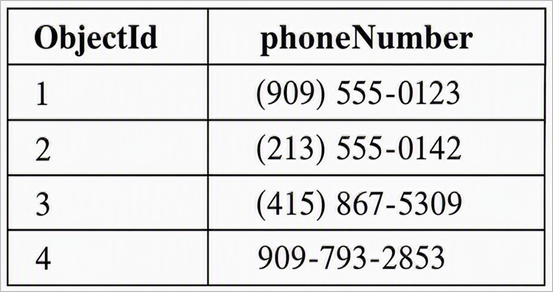
phoneNumber field with phone numbers.The regular expression pattern ^\((\d{3})\)\s*(\d{3})-(\d{4})$ can be applied to the phoneNumber field to isolate portions of the string using capture groups. The regular expression pattern has three capturing groups that an Output string parameter can refer to as $1, $2, and $3. If applied to new Output field parameters areaCode, phonePrefix, and phoneLineNumber, respectively, this produces the following output table:
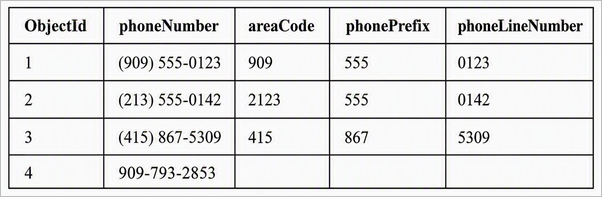
areaCode, phonePrefix, and phoneLineNumber fields parsed from the phone numbers.Note:
The last phone number in the list, 909-793-2853, did not follow the expected format. The proposed regular expression pattern did not match the target string. When the tool fails to match the specified pattern to the string in the Input field parameter, the computed output string will be empty.
Street address validation
You can use a similar approach to extract the street address, city, state, and ZIP components from a full street address string.
The following input table contains street addresses:
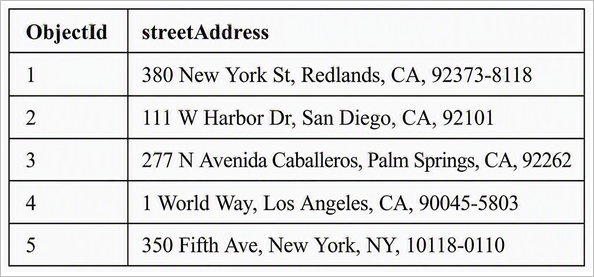
streetAddress field with full address strings.The regular expression pattern ^([^,]+),\s*([^,]+),\s*([A-Z]{2}),\s*(\d{5}(?:-\d{4})?)$ uses literal commas, optional spaces, capturing groups, and a non-capturing group for the optional ZIP+4 portion to isolate each part of the address. Its four capturing groups can be referenced as Output string parameter values $1, $2, $3, and $4, which can populate the new Output field parameters street, city, state, and zip, respectively, and produce the following output table:
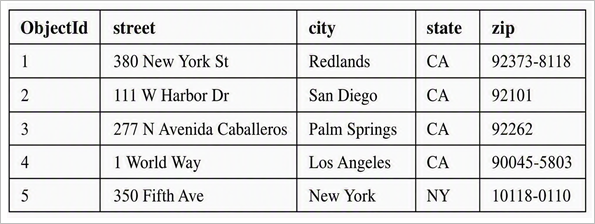
street, city, state, and zip fields parsed from the street address.GUID validation
Suppose you have an input feed that includes string values intended for use as globally unique identifiers, or GUID values. Your app requires the GUID to be enclosed in curly braces to be valid. You can use the Calculate Fields by Regular Expression tool to validate the input value by configuring the tool to write the literal string VALID as output when the regular expression pattern matches the target string.
The following input table contains GUID values:
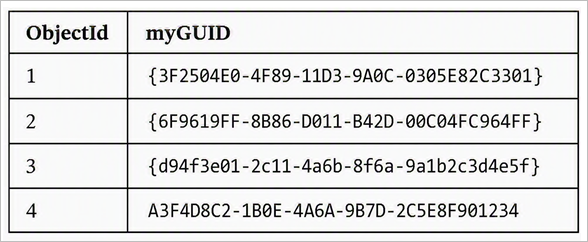
myGUID field with GUID values.The regular expression pattern ^\{[0-9A-F]{8}-[0-9A-F]{4}-[0-9A-F]{4}-[0-9A-F]{4}-[0-9A-F]{12}\}$ can be applied to the myGUID input field to validate whether each string follows the expected format. This pattern uses explicit character patterns with quantifiers to validate the GUID values. Regular expression patterns use square brackets to indicate a single character, with hyphens allowing you to specify a character range. A quantifier following the character range allows you to specify an exact number of characters. The pattern [0-9A-F]{4} specifies exactly four characters containing any single digit 0 to 9 or capital letter A to F.
This pattern has no capture groups, as in previous examples, because the output does not include any portion of the input string. Instead, configure the Output string parameter as the literal value VALID. When the pattern matches, the tool writes VALID to the validationCheck Output field parameter. When the pattern does not match, the computed output string is empty. The following is an example of the output table:
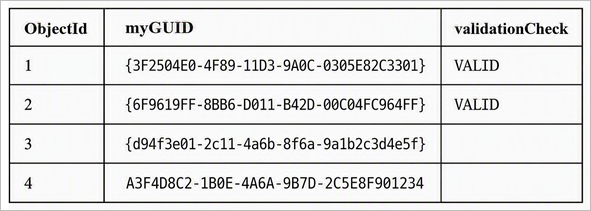
validationCheck field with VALID or empty results for each GUID. ObjectId 3 is empty because the letters are lowercase, making the GUID invalid, and ObjectId 4 is empty because the curly braces are missing, also making the GUID invalid.Email parsing
You can use regular expression pattern matching to validate email addresses. Suppose that a valid email address must contain a first name and a last name separated by a period, but some group addresses contain only a group name without a period. Regular expression pattern matching can handle both cases.
The following input table contains email addresses:
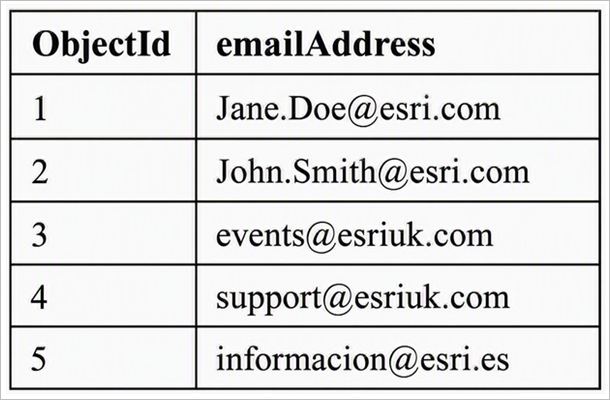
email field with email addresses.The regular expression pattern ^(?:(?:([A-Za-z0-9_-]+)[.]([A-Za-z0-9_-]+))|([A-Za-z0-9_-]+))@([A-Za-z0-9_-]{1,})[.]([A-Za-z]{2,})$ can be applied to the email address input field to isolate portions of the string using five capture groups. The pattern uses alternation to support either a first.last username format or a single-word email alias before the expected @ symbol. When the username contains a period, the first capture group isolates the text before the period, and the second capture group isolates the text after the period. When the username does not contain a period, the third capture group isolates the alias instead. The fourth capture group isolates the domain name, and the fifth capture group isolates the top-level domain.
The five capture groups can be referenced as Output string parameter values $1, $2, $3, $4, and $5 to populate new output fields. For example, $1 can populate a firstName field, $2 can populate a lastName field, $3 can populate an alias field when one is present, $4 can populate a domain field, and $5 can populate a topLevelDomain field. If the input email uses the single-word alias format, the firstName and lastName outputs are empty; if the input email uses the first.last format, the alias output string is empty. The following is an example of the final output table:
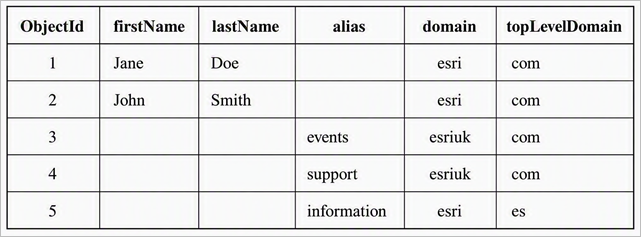
firstName, lastName, alias, domain, and topLevelDomain fields parsed from the email addresses. The input email address field is also included in the output but has been removed from this image for spacing purposes.Output layer
The output layer preserves the input fields and geometry except when configured with the Existing field option, which writes the calculated value back to the chosen field specified in the Input field parameter, replacing the original value in that field. The tool may add or update fields according to the regular expressions configured in the tool.
When a regular expression fails to match a target string, the tool outputs a null value. This may appear as an empty or zero-length string in some interfaces. A warning message appears in the logs when a pattern match fails.
When a regular expression uses the New field option, the output layer includes the new string field name specified in the Output field parameter. When you choose the Existing field option while adding a field calculation, the output layer keeps the field name chosen in the Input field parameter and replaces that field's value with the calculated output value.
If multiple regular expressions are configured, the output layer includes the result of each calculation. Calculations that create new fields add one string field per the Output field parameter name. The tool preserves other input fields and geometry. This tool only supports string inputs and only produces string outputs.
Considerations and limitations
Consider the following when using the tool:
The Calculate Fields by Regular Expression tool uses Java regular expression syntax and supports features such as capturing groups, non-capturing groups, and lookahead assertions.
A capturing group
(pattern)collects part of a target string that matches a pattern. Capture groups are useful when you need to apply a quantifier, such as zero or more, one or more, or a pattern that appears at leastntimes and at mostmtimes. Capture groups also store, or capture, the matched text so you can recall it using a backreference.A non-capturing group
(?:pattern)verifies that a pattern exists without storing the matched text as a backreference.A positive lookahead
(?=pattern)looks for a specific pattern without advancing the search pointer along the target string.A negative lookahead
(?!pattern)matches text that is not followed by a specific pattern.Velocity uses the Java regular expression engine and enforces its own tool-specific restrictions. The Velocity app does not support some features supported by other regular expression applications, such as positive and negative lookbehind assertions, atomic groups, and named capturing groups. The Java regular expression engine does not support recursion and subroutines.
The tool checks the syntax of regular expressions you type but cannot validate whether a regular expression matches actual data until an analytic is run to ingest and process data. You cannot run the real-time analytic until you correct any syntax errors that the tool validation identifies.
This tool does not accept ArcGIS Arcade expressions. Use the Calculate Field tool when you need to process data using an Arcade expression or calculation.
Related resources
For more information on regular expressions, refer to the following resources: