Introduction to assistive technologies
Assistive technologies (AT) are hardware, software, or system features that help people with disabilities perceive, understand, navigate, and interact with software and digital content.
People use assistive technologies due to situations such as the following:
Permanent disabilities
Temporary conditions (injury, illness)
Situational or environmental constraints (noise, glare, limited mobility)
Esri products work with a wide range of assistive technologies, helping users access mapping, spatial analysis, and storytelling tools in ways that work best for them.
Keyboard and alternative inputs
Keyboard navigation benefits individuals who do not use a mouse or who have difficulties with precise pointer movements. This can result from motor impairments, such as tremors, or physical limitations, such as loss of a limb or arthritis.
Keyboard navigation supports devices such as the following:
Standard keyboards
On-screen keyboards
Trackpads
Alternative keyboards, such as one-handed or ergonomic designs
Devices that emulate keyboard input, such as switches, joysticks, or eye-gaze technology

Screen readers
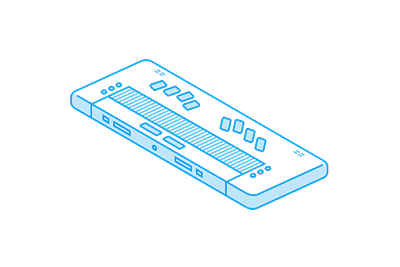
Screen readers convert on‑screen content into speech or Braille, allowing users to navigate through headings, landmarks, links, and form controls. They rely heavily on proper semantic structure, labels, and programmatic relationships.
Screen readers are commonly used by individuals who are non-sighted, have low vision, or who prefer auditory output.
Voice recognition and speech input
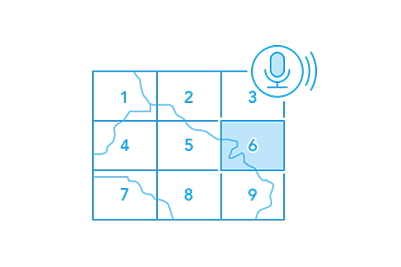
Voice recognition software allows individuals to navigate interfaces and dictate text through spoken commands. Voice recognition relies on semantic structure and visible or learnable labels, which act as keyword anchors for voice commands.
People often use voice recognition software to support limited mobility or dexterity, with dictation features popular for efficiency or to assist with cognitive tasks.
Screen magnification and zoom
Screen magnification, zoom tools, and text resizing assist individuals with low vision and vision deficiencies, or to reduce eye strain. These tools are typically built into an operating system, with text resizing available in specific applications, such as browsers. Content should reflow without loss of information, text should not overlap or be cut off when zoomed, and interactive elements should remain usable.
High contrast and visual adjustments
High-contrast modes, color adjustments, or reduced transparency are options for individuals with low vision, color vision deficiencies, or sensitivity to glare or low contrast. These settings can be changed at the operating-system level.