Create Range Rings using a fixed ring number and distance from copied/pasted text
This workflow demonstrates how to create range rings with a fixed number of rings at a specified distance.
Description
To generate range rings from a fixed ring number and distance, specify the number of rings to create. The first ring will be a distance from the center point that you specify and each subsequent ring will be created that distance from the previous ring.
Prerequisites
- You must have a project with a map open.
Tools and commands used
Steps
Click the Map tab.
Click Distance and Direction
 in the Inquiry group.
The Distance and Direction pane opens.
Click the Rings tab.
For Ring Type, click the down arrow and choose Fixed.
Enter a coordinate in the Center Point text box, or click Map Point Tool
 to set a center point for the ring or rings.
As you move the pointer in the map, the Center Point field updates automatically.
Type the Number of Rings field to create.
Click Distance Unit and select your linear unit.
Type a Distance Between Rings for how far apart the rings must be based on your distance units.
Type the Number of Radials to create. These lines extend from the Center Point to the farthest ring.
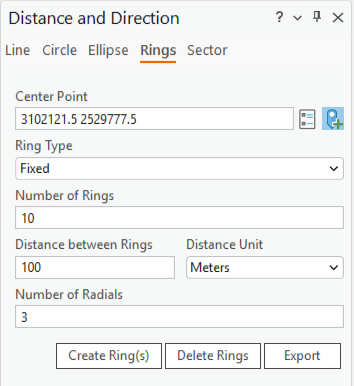
Click Create Ring(s) to add the range ring features to the map.
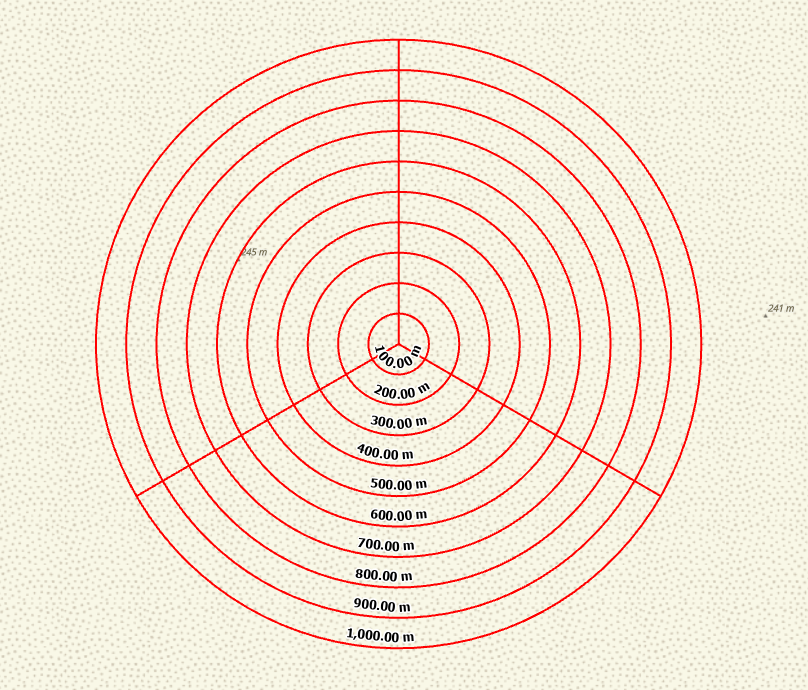
Range rings created 100 meters apart with three radials. The Distance and Direction tool adds a new feature dataset containing several feature classes. You can see this new feature dataset and the new feature classes in Contents.
Alternatively, click Delete Rings if you make errors while creating the range rings.
Export range rings
Export range rings to a feature class, shapefile, or KMZ file.
Click Export.
Choose Feature Class/Shapefile or KMZ, then click OK.
Set the location and name of your new feature class, shapefile, or KMZ file, and click Save.
Your new feature class will be added to the map.