AI in ArcGIS Excalibur
ArcGIS Excalibur further empowers you and your imagery work with AI. The ArcGIS Excalibur assistant (beta) enables you to ask natural language questions about project feature layers and receive AI-generated insights, helping you discover, understand, and interact with geospatial information more efficiently.
Enables you to ask natural language questions about feature data within an Excalibur project.
Reduces time spent manually searching, filtering, and analyzing feature layer information.
Surfaces relevant features and insights directly from project feature data.
Enable AI in your organization
The first step to begin using the AI in ArcGIS Excalibur is to turn on AI settings in your portal organization.
Note:
You must be an organization administrator to access the organization's Settings.
Note:
Your ArcGIS Online administrator must configure AI in your organization before you can access Excalibur assistant (beta) and other AI capabilities, including turning off the Block Esri apps and capabilities while they are in beta setting. You must also have the privilege to use AI assistants.
To enable AI in your organization, do the following:
From the home page click Organization > Settings.
Click the AI tab on the side.
Enable Allow use of AI assistants by members of your organization under AI assistants.
Learn more about enabling assistants in your organization.
ArcGIS Excalibur assistant (beta)
As a user of the Excalibur assistant (beta) you can expect to:
Discover relevant features and map insights such as damaged assets, inspection targets, incident locations, or records matching specific criteria.
Explore and understand project data more easily by asking questions like "What data is available in this project?" or "Which layers contain inspection information?" or "Who was the last analyst to collect these features and when were they collected?"
Improve situational awareness and decision-making by quickly identifying assets, locations, or conditions that require attention.
Enable users of all experience levels to interact with GIS data through a conversational interface rather than complex queries or workflows.
Increase productivity by reducing the time needed to investigate data, validate assumptions, and locate information across project layers.
Get started with the Excalibur assistant (beta)
To get started with the ArcGIS Excalibur assistant (beta) you need to generate embeddings and open the assistant (beta) in an Excalibur project. The following sections explain these steps in more detail.
Prepare your project in ArcGIS Excalibur
Generate embeddings for the feature layers in your Excalibur project. In your project, do the following:
Click More > Configure AI.
Click Generate Embeddings.
This may take time to run for larger datasets.
When complete your project embeddings are created and you are ready to open and use the assistant (beta).
Prepare your web map in Portal
You can generate embeddings for a layer outside of ArcGIS Excalibur, in your organization. To do this, do the following:
Open your web map item page.
Click Settings.
Under Web map settings, click Generate embeddings under Manage AI vector embeddings.
Your web map is now prepared to use the Excalibur assistant (beta).
Open the assistant (beta) in ArcGIS Excalibur
To open the assistant (beta), do the following:
Click Assistant
 .
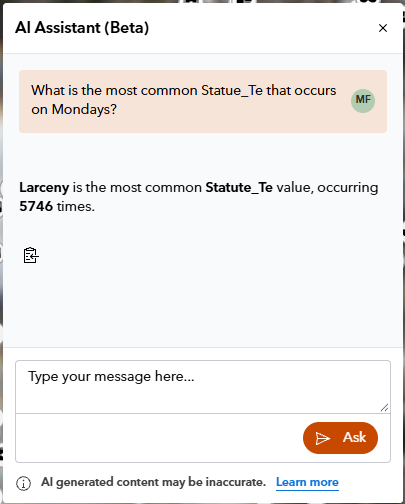
The Excalibur Assistant panel opens.
Type your prompt and click Ask
 .
Response appears in the window above the prompt.
Regenerate embeddings
When you add or remove layers from your project the assistant is not automatically aware of the changes. You will need to regenerate embeddings for the project. Regenerate embeddings when you add or remove a layer from the map. In your project, click More > Configure AI, and click Regenerate Embeddings.
Guidelines
The following guidelines can help you use Excalibur assistant (beta):
Check if your AI Assistants are turned on in your organization, your portal items should have Suggest button.
AI responses do not generate new datasets.
Accuracy of results are dependent upon how complete the target datasets are.
Credits
Using Excalibur assistant (beta) does not consume credits. However, the assistant's response may recommend a workflow that requires credits.
Security and privacy
Excalibur assistant (beta) aligns with the following principles:
Prompts are not used to train Esri or third-party AI models.
Prompts are not used to improve any Esri or third-party product or service.
Prompts are not stored or shared unless you give explicit permission, such as when you provide feedback about the assistant.
Prompts are not used to improve the assistant for your own use.
AI transparency cards are available with more security and privacy details.
Limitations and bias
An ArcGIS Online organizational account is required to access Excalibur assistant (beta). Other account types, such as public accounts, are not currently supported.
Suggestions generated using artificial intelligence can be misleading or inaccurate. To avoid potentially reinforcing any unintentional biases in the AI models used by Excalibur assistant (beta), human judgment should be applied to interpreting and acting upon the assistant's outputs.
Related topics
Documentation about beta features are not included in ArcGIS Enterprise help documentation, but are available from the Early Access Community (EAC).