Configure ArcGIS Image Server for deep learning raster analytics
ArcGIS Image Server provides a suite of deep learning tools to classify and detect objects in imagery. These tools allow you to generate training sample datasets and export them to a deep learning framework to develop a deep learning model. Then you can perform data inference workflows, such as image classification and object detection.
ArcGIS Image Server provides a suite of tools to support an end-to-end deep learning workflow. You can use your raster data in to prepare model training data, train deep learning models, and use inferencing tools, such as image classification and object detection.
To enable deep learning capabilities in ArcGIS Server, you need to fulfill two requirements:
Configure and deploy raster analysis on your enterprise.
Install deep learning packages
 for ArcGIS Image Server.
Setup deep learning libraries
To run deep learning raster analysis in Raster Analysis server, you need to install Deep Learning Libraries, as the Raster Analysis server utilizes third-party Python packages to support deep learning workflows. Once you have installed and configured a Raster Analysis server, follow the section below to install Deep Learning Libraries.
For instructions on how to install deep learning packages, see the Deep Learning Installation Guide for ArcGIS Image Server.
If there are multiple nodes on your Raster Analysis server site, you need to perform above steps on all nodes.
Verify Deep Learning Library Installation
As the last step, you will query an ArcGIS Living Atlas of the World deep learning model to verify Deep Learning Libraries are correctly installed by uploading a deep learning package and selecting it in a tool.
In a browser, navigate to ArcGIS Living Atlas, and download the Building Footprint Extraction - USA. The deep learning package will have a .dlpk file extension.
Sign in to your Portal for ArcGIS.
Navigate to Content and click New item.
Drag and drop the downloaded deep learning package into the wizard.
Click Save to update the deep learning package.
Click the app launcher and open Map Viewer.
In Map Viewer, click the Analysis button on the Setting toolbar on the right side of the map.
Click Tools, select Use deep learning, and choose Detect Objects Using Deep Learning tool to expand the tool parameters.
In the Model settings section, click Select model to choose the deep learning model for the tool.
In the Select item dialogue, it will open to the My content folder and all of your deep learning packages will be available
In the Select item dialogue, select the Building Footprint Extraction - USA and click Confirm.
If the Deep Learning Libraries are successfully loaded, then the model arguments in the tool will appear in the tool.
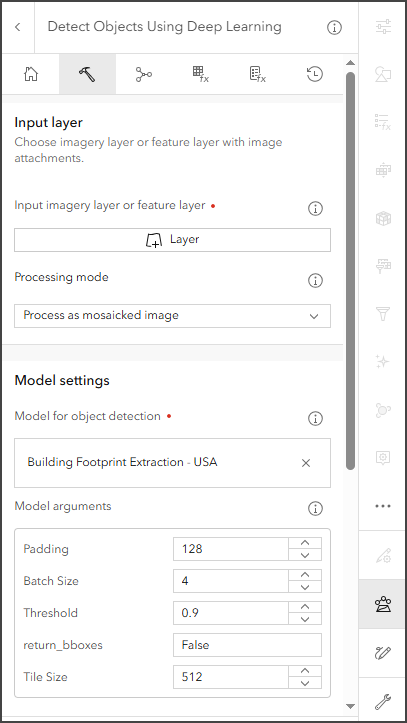
Model parameters for the deep learning package will appear in the tool when the libraries are installed correctly.
Now your Raster Analysis server is ready to perform deep learning analysis.
Use GPUs to run deep learning
Each tool in a deep learning raster analytics workflow includes a processorType environment parameter, which controls whether the processing will occur on the CPU or GPU. Ensure that this parameter correctly specifies whether to use CPU or GPU when making requests. The processorType environment parameter is set in the tool or raster function interface in ArcGIS Pro, Map Viewer Classic, ArcGIS REST API, or ArcGIS API for Python.
In the Raster Analysis server, inferencing tools can use a GPU to speed up job processing. The requirements for the GPU are as follows:
Prerequisite:
GPU Type: NVIDIA GPU with a minimum CUDA compute capability of 5.0; 6.1 or later is recommended.
GPU Driver: NVIDIA driver version 527.41 or later are required.
Dedicated Graphics Memory:
Minimum: 6 GB
Recommended: 16 GB or more. The memory requirement depends on the model architecture and batch size being used.
Once you have fulfilled all the GPU requirements, you need to verify RasterProcessingGPU pooling. RasterProcessingGPU is the service responsible for running inferencing tools.
Follow these steps:
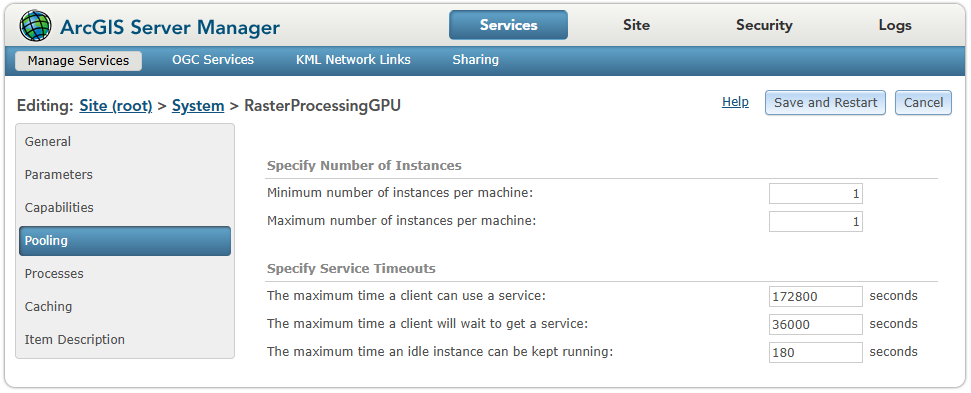
In a browser, navigate to ArcGIS Server Manager > Services > System > RasterProcessingGPU > Manage Services > Pooling.
Set the Maximum number of instances per machine to the number of GPUs on your machine. If you only have one GPU in your machine, then set the Maximum number of instances per machine to 1. Click Save and Restart.
Using Multiple GPUs in Raster Analysis Server
The Raster Analysis Server can utilize multiple GPUs to speed up deep learning model training and inference. GPU usage depends on the operating system and the type of task.
Overview
ArcGIS Server (Linux):
Supports multi-GPU training in a single machine.
Supports multi-node inference with one GPU per node.
ArcGIS Server (Windows):
Supports multi-node inference with all GPUs in each node.
Training uses only one GPU in one node.
Requirements
Confirm GPU requirements are met.
Install ArcGIS GIS Server.
Install Deep Learning Libraries.
Join the machine to your existing Raster Analysis Server site.
Tip:
All GPUs in your site should be identical in type and number per node for stable server behavior.
Inference
Windows:
Uses all GPUs in all nodes for inference.
Example: If you have 3 nodes with 4 GPUs each → 12 GPUs total.
Linux:
Uses one GPU per node, but can use multiple nodes.
Example: If you have 3 nodes with 4 GPUs each → 3 GPUs total.
Supported Tools:
Detect Objects Using Deep Learning
Classify Pixels Using Deep Learning
Detect Change Using Deep Learning
Configuration Steps (Windows):
Open ArcGIS Server Manager → Services → System → RasterProcessingGPU → Manage Services → Pooling.
Set Maximum number of instances per machine to the number of GPUs in your machine.
Save and restart.
Configuration Steps (Linux):
- Keep Maximum number of instances per machine to 1.
After enabling multiple GPU capability in your Raster Analysis Server site, you can control how inference jobs use GPUs by setting the Processor Type and Parallel Processing Factor environment settings. This helps avoid overloading Server resources.
Training
Windows:
- Training uses only one GPU in one node.
Linux (starting at version 12.1):
Supports multi-GPU training in a single machine for MaskRCNN and U-Net models.
Uses all GPUs in one node.
Example: If one node has 4 GPUs → 4 GPUs total.
Summary Table
| OS | Task | Nodes Used | GPUs per Node | Total GPUs Used | Notes |
|---|---|---|---|---|---|
| Windows | Inference | All nodes | All GPUs | All GPUs in site | Multi-node, multi-GPU |
| Windows | Training | 1 | 1 | 1 | Single GPU only |
| Linux | Inference | All nodes | 1 | One GPU per node | Multi-node, single-GPU |
| Linux | Training | 1 | 1 | All GPUs | Multi-GPU for MaskRCNN & U-Net |