View pop-ups
Pop-ups contain information about features and images in map layers, such as hiking trails, land cover types, or unemployment rates. Pop-ups can include attachments, images, charts, text, and field lists, and they can link to external web pages.
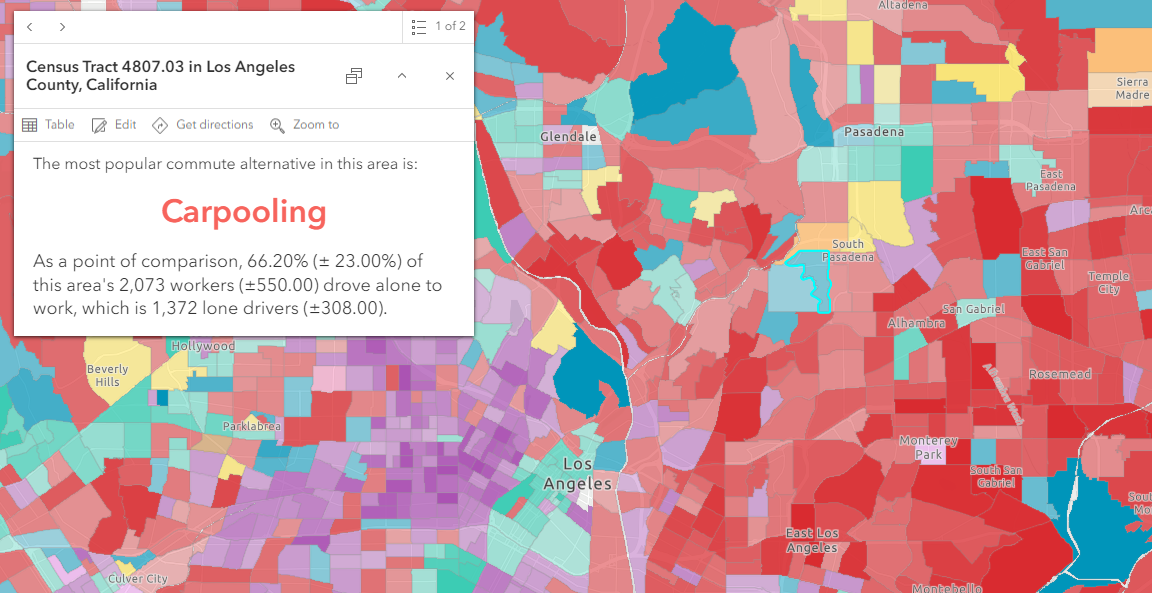
The image below shows a pop-up on a map.
Tip:
See an example of pop-ups in the map What are the most popular commute alternatives?. When an area is selected, a pop-up appears with charts showing the most popular commute alternatives to driving.
The default pop-up appearance for a feature layer—if the layer owner has not configured it—is a table of attributes and values. The layer owner can save a new configuration, which is why the pop-ups in a map can display relevant information without additional steps by the map author. The default pop-up appearance for an imagery layer is the pixel values.
There are multiple options for viewing and navigating a pop-up. To collapse the pop-up display and view only the title, click Collapse  . To expand the pop-up display and view all contents, click Expand
  . To dock the pop-up display to the top of the map, click Dock
  . Click Undock
  to display pop-ups near their associated features or pixels.
Tip:
Click Zoom to  on a feature's pop-up to zoom in to the feature on the map.
When viewing pop-ups for an area, your selection can include multiple features. Click Previous  and Next
  to page through all the features that were returned from your selection. Click Select feature
  to view the full list of features. If a pop-up includes multiple charts or images, click Previous and Next to page through the media items.
For a particular map, the map owner can reconfigure the feature layer pop-ups. Map authors define the list of visible and hidden fields and how the information is presented. For example, they can show a simple list of attributes or provide an interactive experience using custom-formatted text, charts, and images. To learn more about designing and configuring pop-ups for feature layers, see Configure pop-ups.