Conversations with the ArcGIS Pro assistant (beta)
The questions and requests that you submit are collected together in conversations. The assistant assumes that all questions in a conversation are related, all in reference to a single workflow, for example. The assistant uses this context to provide relevant responses within a conversation. To shift to a new context or workflow, click New Conversation  to begin a new conversation.
Tip:
To copy a question to the clipboard, hover over the question in the scrollable area of the pane, and click Copy Question
 .
To copy a response to the clipboard, hover over the response, and click Copy Response
.
The drop-down menu at the top of the Assistant (Beta) pane shows the current conversation. Enter a new prompt in the text box at the bottom of the pane to continue working in the current conversation. If additional conversations are present, click one on the menu to read its history and begin working within its context. The title of the conversation is the text of the first question in the conversation. From this drop-down menu, you can change the title of a conversation and delete any conversations you no longer need. There is no limit to the number of stored conversations.
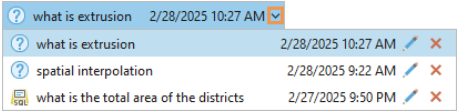
Each conversation is automatically saved and stored in your conversation history, persisted locally on your computer. They are stored as .json files in your user profile at \AppData\Local\ESRI\ArcGISPro\Assistant\Sessions. Conversations are saved whether or not you save the current project, and they persist across your ArcGIS Pro sessions and projects.
Caution:
During the beta phase, your questions, prompts, enabled functions, along with the generated outputs and responses are collected to help improve product performance and reliability. Do not enter production, private, or sensitive data or information into the assistant.
Learn more about privacy at Esri
Feedback
To provide feedback about a specific response, hover over it and click Good Response  or Bad Response
 to open a survey. Add your comments, agree to the privacy statement, and click Submit. When you submit a survey, your feedback may be used to improve the quality of responses, guide future development of Esri products and documentation, or both.
Your feedback improves the quality of responses and the overall experience of using the assistant.