Configure a knowledge graph
When you create a knowledge graph, you can modify the default configuration. To begin the process and set general properties, see Create an investigation in a project.
You can configure a knowledge graph to allow users to edit the underlying data, configure how the knowledge graph data will be managed, and define how Document entities and HasDocument relationships will be supported. Some service-level parameters can also be configured. The configurable properties depend on your software version and whether the knowledge graph uses a hosted graph store or a NoSQL data store.
Configure the knowledge graph
Complete the following steps to configure operations and properties for the knowledge graph. These settings are stored as part of the definition of the ArcGIS Knowledge Server service that is created.
On the Define Knowledge Graph page of the Create Investigation wizard, provide information on the General tab as described for creating a knowledge graph using the default configuration.
Take note of the choice made under Data Stores, as this affects how you can configure the knowledge graph.
Click the Configuration tab.
The Configuration tab has several tabs that allow you change settings for a file knowledge graph or a knowledge graph service.
Click the appropriate tab and configure the knowledge graph settings.
Click Finish.
The knowledge graph service is created.
Configure editing privileges
The owner of the knowledge graph service and ArcGIS Enterprise portal administrators can always edit its data. By default, other users cannot modify this knowledge graph's data unless editing is turned on. Complete the following steps to configure editing operations for users with sufficient privileges:
Note:
Editing privileges cannot be added to knowledge graphs that use a NoSQL data store containing user-managed data. This option is not available for file knowledge graphs.
Click the Configure editing privileges tab
 .
.Turn on the Enable editing privileges toggle button to allow other users to edit data in the knowledge graph service.
Choose the type of editing operations that are permitted for other users with sufficient privileges.
Editing operations are described in the following table:
Add
Editors can add entities and relationships to the knowledge graph. They can define new entity types and relationship types, and they can add properties. They can define the geometry of a new entity by creating the entity on a map. This option is enabled by default. Once entities and relationships are created, the Update option must be enabled for editors to modify entities and relationships, their properties, and their geometries.
Delete
Editors can delete features. This option is enabled by default.
Update
When this option is enabled, the Properties and geometry option is enabled by default, allowing editors to update the properties of entities and relationships and the geometry of an entity. Choose Properties only to allow editors to update properties for existing entities and relationships only. They cannot modify the geometry of an existing entity.
Configure editor tracking
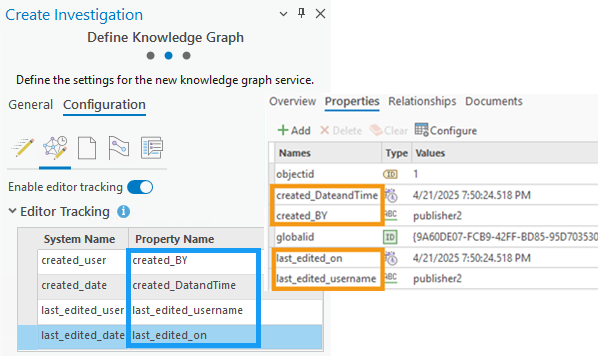
The editor tracking option adds four properties to all knowledge graph entity and relationship types to track who creates and edits the data and at what time the changes occurred. Complete the following steps to configure how editor tracking is defined in the knowledge graph service. These settings are stored as part of the definition of the ArcGIS Knowledge Server service that is created.
Note:
Editor tracking cannot be added to knowledge graphs that use a NoSQL data store containing user-managed data. This option is not available for file knowledge graphs.
Click the Configure editor tracking tab
 .
.Turn on the Enable editor tracking toggle button to record who changed data in the knowledge graph service.
Optionally, configure how editor tracking properties are defined in the knowledge graph.
A set of properties, listed below, is created for all knowledge graph data when editor tracking is turned on. If you provide custom names for these properties, you will see those names when you explore data in the investigation.
created_user
The user who created the data in the knowledge graph. The default property name is created_user.
created_date
The date and time when the data was created in the knowledge graph. Values are in MM/DD/YYYY and UTC format. The default property name is created_date.
last_edited_user
The user who most recently updated the data in the knowledge graph. The default property name is last_edited_user.
last_edited_date
The date and time of the most recent change to the data in the knowledge graph. Values are in MM/DD/YYYY and UTC format. The default property name is last_edited_date.
When the knowledge graph is created, the text you provide is used to identify the editor tracking properties.
Configure documents
You can reference documents from a knowledge graph to provide context for an entity or a relationship in which it participates. A document in the knowledge graph is a reference to a file in the location where it is stored or to a website or document available on the internet. You can configure how documents are represented in the knowledge graph. These settings are stored as part of the definition of the ArcGIS Knowledge Server service that is created.
Note:
Documents cannot be added to knowledge graphs that use a NoSQL data store containing user-managed data. Documents are always available for file knowledge graphs and knowledge graph services that use a hosted data store, or a NoSQL data store containing ArcGIS-managed data, and cannot be turned off.
To configure how documents are represented in the knowledge graph, complete the following steps:
Click the Configure documents tab
 .
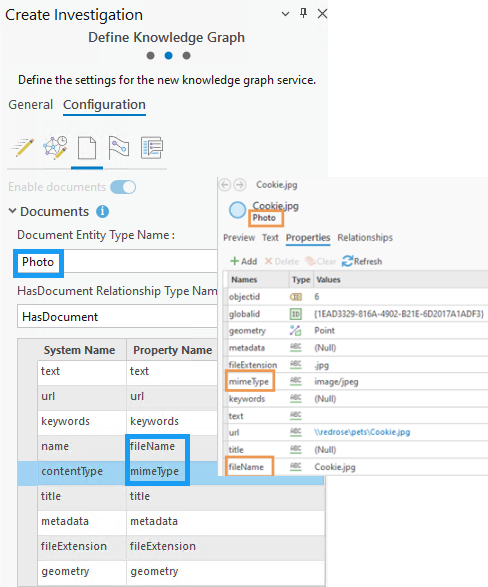
.In the Document Entity Type Name text box, type a name for the entity type in the data model representing documents that are referenced by the knowledge graph.
The default value is Document. With the default value, when you add a document to a knowledge graph, a new entity is created for the Document entity type. If all documents will be photos, for example, you can change the name of this entity type to Photo.
In the HasDocument Relationship Type Name text box, type a name for the relationship type in the data model that represents a relationship between an entity in the knowledge graph and a document associated with that entity.
The default value is HasDocument. With the default value, when you add a document to a specific entity in the knowledge graph, such as a Person entity, a new relationship of the HasDocument relationship type is created between the Person entity and the Document entity. If you provided a custom name for the entity type used to store documents, you can change the name of this relationship type as well. For example, you can change the name of the relationship type to HasPhoto.
Optionally, configure how the document entity type is defined.
Some information is required or highly recommended for all documents in all knowledge graphs. A set of properties, listed below, is created by default for each document entity so you can provide this information. If you provide custom names for these properties, you will see those names when you define and explore documents in the investigation.
text
Any text in a document is extracted and stored in this property. The default property name is text.
url
The location of the document is stored in this property. The value can be a URL to a website or a document that is available on the internet, or the file path that can be used to access a document on the network. The default property name is url.
keywords
This property allows you to specify keywords that can help you search for the document. The default property name is keywords.
name
The file name of the document. For example, if you add a file named
notes.txtto the knowledge graph, that file name is stored. The default property name is name.contentType
The type of data contained by the referenced document is stored in this property as a Multipurpose Internet Mail Extensions (MIME) type. For example, if you add a simple text file to the knowledge graph, the value text/plain would be recorded. The default property name is contentType.
title
This property allows you to specify a title for the document. The default property name is title.
metadata
This property allows you to specify metadata describing the document. The default property name is metadata.
fileExtension
The file extension is recorded when the referenced document is a file. For websites, the file extension
.htmis stored. The default property name is fileExtension.When the knowledge graph is created, the text you provide is used to identify the properties for the document entity type.
Configure provenance
Provenance can be added to describe where information in the knowledge graph originated. You can configure how provenance is stored in the knowledge graph. These settings are stored as part of the definition of the ArcGIS Knowledge Server service that is created.
Note:
Provenance cannot be added to file knowledge graphs or knowledge graphs that use a NoSQL data store containing user-managed data.
Complete the following steps to configure provenance storage:
Click the Configure provenance tab
 .
.Turn on the Enable provenance toggle button to describe where the information stored in properties of an entity or a relationship originated.
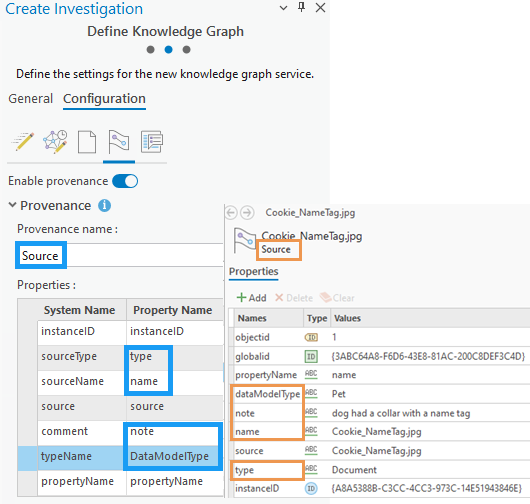
In the Provenance Name text box, type a name that will be used to identify records that define the sources of information stored in the knowledge graph.
The default value is Provenance. For example, the value provided in this setting appears when you browse an investigation's Meta Types list in the Catalog pane and the catalog view, and in the investigation's Type column when you list provenance records.
Optionally, configure how the properties of a provenance record are defined.
Some information is required or highly recommended for all provenance records in all knowledge graphs. A set of properties, listed below, is created by default so you can provide this information for each provenance record. If you provide custom names for these properties, you will see those names when you define and explore provenance records in the investigation.
instanceID
This property stores the global ID value of the entity or relationship associated with the provenance record. The default property name is instanceID.
sourceType
The type of source material associated with this provenance record is stored in this property. The supported source types are Document, URL, and String. The default property name is sourceType.
sourceName
This property provides a name for the source material. When the sourceType value is Document, this value is set to the Document entity's name property. When the sourceType value is URL or String, you can provide text such as the name of the website or the name of a person who was interviewed. The default property name is sourceName.
source
This property identifies the source of the information. The default property name is source.
When the sourceType value is Document, the provenance record references a document that was previously added to the knowledge graph.
When the sourceType value is URL, the value can be the location of a website or document on the internet or a file path that accesses a document on the network.
When the sourceType value is String, the value is text where you can provide the information or instructions for accessing the source material.
comment
This property allows you to write a note about the source material or its relevance to the entity or relationship associated with this provenance record. The default property name is comment.
typeName
This property stores the type of entity or relationship type associated with the provenance record. For example, if the provenance record establishes the name of a person, the entity type name Person would be stored. The default property name is typeName.
propertyName
This property identifies the property of the entity or relationship associated with the provenance record. For example, if the provenance record establishes the birth date of a person, the property name birthDate would be stored. The default property name is propertyName.
When the knowledge graph is created, the text you provide is used to identify the provenance record's properties.
Optionally, configure how the source types of a provenance record are defined.
Three types of sources are supported when defining a provenance record, which are listed below. If you provide custom names for these types, you will see those names when you define and explore provenance records in the investigation. These source type values are stored in the provenance record's sourceType property.
Document
When this type is selected, the provenance record references a document in the knowledge graph. The default name for this sourceType value is Document.
URL
When this type is selected, the provenance record stores the location where the source document can be found on the internet or on the network. The default name for this sourceType value is URL.
String
When this type is selected, you can type the information, a description of the source itself, or instructions for accessing the source material. The default name for this sourceType value is String.
When the knowledge graph is created, the text you provide is used to identify the type of source material described by a provenance record.

Configure parameters
Complete the following steps to configure parameters for the knowledge graph. These settings are stored as part of the definition of the ArcGIS Knowledge Server service that is created.
Note:
This option is not available for a file knowledge graph. It is always available for a knowledge graph service.
Click the Configure parameters tab
 .
.Under Properties, specify a value for Maximum records returned by server.
This property specifies the number of graph items that can be returned by an openCypher query or when displaying data in an investigation, a map, or a link chart. A large number may result in slower performance. The default value is 10,000.
Specify a value for Maximum records returned by server during search operation.
This property specifies the number of graph items that can be returned by a search against the indexed properties of entities and relationships. A large number may result in slower performance. The default value is 2,000.