ProConcepts COGO
This topic covers the API detailing the classes and methods used to query and edit COGO-enabled line feature classes. For more general information on COGO in ArcGIS Pro, see the help topic Introduction to COGO.
- ArcGIS.Core.dll
- ArcGIS.Desktop.Editing.dll
Language:      C#
Subject:       COGO
Contributor:   ArcGIS Pro SDK Team <arcgisprosdk@esri.com>
Organization:  Esri, https://www.esri.com
Date:          04/20/2026
ArcGIS Pro:    3.7
Visual Studio: 2026
In this topic
- Overview
- COGO-enabled lines
- Rules for COGO values
- Convert direction formats and distance units
- Ground to grid corrections
- Create COGO features
- Calculate COGO from geometry
- Traverse
Overview
Coordinate Geometry (COGO) is a feature editing technique used primarily in the land records industry. It is characterized by the capturing of the dimensions depicted on land record documents as attributes on line features. These depictions can include the boundaries of land parcels, the centerlines of streets or railroads and the dimensions across road rights of way.
In most cases they are single segment two point line features that model the measurements between point locations. A COGO line feature is most commonly a straight line or a circular arc, but may also be a multi segment polyline when representing a spiral curve, or when representing a natural boundary such as a river or lake shore. Any line feature class may be enhanced to support COGO attributes by making it COGO-enabled.
COGO line features are also used as part of the parcel fabric data model. When a parcel fabric dataset is created, line feature classes are automatically added as COGO-enabled. There is a dedicated API for parcel fabrics. For more information about the Parcel Fabric API see the topic ProConcepts Parcel Fabric.
COGO-enabled lines
A COGO line feature class differs from a standard geodatabase feature class in that it has five COGO fields that are added to its existing fields. These five fields have a well-known, predefined schema, as follows:
| Field Name | Data Type | Allow NULL |
|---|---|---|
| Direction | Double | ☑ |
| Distance | Double | ☑ |
| Radius | Double | ☑ |
| ArcLength | Double | ☑ |
| Radius2 | Double | ☑ |
You can test to confirm a line feature layer is COGO-enabled as follows:
//first get the feature layer that's selected in the table of contents
var destLineL = MapView.Active.GetSelectedLayers().OfType<FeatureLayer>().FirstOrDefault();
var fcDefinition = destLineL.GetFeatureClass().GetDefinition();
if (fcDefinition.GetShapeType() != GeometryType.Polyline)
  return "Please select a line layer in the table of contents.";
bool bIsCOGOEnabled = fcDefinition.IsCOGOEnabled();
You can run the Enable COGO geoprocessing tool to add these fields to a line feature class. Here is some code to make a line feature class COGO-enabled via the Geoprocessing API:
var parameters = Geoprocessing.MakeValueArray("C:\\MyFGDB.gdb\\MyFDS\\MyLineFC");
await Geoprocessing.ExecuteToolAsync("management.EnableCOGO", parameters);
COGO fields are used to store Direction and Distance values for straight lines, and Radius and Arclength values for circular arcs. Spirals are also supported using the Radius2 field.
There are specific rules for the content in these fields. For example:
- Length units are defined by the spatial reference of the feature class
- Combinations of null and non-null values in the COGO fields for a line feature define the type of line (straight line, circular arc, or spiral).
These rules are covered in more detail in the following section.
When a COGO enabled line is added to the map in Pro, the software detects that it is COGO-enabled and assigns specialized properties to the layer that are useful for COGO lines such as symbology, labeling and a pre-configured feature template. These properties are retrieved from a file called COGO_Lines.lyrx in the Pro install location: %ProgramFiles%\ArcGIS\Pro\Resources\LayerTemplates\COGO\en-US
The following code will COGO-enable the line feature class of a layer selected in the table of contents, and will then remove and re-add the layer to use the COGO layer template properties:
protected async override void OnClick()
{
  string sReportResult = "";
  string errorMessage = await QueuedTask.Run(async () =>
  {
    //first get the feature layer that's selected in the table of contents
    var destLineL = MapView.Active.GetSelectedLayers().OfType<FeatureLayer>().FirstOrDefault();
    var LineFC = destLineL.GetFeatureClass();
    var fcDefinition = LineFC.GetDefinition();
    if (fcDefinition.GetShapeType() != GeometryType.Polyline)
      return "Please select a line layer in the table of contents.";
    bool bIsCOGOEnabled = fcDefinition.IsCOGOEnabled();
    if (bIsCOGOEnabled)
      return "This line layer is already COGO Enabled.";


    var sPathToGDB = LineFC.GetDatastore().GetConnectionString().Replace("DATABASE=", "");
    var pFDS = LineFC.GetFeatureDataset();
    var sPathToLineFC = "";
    if (pFDS == null)
      sPathToLineFC = sPathToLineFC = Path.Combine(sPathToGDB, LineFC.GetName());
    else
      sPathToLineFC = Path.Combine(sPathToGDB, pFDS.GetName(), LineFC.GetName());

    try
    {
      await EnableCOGOAsync(sPathToLineFC);
      //Remove and then re-add layer
      //remove layer
      var map = MapView.Active.Map;
      map.RemoveLayer(destLineL);

      var featureClassUri = new Uri(sPathToLineFC);
      //Define the Feature Layer's parameters.
      var layerParams = new FeatureLayerCreationParams(featureClassUri)
      {
        //Set visibility
        IsVisible = true,
      };
      var createdLayer = LayerFactory.Instance.CreateLayer<FeatureLayer>(layerParams, MapView.Active.Map);

    }
    catch (Exception ex)
    { return ex.Message; }
        return "";
  });
  if (!string.IsNullOrEmpty(errorMessage))
    MessageBox.Show(errorMessage, "COGO Enable Line Features");
  else if (!string.IsNullOrEmpty(sReportResult))
    MessageBox.Show(sReportResult, "COGO Enable Line Features");

}

protected async Task EnableCOGOAsync(string LineFCPath)
{
  var progDlg = new ProgressDialog("Enable COGO for line feature class", "Cancel", 100, true);
  progDlg.Show();

  //GP Enable COGO
  GPExecuteToolFlags flags = GPExecuteToolFlags.Default | GPExecuteToolFlags.GPThread;
  var progSrc = new CancelableProgressorSource(progDlg);
  var parameters = Geoprocessing.MakeValueArray(LineFCPath);
  await Geoprocessing.ExecuteToolAsync("management.EnableCOGO", parameters,
      null, progSrc.Progressor, flags);

  progDlg.Hide();
}
Rules for COGO values
Units
The values stored in the Distance, Radius, Arclength, and Radius2 fields are in the linear units of the projection defined on the feature class of the COGO-enabled line. When the feature class does not have a projection but is in a geographic coordinate system, the values are in meters.
The code below uses the feature class definition to get the unit conversion factor:
double dMetersPerUnit = 1;
var fcDefinition = destLineL.GetFeatureClass().GetDefinition();
if (fcDefinition.GetSpatialReference().IsProjected)
  dMetersPerUnit = fcDefinition.GetSpatialReference().Unit.ConversionFactor;
This conversion factor is meters per unit. For example if the projection is in International Feet, then this value will be returned as 0.3048.
Values stored in the Direction field are in decimal degrees, from 0° to 360°. The direction format is North Azimuth, meaning 0° points north, and angles increase clockwise. For example, northeast is 45°, south is 180° and northwest is 315°.
Note: ArcGIS Pro presents these directions in the user interface in the formats that have been configured for the fields via arcade expressions for use in labeling, pop-ups, and so on.
When passing direction values into functions in the geometry engine, these direction units need to be converted. In most parts of the geometry engine the polar cartesian direction system is used. For the directions' angle units, the geometry engine uses radians, with values ranging from -PI to PI (or 0 to 2PI), 0 radians points east and angles increase counter-clockwise. For example, northeast is PI/4, south is -PI/2 (or 3PI/2) and northwest is 3PI/4. To learn more about different direction systems see the help topic Direction formats for editing.
To see more API information for direction format conversion see the section topic Convert direction formats and distance units.
Straight lines, circular arcs, spirals and polylines
The following table describes the fields used to store the parameters for each COGO line type:
| COGO Line type | Direction | Distance | Radius | Arclength | Radius2 | |
|---|---|---|---|---|---|---|
| Straight line | ☑ | ☑ | null | null | null | null |
| Circular arc | ☑ | null | ☑ | ☑ | null | |
| Spiral curve | ☑ | null | ☑ | ☑ | ☑ | |
| Polylines | ☑ | ☑ | null | null | null | null |
- A straight line may only have its
DirectionandDistanceCOGO fields populated, and the others must be left unused. - A circular arc may only have its
Direction,RadiusandArclengthCOGO fields populated, and the others must be left unused. - A spiral may only have its
Direction,Radius,Arclength, andRadius2COGO fields populated, and theDistancefield must be left unused. Since there is no parametric representation for clothoid spirals in Pro, theRadius,Arclength, andRadius2COGO fields must be populated for the feature to be recognized as a spiral. - A polyline that represents a natural boundary may only have its
DirectionandDistanceCOGO fields populated. It is common for all fields to be left as unused for these COGO line types. (Natural boundaries are typically presented in bounds descriptions with wording such as “…bounded on the north by Rose Creek…” without any dimension information).
Any of the values represented by the check boxes in the table above may be left as null. For example, you may have a straight line with the Distance field containing a value, but with the Direction field left unused.
Direction parameter
The Direction field on straight lines, circular arcs, and spirals always represents the north azimuth direction along the straight line or chord from start point to end point of the feature. The following code snippet shows how to get the direction info for the straight line between the first and last vertex of a line feature.
ICollection<Segment> LineSegments = new List<Segment>();
myLineFeature.GetAllSegments(ref LineSegments);
int numSegments = LineSegments.Count;

IList<Segment> iList = LineSegments as IList<Segment>;
Segment FirstSeg = iList[0];
Segment LastSeg = iList[numSegments - 1];
var pLine = LineBuilder.CreateLineSegment(FirstSeg.StartCoordinate, LastSeg.EndCoordinate);
var dDirectionPolarRadians = pLine.Angle;
var dDistance = pLine.Length;
In this code note that the direction variable’s value is in radians and is represented in the polar cartesian format used by the geometry engine. To learn more about how this value is converted to north azimuth see Convert direction formats and distance units.
Distance parameter
Note in the code above, the straight line distance is the uncorrected value, prior to any unit conversions or ground to grid corrections. For more information about when and how to apply corrections for ground to grid see Ground to grid corrections.
Arclength parameter
Circular arcs and spirals use an arclength value as one of the parameters to define their shapes. The arclength is always greater than the chord length. Like the other length parameters (radius and distance) the scale factor portion of the ground to grid correction needs to be taken into account when creating tools that read or write the geometry and COGO attributes for COGO lines. For more information about when and how to apply corrections for ground to grid see Ground to grid corrections.
Radius parameter
Circular arcs and spirals are defined as turning to the left (counter-clockwise) or turning to the right (clockwise). For defining a circular arc that is proceeding counter-clockwise, the value stored in the Radius field must be negative, and conversely circular arcs to the right must store positive radius values.
The following code shows how to test the geometry of an arc, and change the sign of the radius attribute based on the IsCounterClockwise boolean flag.
var MyCircularArcRadiusAttribute = ArcGeometry.IsCounterClockwise ?
                - ArcGeometry.SemiMajorAxis : Math.Abs(ArcGeometry.SemiMajorAxis); //radius
Note that all length parameters: arclength, radius, distance, and radius2, are affected by the scale factor used in ground to grid corrections. This needs to be accounted for when creating tools that read or write the geometry and COGO attributes for COGO lines. For more information about when and how to apply corrections for ground to grid see Ground to grid corrections.
Radius2 parameter
The second radius parameter is used exclusively for clothoid spirals. It is used in combination with the first radius value and arclength to define the mathematical shape of the spiral.
Since the geometry engine does not have a true parametric representation for spirals, the geometry can only be approximated by a polyline with a series of short straight line segments. The mathematical representation of the spiral can be rehydrated from its stored COGO attributes. For more information on this technique, see Create a spiral curve.
Another important property of a spiral is that either the start or the end of the curve can have a radius that’s defined as infinity. The rule for defining an infinite radius on a spiral is to use a zero value as follows:
- starting radius of infinity, store
0forRadiusfield. - ending radius of infinity, store
0forRadius2field. - a zero value in both radius parameter fields for the same feature is not valid.
As noted in the section about circular arcs, the sign of the radius value defines whether the curve is turning to the left (counter-clockwise) or turning to the right (clockwise). For spirals, since there are two radius values and since one or the other may be a zero value, the left turning spiral is defined if either radius value is negative, or if both values are negative. For example, if one of the values is greater than zero and the other is less than zero, then the spiral is turning to the left (counter-clockwise). Similarly, if both radii are negative then that spiral is also turning left.
For more information about the properties of the clothoid and the API see the reference guide for the PolyLineBuilderEx constructor.
Convert direction formats and distance units
The geometry engine’s direction format is polar(cartesian) in radians, whereas the COGO attribute base unit for directions is north azimuth in decimal degrees. The code below shows a commonly used direction format conversion function:
private static double PolarRadiansToNorthAzimuthDecimalDegrees(double InPolarRadians)
{
  var AngConv = DirectionUnitFormatConversion.Instance;
  var ConvDef = new ConversionDefinitionEx()
  {
      DirectionTypeIn = ArcGIS.Core.CIM.DirectionType.Polar,
      DirectionUnitsIn = ArcGIS.Core.CIM.DirectionUnits.Radians,
      DirectionTypeOut = ArcGIS.Core.CIM.DirectionType.NorthAzimuth,
      DirectionUnitsOut = ArcGIS.Core.CIM.DirectionUnits.DecimalDegrees
  };
  return AngConv.ConvertToDouble(InPolarRadians, ConvDef);
}
This function uses the DirectionUnitFormatConversion class. An instance of that class is created and then you define a ConversionDefinition object with specific conversion properties. The incoming direction type and direction units are in this case Polar and Radians, and the outgoing direction type and directions units are specified as NorthAzimuth directions in units of DecimalDegrees.
Another commonly required conversion is to go from string representations such as quadrant bearings in degrees minutes and seconds, for example N10-59-59E, into the geometry engine’s polar radians equivalent. The following function follows a similar pattern as the previous example:
private static double QuadrantBearingDMSToPolarRadians(string InQuadBearingDMS)
{
  var AngConv = DirectionUnitFormatConversion.Instance;
  var ConvDef = new ConversionDefinitionEx()
  {
    DirectionTypeIn = ArcGIS.Core.CIM.DirectionType.QuadrantBearing,
    DirectionUnitsIn = ArcGIS.Core.CIM.DirectionUnits.DegreesMinutesSeconds,
    DirectionTypeOut = ArcGIS.Core.CIM.DirectionType.Polar,
    DirectionUnitsOut = ArcGIS.Core.CIM.DirectionUnits.Radians
  };
  return AngConv.ConvertToDouble(InQuadBearingDMS, ConvDef);
}
Though the geometry engine mostly uses cartesian directions, there is an exception when using the vector-based computation functions. In these cases the directions are in north azimuth radians. For example, in the following code MyVectorDirection is in north azimuth radians.
Coordinate3D MyPoint = new Coordinate3D();
MyPoint.SetPolarComponents(MyVectorDirection, 0.0, MyDistance);
The following function can be used to convert from polar radians to north azimuth, also in radians.
private double PolarRadiansToNorthAzimuthRadians(double InPolarRadians)
{
  var AngConv = DirectionUnitFormatConversion.Instance;
  var ConvDef = new ConversionDefinitionEx()
  {
    DirectionTypeIn = ArcGIS.Core.CIM.DirectionType.Polar,
    DirectionUnitsIn = ArcGIS.Core.CIM.DirectionUnits.Radians,
    DirectionTypeOut = ArcGIS.Core.CIM.DirectionType.NorthAzimuth,
    DirectionUnitsOut = ArcGIS.Core.CIM.DirectionUnits.Radians
  };
  return AngConv.ConvertToDouble(InPolarRadians, ConvDef);
}
Also available in the ArcGIS.Core.Parcels namespace (ArcGIS Pro 3.7 or higher) are functions for converting between other commonly used COGO direction formats.
using ArcGIS.Core.Parcels;
.
.
.
var myQuadrantBearingString =
  ParcelUtilities.Instance.ConvertNorthAzimuthDecDegToQuadrantBearingDMS(42.2222);
The complete list of these functions is:
.ConvertNorthAzimuthDecDegToNorthAzimuthDMS
.ConvertNorthAzimuthDecDegToQuadrantBearingDMS
.ConvertNorthAzimuthDMSToNorthAzimuthDecDeg
.ConvertQuadrantBearingDMSToNorthAzimuthDecDeg
For all these functions, the DMS (degrees minutes seconds) input and returned values are strings.
The returned and input directions for NorthAzimuthDecDeg are doubles.
For distance unit conversions, distance and length values are always written to the unit of the spatial reference layer as described above. If the layer has a different unit from the incoming distances, these need to be converted. This can be done using the meters-per-unit scale factor for the incoming values, and for the target layer as shown in the following code snippet.
var sourceMPU = 1.0;
if (sourceSpatialReference.IsProjected)
  sourceMPU = sourceSpatialReference.Unit.ConversionFactor;

var targetMPU = 1.0;
var targetSR = fLayer.GetSpatialReference();
if (targetSR.IsProjected)
  targetMPU = targetSR.Unit.ConversionFactor;

var storeDist = mySourceDistance * sourceMPU / targetMPU;
Ground to grid corrections
Many land records documents define a two-dimensional planar coordinate system representing a relatively small area of land such as a subdivision for multiple parcels, or a deed for an individual parcel. These localized “ground” coordinate systems minimize the distortion that would otherwise result from projecting data into the “grid” coordinate systems that are designed to model much larger areas.
These ground coordinate systems have the practical advantage of making each land record document independent of any particular projection so that the directions and distances can stand independent of grid coordinates. In fact many land records do not document coordinates at all, while others may provide grid coordinates and reference a projection but will still record distance and direction values in a ground system.
In cases where coordinates are documented, they will usually also include ground to grid correction information that is specific to the coordinate system. For example, a subdivision may include wording such as in the following notes:
- “The coordinates shown hereon are Texas South Central Zone No.4204 State Plane Grid Coordinates (NAD83) and may be brought to surface by dividing by the combined scale factor of 0.999880014.”
- “All bearings are based on the Texas Coordinate System, South Central Zone (4204).”
In note 1 the term “surface” refers to the ground coordinate system. The 0,0 origin of the Texas Coordinate System should be used as the fixed anchor point when scaling the coordinates. For this example, the resulting surface (ground) coordinates would be offset to the northeast of the coordinates in the projected grid system, and the resulting lengths between these surface coordinates would model horizontal ground distances. If a different projection were used, then the scale factor would also need to be changed to achieve the same horizontal ground distances. The second note indicates that the bearings have no angular offset, and so in this case there is no angle offset correction required for directions.
For more information about ground to grid corrections, including what is meant by the “combined” factor, see the help topic Ground to grid correction.
In ArcGIS Pro the ground to grid corrections are stored on a per-map basis; each map has its own corrections. You get the map’s ground to grid correction object from its CIM definition. In the following code, the active map view is used to get the map’s ground to grid correction object:
//Get the active map view.
var mapView = MapView.Active;
if (mapView?.Map == null)
  return;
var cimDefinition = mapView.Map?.GetDefinition();
if (cimDefinition == null) return;
var cimG2G = cimDefinition.GroundToGridCorrection;
For new maps the GroundToGridCorrection object needs to be created. In the following code we test for a null object and then create it if it’s null:
if (cimG2G == null)
  cimG2G = new CIMGroundToGridCorrection();
The primary properties of the ground to grid correction are the distance factor and the direction offset. These properties may be turned on or off individually, and the whole correction object may also be activated or deactivated for each map. In ArcGIS Pro the ground to grid corrections can be accessed in the user interface from the Edit ribbon, and also from the status bar located at the bottom of the active map.
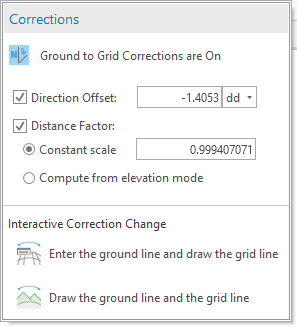
For more about using this correction in the user interface see Set ground to grid correction.
Reading the ground to grid properties is done through extension methods on the GroundToGridCorrection object. These methods automatically check if the ground to grid is active and turned on for the map, and also tests for the state of the individual corrections currently set by the user.
If any of these are not active or turned off then the distance factor is returned with a factor of 1.0000, and similarly the direction offset correction will return a value of 0.000 if it is not active. This makes the use of these extension methods easy in the API since you don’t need to check the different combinations of properties.
Note that the direction offset correction is always stored in decimal degrees. In the code below it is converted to radians for use in the geometry engine functions:
//These extension methods automatically check if ground to grid is active.
double dScaleFactor = cimG2G.GetConstantScaleFactor();
double dDirectionOffsetCorrection = cimG2G.GetDirectionOffset() * Math.PI / 180.0;
The API for setting ground to grid does not need extension methods. You set the properties directly as shown in the code below:
cimG2G.UseScale = true; //turn on Distance Factor
cimG2G.ScaleType = GroundToGridScaleType.ConstantFactor; //turn on Constant Scale
cimG2G.ConstantScaleFactor = 0.999880014;
await mapView.Map.SetGroundToGridCorrection(cimG2G);
The preceding code turns on the constant scale factor and assigns a value. The newly updated ground to grid object must be stored on the Map using the SetGroundToGridCorrection method.
Create COGO features
In standard COGO workflows, line features are created from the directions and distances provided by the user who reads them off the land record document. The API pattern for creating these features is to take the provided values, apply the appropriate unit and ground to grid conversions to create the line geometry, and then to store the incoming COGO values, uncorrected, in the COGO attribute fields. The following sections detail these steps for three of the COGO line types.
Create a straight line
The most commonly used COGO feature is the single segment two point line. The following code applies the information from the preceding topics to create a straight line COGO feature. Unit conversions and ground to grid corrections are included.
protected async override void OnClick()
{
  await QueuedTask.Run( () =>
  {
    var featLyr = MapView.Active.GetSelectedLayers().FirstOrDefault() as FeatureLayer;
    if (featLyr == null)
    {
      MessageBox.Show("Please select a COGO line layer in the table of contents.");
      return;
    }

    var LineFC = featLyr.GetFeatureClass();

    var fcDefinition = LineFC.GetDefinition();
    if (fcDefinition.GetShapeType() != GeometryType.Polyline)
    {
      MessageBox.Show("Please select a COGO line layer in the table of contents.");
      return;
    }
    bool bIsCOGOEnabled = fcDefinition.IsCOGOEnabled();
    if (!bIsCOGOEnabled)
    {
      MessageBox.Show("This line layer is not COGO Enabled.");
      return;
    }
    //Example scenario. Make a straight line that has N10°E bearing, and 100 feet.
    //=====================================================
    //User Entry Values
    //=====================================================
    string QuadrantBearingDirection = "n10-00-0e";
    double dDistance = 100.0; //in International feet
    //=====================================================

    double dMetersPerUnit = 1.0;
    if (fcDefinition.GetSpatialReference().IsProjected)
      dMetersPerUnit = fcDefinition.GetSpatialReference().Unit.ConversionFactor;

    //we know the incoming value is in feet, but since we don’t know what the user’s target linear
    //unit is, we first convert to metric and then use the metric converter to get the value for
    //the target linear unit
    dDistance *= 0.3048; //first convert to metric
                          //dDistance is now in meters, so divide by meters per unit
                          //to get the base distance to be stored in the Distance field
    dDistance /= dMetersPerUnit;

    #region get the ground to grid corrections
    //Get the active map view.
    var mapView = MapView.Active;
    if (mapView?.Map == null)
      return;

    var cimDefinition = mapView.Map?.GetDefinition();
    if (cimDefinition == null) return;
    var cimG2G = cimDefinition.GroundToGridCorrection;

    //These extension methods automatically check if ground to grid is active, etc.
    double dG2G_ScaleFactor = cimG2G.GetConstantScaleFactor();
    double dG2G_DirectionOffsetCorrection = cimG2G.GetDirectionOffset() * Math.PI / 180.0;
    //this property is in decimal degrees. Converted to radians for use in line creation
    #endregion

    double dDirection = QuadrantBearingDMSToPolarRadians(QuadrantBearingDirection);
    //using DirectionUnitFormatConversion class

    //Now apply the ground to grid corrections
    double dGridDistance = dDistance * dG2G_ScaleFactor;
    double dGridDirection = dDirection + dG2G_DirectionOffsetCorrection;
    //using the center of the map as a starting point
    var lineStartPoint = MapView.Active.Extent.Center.Coordinate2D;
    if (lineStartPoint.IsEmpty)
      return;

    //vector constructor uses NorthAzimuth radians
    double vecDirn = PolarRadiansToNorthAzimuthRadians(dGridDirection);

    Coordinate3D pVec1 = new Coordinate3D(lineStartPoint.X, lineStartPoint.Y, 0.0);
    Coordinate3D pVec2 = new Coordinate3D();
    pVec2.SetPolarComponents(vecDirn, 0.0, dGridDistance);
    Coordinate2D coord2 = new Coordinate2D(pVec1.AddCoordinate3D(pVec2));
    var pLine = LineBuilderEx.CreateLineSegment(lineStartPoint, coord2);

    //Create the line geometry
    var newPolyline = PolylineBuilderEx.CreatePolyline(pLine);

    Dictionary<string, object> MyAttributes = new Dictionary<string, object>();
    MyAttributes.Add(fcDefinition.GetShapeField(), newPolyline);

    //check to make sure line is COGO enabled
    if (fcDefinition.IsCOGOEnabled())
    {
      //storing the entered direction in northazimuth decimal degrees
      MyAttributes.Add("Direction", PolarRadiansToNorthAzimuthDecimalDegrees(dDirection));
      MyAttributes.Add("Distance", dDistance);
    }

    var op = new EditOperation
    {
      Name = "Construct Line",
      SelectNewFeatures = true
    };
    op.Create(featLyr, MyAttributes);
    op.Execute();
  });
}
private static double PolarRadiansToNorthAzimuthDecimalDegrees(double InPolarRadians)
{
  var AngConv = DirectionUnitFormatConversion.Instance;
  var ConvDef = new ConversionDefinitionEx()
  {
      DirectionTypeIn = ArcGIS.Core.CIM.DirectionType.Polar,
      DirectionUnitsIn = ArcGIS.Core.CIM.DirectionUnits.Radians,
      DirectionTypeOut = ArcGIS.Core.CIM.DirectionType.NorthAzimuth,
      DirectionUnitsOut = ArcGIS.Core.CIM.DirectionUnits.DecimalDegrees
  };
  return AngConv.ConvertToDouble(InPolarRadians, ConvDef);
}

private double PolarRadiansToNorthAzimuthRadians(double InPolarRadians)
{
  var AngConv = DirectionUnitFormatConversion.Instance;
  var ConvDef = new ConversionDefinitionEx()
  {
    DirectionTypeIn = ArcGIS.Core.CIM.DirectionType.Polar,
    DirectionUnitsIn = ArcGIS.Core.CIM.DirectionUnits.Radians,
    DirectionTypeOut = ArcGIS.Core.CIM.DirectionType.NorthAzimuth,
    DirectionUnitsOut = ArcGIS.Core.CIM.DirectionUnits.Radians
  };
  return AngConv.ConvertToDouble(InPolarRadians, ConvDef);
}

private static double QuadrantBearingDMSToPolarRadians(string InQuadBearingDMS)
{
  var AngConv = DirectionUnitFormatConversion.Instance;
  var ConvDef = new ConversionDefinitionEx()
  {
    DirectionTypeIn = ArcGIS.Core.CIM.DirectionType.QuadrantBearing,
    DirectionUnitsIn = ArcGIS.Core.CIM.DirectionUnits.DegreesMinutesSeconds,
    DirectionTypeOut = ArcGIS.Core.CIM.DirectionType.Polar,
    DirectionUnitsOut = ArcGIS.Core.CIM.DirectionUnits.Radians
  };
  return AngConv.ConvertToDouble(InQuadBearingDMS, ConvDef);
}
Create a circular arc
Circular arcs can be created via the API using the EllipticArcSegment class and the EllipticArcBuilderEx. This seems strange at first, but since a circular arc is a special form of an elliptical arc the EllipticArcBuilderEx has overloads specifically for creating circular arcs. In the following code we're using a chord length, a chord bearing, a radius and counterclockwise curve (to the left) to create the circular arc.
protected async override void OnClick()
{
  await QueuedTask.Run(() =>
  {
    var featLyr = MapView.Active.GetSelectedLayers().FirstOrDefault() as FeatureLayer;
    if (featLyr == null)
    {
      MessageBox.Show("Please select a COGO line layer in the table of contents.");
      return;
    }

    var LineFC = featLyr.GetFeatureClass();

    var fcDefinition = LineFC.GetDefinition();
    if (fcDefinition.GetShapeType() != GeometryType.Polyline)
    {
      MessageBox.Show("Please select a COGO line layer in the table of contents.");
      return;
    }
    bool bIsCOGOEnabled = fcDefinition.IsCOGOEnabled();
    if (!bIsCOGOEnabled)
    {
      MessageBox.Show("This line layer is not COGO Enabled.");
      return;
    }

    //Example scenario. Make a circular arc that has 30 meter radius and 30 meter chord, N10°E chord bearing
    //=====================================================
    //User Entry Values
    //=====================================================
    double dRadius = 30.0;  //in meters
    double dChord = 30.0; //in meters
    string QuadrantBearingChord = "n10-00-0e";
    bool curveLeft = true; //curve turning towards the left when traveling from start point towards end point.
    //=====================================================

    double dMetersPerUnit = 1.0;
    var spatRef = fcDefinition.GetSpatialReference();
    if (spatRef.IsProjected)
      dMetersPerUnit = spatRef.Unit.ConversionFactor;

    //We know the incoming length values are already metric, but we don’t know
    //what the user’s target linear unit is.
    //We can use the metric converter to get the value for the target linear unit
    //These values are the "ground" Radius and Chord values

    dRadius /= dMetersPerUnit;  //30 meters divided by meters per unit
    dChord /= dMetersPerUnit;

    double dChordDirection = QuadrantBearingDMSToPolarRadians(QuadrantBearingChord);

    ArcOrientation CCW = curveLeft ? ArcOrientation.ArcCounterClockwise : ArcOrientation.ArcClockwise;

    #region get the ground to grid corrections
    //Get the active map view.
    var mapView = MapView.Active;
    if (mapView?.Map == null)
      return;

    var cimDefinition = mapView.Map?.GetDefinition();
    if (cimDefinition == null) return;
    var cimG2G = cimDefinition.GroundToGridCorrection;

    //These extension methods automatically check if ground to grid is active, etc.
    double dG2G_ScaleFactor = cimG2G.GetConstantScaleFactor();
    double dG2G_DirectionOffsetCorrection = cimG2G.GetDirectionOffset() * Math.PI / 180.0;
    //this property is in decimal degrees. Converted to radians for use in circular arc creation

    #endregion

    double dGridRadius = dRadius * dG2G_ScaleFactor;
    double dGridChord = dChord * dG2G_ScaleFactor;
    double dGridChordDirection = dChordDirection + dG2G_DirectionOffsetCorrection;
    var circArcStartPoint = MapView.Active.Extent.Center;
    if (circArcStartPoint == null)
      return;

    //Create the circular arc geometry
    EllipticArcSegment pCircArc = null;

    try
    {
      pCircArc = EllipticArcBuilderEx.CreateCircularArc(circArcStartPoint, dGridChord, dGridChordDirection,
        dGridRadius, CCW, MinorOrMajor.Minor);
    }
    catch
    {
      System.Windows.MessageBox.Show("Circular arc parameters not valid.", "Construct Circular Arc");
      return;
    }

    var newPolyline = PolylineBuilderEx.CreatePolyline(pCircArc);

    Dictionary<string, object> MyAttributes = new Dictionary<string, object>();
    MyAttributes.Add(fcDefinition.GetShapeField(), newPolyline);

    //check to make sure line is COGO enabled
    if (fcDefinition.IsCOGOEnabled())
    {
      //storing the entered direction in north azimuth decimal degrees
      MyAttributes.Add("Direction", PolarRadiansToNorthAzimuthDecimalDegrees(dChordDirection));

      if (curveLeft)
        dRadius = -dRadius; //when curving to the left store negative radius.

      MyAttributes.Add("Radius", dRadius);
      //the arclength on the geometry is grid, so convert to ground
      MyAttributes.Add("Arclength", pCircArc.Length / dG2G_ScaleFactor);
    }

    var op = new EditOperation
    {
      Name = "Construct Circular Arc",
      SelectNewFeatures = true
    };
    op.Create(featLyr, MyAttributes);
    op.Execute();
  });
}
private static double PolarRadiansToNorthAzimuthDecimalDegrees(double InPolarRadians)
{
  var AngConv = DirectionUnitFormatConversion.Instance;
  var ConvDef = new ConversionDefinitionEx()
  {
      DirectionTypeIn = ArcGIS.Core.CIM.DirectionType.Polar,
      DirectionUnitsIn = ArcGIS.Core.CIM.DirectionUnits.Radians,
      DirectionTypeOut = ArcGIS.Core.CIM.DirectionType.NorthAzimuth,
      DirectionUnitsOut = ArcGIS.Core.CIM.DirectionUnits.DecimalDegrees
  };
  return AngConv.ConvertToDouble(InPolarRadians, ConvDef);
}

private static double QuadrantBearingDMSToPolarRadians(string InQuadBearingDMS)
{
  var AngConv = DirectionUnitFormatConversion.Instance;
  var ConvDef = new ConversionDefinitionEx()
  {
    DirectionTypeIn = ArcGIS.Core.CIM.DirectionType.QuadrantBearing,
    DirectionUnitsIn = ArcGIS.Core.CIM.DirectionUnits.DegreesMinutesSeconds,
    DirectionTypeOut = ArcGIS.Core.CIM.DirectionType.Polar,
    DirectionUnitsOut = ArcGIS.Core.CIM.DirectionUnits.Radians
  };
  return AngConv.ConvertToDouble(InQuadBearingDMS, ConvDef);
}
Note in the code above that even though the circular arc is defined by the user with a chord distance, the arclength is used when writing the COGO attributes. Regardless of the entry parameters used to construct the circular arc, the mathematical equivalent for the arclength, radius and chord direction are always written as COGO attributes using full precision of the double fields. In this manner any other circular arc value can be recovered. For example, if the original circular arc was created by the user with a delta angle, that same delta angle value can be re-computed from the stored COGO attributes.

Similarly, when constructing the geometry for the circular arc you can get the different parameter combinations by using first principle circular arc geometry. For example, in the code below we're creating a circular arc using a delta, arclength and the chord direction. The radius and chord length are pre-computed from the arc length and delta (also called the central angle). These are then used in the circular arc constructor.
//get the radius and chord from the central angle and arclength
MyRadius = MyArcLength / MyDelta;
MyChordDistance = 2.0 * MyRadius * Math.Sin(MyDelta / 2.0);
MinorOrMajor MinMaj = MyDelta  > Math.PI ? MinorOrMajor.Major : MinorOrMajor.Minor;
MyCircularArcSegment = EllipticArcBuilderEx.CreateCircularArc(MyStartPoint, MyChordDistance,
    MyChordDirection, MyRadius, CCW, MinMaj);
The following code snippet calculates the radius from the chord length and delta:
dRadius = 0.5 * dChord / Math.Sin(dDelta / 2.0);
MinorOrMajor MinMaj = dDelta > Math.PI ? MinorOrMajor.Major : MinorOrMajor.Minor;
The orientation of circular arcs are usually defined using one of three types of directions: tangent direction, chord direction, or radial direction.

This code snippet shows how to get the chord direction from the tangent direction, chord length and radius:
double dHalfDelta = Math.Abs(Math.Asin(dChord / (2.0 * dRadius)));
//get chord bearing from given tangent direction in polar radians
if (CCW == esriArcOrientation.esriArcCounterClockwise)
  dChordDirection = dTangentDirection + dHalfDelta;
else
  dChordDirection = dTangentDirection - dHalfDelta;
MinorOrMajor MinMaj = dHalfDelta > Math.PI / 2.0 ? MinorOrMajor.Major : MinorOrMajor.Minor;
Some circular arcs are presented with a radial direction as an entry parameter. This code snippet shows how to get the chord direction from the radial direction, radius and chord length:
double dHalfDelta = Math.Abs(Math.Asin(dChord / (2.0 * dRadius)));
//get chord direction from given radial direction in north azimuth radians
if (CCW == esriArcOrientation.esriArcCounterClockwise)
  dChordDirection = dRadialDirection - Math.PI / 2.0 + dHalfDelta;
else
  dChordDirection = dRadialDirection + Math.PI / 2.0 - dHalfDelta;
MinorOrMajor MinMaj = dHalfDelta > Math.PI / 2.0 ? MinorOrMajor.Major : MinorOrMajor.Minor;
Circular arc parameter calculation functions
Also available in the ArcGIS.Core.Parcels namespace (ArcGIS Pro 3.7 or higher) are functions for calculating circular arc parameters.
using ArcGIS.Core.Parcels;
.
.
.
var myArcLength =
  ParcelUtilities.Instance.CalculateArcLengthFromRadiusCentralAngle(myRadius, myDeltaInDegrees);
The complete list of these functions is:
.CalculateArcLengthFromRadiusCentralAngle
.CalculateArcLengthFromRadiusChordLength
.CalculateCentralAngleFromRadiusArcLength
.CalculateCentralAngleFromRadiusChordLength
.CalculateChordDirectionFromRadialDirectionChordLengthRadius
.CalculateChordDirectionFromTangentDirectionChordLengthRadius
.CalculateChordLengthFromRadiusArcLength
.CalculateChordLengthFromRadiusCentralAngle
.CalculateRadialDirectionFromChordDirectionChordLengthRadius
.CalculateRadialDirectionFromTangentDirectionRadius
.CalculateRadiusFromArcLengthCentralAngle
.CalculateRadiusFromChordLengthCentralAngle
.CalculateTangentDirectionFromChordDirectionChordLengthRadius
.CalculateTangentDirectionFromRadialDirectionRadius
For all these functions, the input and returned angles are in decimal degrees, and the input and returned directions are in decimal degrees, north azimuth. For the functions that input or return a chord length, a negative chord length value defines a major arc (central angle greater than 180 degrees). A negative radius defines a circular arc curving to the left, running counter-clockwise. A postive radius defines a circular arc curving to the right, running clockwise.
Create a spiral curve
The creation of a spiral feature follows a similar pattern as described above. The key difference with the spiral is that the geometry engine is only able to approximate the shape by a connected sequence of straight line segments. The nature of the approximation is defined during the construction of the spiral. Since the spiral is approximated by a polyline, the PolylineBuilder object is used.
  Polyline mySpiral = PolylineBuilderEx.CreatePolyline(StartPoint, TangentDirection, StartRadius,
        EndRadius, orientation, createMethod, ArcLength, densifyMethod, densifyParameter, spatialReference);
While circular arcs are parametrically defined by the geometry engine, the spiral can only be detected by the presence of COGO attributes, specifically when the Radius2 field is populated. The COGO feature stored is a multi-segment polyline and is not the true mathematical representation of the spiral. The stored COGO attributes must be used to rehydrate the mathematical representation of the spiral prior to computations like getting the tangent line or orthogonal offsets.
The following function applies this technique to find the tangent point, radius, tangent direction, length, and delta angle at a specific distance along the mathematical spiral defined by the five input constructor parameters. These constructor parameters are read from the COGO attributes of the spiral feature.
For further explanation of this code, see the note that follows.
private bool QuerySpiralParametersByArclength(double queryLength, MapPoint constructorStartPoint,
    double constructorTangentDirection, double constructorStartRadius, double constructorEndRadius,
    double constructorArcLength, SpatialReference spatRef, out MapPoint tangentPointOnPath,
    out double radiusCalculated, out double tangentDirectionCalculated, out double lengthCalculated,
    out double deltaAngleCalculated)
{//Returns a point on a constructed spiral that is at the given distance along that constructed spiral.
  //Returns the following at this station: tangent point, tangent direction, radius, delta angle

  ArcOrientation orientation = ArcOrientation.ArcClockwise;
  if (constructorStartRadius < 0.0 || constructorEndRadius < 0.0)
    orientation = ArcOrientation.ArcCounterClockwise;

  ClothoidCreateMethod createMethod = ClothoidCreateMethod.ByLength;
  CurveDensifyMethod densifyMethod = CurveDensifyMethod.ByLength;

  double densifyParameter = constructorArcLength / 5000;
  //densification has an upper limit of 5000 vertices

  Polyline mySpiral = PolylineBuilderEx.CreatePolyline(constructorStartPoint, constructorTangentDirection,
        constructorStartRadius, Math.Abs(constructorEndRadius), orientation, createMethod,
        constructorArcLength, densifyMethod, densifyParameter, spatRef);

  int numPoints = mySpiral.PointCount; //this has an upper limit with small densify parameter methods.
                                       //5000 points

  if (queryLength > constructorArcLength)
    queryLength = constructorArcLength;

  int idxOfClosestQueryPoint = Convert.ToInt32(Math.Floor(queryLength / constructorArcLength * numPoints)) - 1;

  if (idxOfClosestQueryPoint < 0)
    idxOfClosestQueryPoint = 0;

  //query point at arclength query distance
  MapPoint queryPointAtArcLength = mySpiral.Points[idxOfClosestQueryPoint];

  double radius01_Calculated, tangentDirection01_Calculated, length01_Calculated, deltaAngle01_Calculated;
  MapPoint tangentPointOnPath01 = null, tangentPointOnPath02 = null;

  PolylineBuilderEx.QueryClothoidParameters(queryPointAtArcLength, constructorStartPoint,
                constructorTangentDirection, Math.Abs(constructorStartRadius), Math.Abs(constructorEndRadius),
                orientation, createMethod, constructorArcLength, out tangentPointOnPath01,
                out radius01_Calculated, out tangentDirection01_Calculated, out length01_Calculated,
                out deltaAngle01_Calculated, spatRef);

  //test out arc length of this first densification point against our requested arc length
  double smallArcLength = 0.0;
  if (length01_Calculated < queryLength) //should always be the case, unless they're exactly equal
    smallArcLength = queryLength - length01_Calculated;

  if (smallArcLength > 0 && ((numPoints - 1) != idxOfClosestQueryPoint))
  {
    queryPointAtArcLength = mySpiral.Points[idxOfClosestQueryPoint + 1];

    PolylineBuilderEx.QueryClothoidParameters(queryPointAtArcLength, constructorStartPoint,
            constructorTangentDirection, Math.Abs(constructorStartRadius),
            Math.Abs(constructorEndRadius), orientation, createMethod, constructorArcLength,
            out tangentPointOnPath02, out radiusCalculated, out tangentDirectionCalculated,
            out lengthCalculated, out deltaAngleCalculated, spatRef);

    //go smallArcLength distance from tangentPointOnPath01 in the direction tangentDirection01_Calculated
    Coordinate3D TangPt01 = new Coordinate3D(tangentPointOnPath01);
    Coordinate3D TangPt02 = new Coordinate3D();
    TangPt02.SetPolarComponents(PolarRadiansToNorthAzimuthDecimalDegrees(tangentDirection01_Calculated)
                                 * Math.PI / 180.0, 0.0, smallArcLength);
    MapPoint queryPointRefined = TangPt01.AddCoordinate3D(TangPt02).ToMapPoint(spatRef);

    double SmallSpiralArcLength = (lengthCalculated - queryLength) + smallArcLength;

    //construct and query the small refined spiral between the 2 densification points
    PolylineBuilderEx.QueryClothoidParameters(queryPointRefined, tangentPointOnPath01,
            tangentDirection01_Calculated, Math.Abs(radius01_Calculated), Math.Abs(radiusCalculated),
            orientation, createMethod, SmallSpiralArcLength, out tangentPointOnPath, out radiusCalculated,
            out tangentDirectionCalculated, out lengthCalculated, out deltaAngleCalculated, spatRef);

    //test the computed tangentPointOnPath against the refined query point
    double xDiff = (queryPointRefined.X - tangentPointOnPath.X);
    double yDiff = (queryPointRefined.Y - tangentPointOnPath.Y);
    double dDist = Math.Sqrt(((xDiff * xDiff) + (yDiff * yDiff)));

    //NOTE: input tangent point on path is updated on out parameter

    PolylineBuilderEx.QueryClothoidParameters(tangentPointOnPath, constructorStartPoint,
            constructorTangentDirection, Math.Abs(constructorStartRadius), Math.Abs(constructorEndRadius),
            orientation, createMethod, constructorArcLength, out tangentPointOnPath, out radiusCalculated,
            out tangentDirectionCalculated, out lengthCalculated, out deltaAngleCalculated, spatRef);
  }
  else
  {
    radiusCalculated = radius01_Calculated;
    tangentDirectionCalculated = tangentDirection01_Calculated;
    lengthCalculated = length01_Calculated;
    deltaAngleCalculated = deltaAngle01_Calculated;
    tangentPointOnPath = tangentPointOnPath01;
  }
  return true;
}
Note that the vertices on the geometry are exactly on the mathematical course of the spiral, but the line segments between the vertices are not. Using the distance along the spiral, the two closest vertices on either side of the station length are used to query the radius values at each of those locations so that another mini-spiral can be constructed between those same two known points along the spiral curve, and this allows a "concentrated" densely defined spiral to get the most precision possible.
Calculate COGO from geometry
In certain COGO workflows such as copying line work from CAD, you can have two-point lines in a COGO-enabled feature class without COGO attributes. This means that rather than creating the geometry and assigning COGO attributes in the same operation, the COGO attributes are assigned using the geometry of the already stored line feature. In the Pro UI this is done by running the editing tool called Update COGO. To do this programmatically the following code can be used to calculate the COGO attribute values of selected features using the polyline geometry:
internal class UpdateCOGO : Button
{
  protected async override void OnClick()
  {
    await QueuedTask.Run(async () =>
    {
      var lineLayer = MapView.Active.GetSelectedLayers().FirstOrDefault() as FeatureLayer;
      if (lineLayer == null)
      {
        MessageBox.Show("Please select a COGO line layer in the table of contents.");
        return;
      }

      var LineFC = lineLayer.GetFeatureClass();

      var fcDefinition = LineFC.GetDefinition();
      if (fcDefinition.GetShapeType() != GeometryType.Polyline)
      {
        MessageBox.Show("Please select a COGO line layer in the table of contents.");
        return;
      }
      bool bIsCOGOEnabled = fcDefinition.IsCOGOEnabled();
      if (!bIsCOGOEnabled)
      {
        MessageBox.Show("This line layer is not COGO Enabled.");
        return;
      }
      var spatRef = MapView.Active.Map.SpatialReference;
      var ids = new List<long>(lineLayer.GetSelection().GetObjectIDs());
      if (ids.Count == 0)
      {
        MessageBox.Show("No selected lines found. Please select lines and try again.");
        return;
      }

      //collect ground to grid correction values
      var mapView = MapView.Active;
      if (mapView?.Map == null)
        return;
      var cimDefinition = mapView.Map?.GetDefinition();
      if (cimDefinition == null) return;
      var cimG2G = cimDefinition.GroundToGridCorrection;

      double scaleFactor = cimG2G.GetConstantScaleFactor();
      double directionOffsetCorrection = cimG2G.GetDirectionOffset();
      Dictionary<string, object> ParcelLineAttributes = new Dictionary<string, object>();
      var editOper = new EditOperation()
      {
        Name = "Update COGO",
        ProgressMessage = "Update COGO...",
        ShowModalMessageAfterFailure = true
      };

      foreach (long oid in ids)
      {
        var insp = lineLayer.Inspect(oid);
        //check for valid feature
        var lineGeom = insp["SHAPE"];
        if (lineGeom is not Polyline)
          continue;

        //check for spiral, and skip
        var r2 = insp["Radius2"];
        if (r2 != DBNull.Value)
          continue;

        object[] COGODirectionDistanceRadiusArcLength;

        if (!GetCOGOFromGeometry((Polyline)lineGeom, spatRef, scaleFactor, directionOffsetCorrection,
                 out COGODirectionDistanceRadiusArcLength))
        {
          editOper.Abort();
          return;
        }
        ParcelLineAttributes.Add("Direction", COGODirectionDistanceRadiusArcLength[0]);
        ParcelLineAttributes.Add("Distance", COGODirectionDistanceRadiusArcLength[1]);
        ParcelLineAttributes.Add("Radius", COGODirectionDistanceRadiusArcLength[2]);
        ParcelLineAttributes.Add("ArcLength", COGODirectionDistanceRadiusArcLength[3]);
        ParcelLineAttributes.Add("Rotation", directionOffsetCorrection);
        ParcelLineAttributes.Add("Scale", scaleFactor);
        ParcelLineAttributes.Add("IsCOGOGround", 1);

        editOper.Modify(lineLayer, oid, ParcelLineAttributes);
        ParcelLineAttributes.Clear();
      }
      editOper.Execute();

    });
  }

  private bool GetCOGOFromGeometry(Polyline myLineFeature, SpatialReference MapSR, double ScaleFactor,
    double DirectionOffset, out object[] COGODirectionDistanceRadiusArcLength)
  {
    COGODirectionDistanceRadiusArcLength =
                        new object[4] { DBNull.Value, DBNull.Value, DBNull.Value, DBNull.Value };
    try
    {
      COGODirectionDistanceRadiusArcLength[0] = DBNull.Value;
      COGODirectionDistanceRadiusArcLength[1] = DBNull.Value;

      var GeomSR = myLineFeature.SpatialReference;
      if (GeomSR.IsGeographic && MapSR.IsGeographic)
        return false; //Future work: Make use of API for Geodesics.
      double UnitConversion = 1.0;

      if (GeomSR.IsGeographic && MapSR.IsProjected)
      { //only need to project if dataset is in a GCS.
        UnitConversion = MapSR.Unit.ConversionFactor; // Meters per unit. Only need this for
                                                      // converting to metric for GCS datasets.
        myLineFeature = GeometryEngine.Instance.Project(myLineFeature, MapSR) as Polyline;
      }
      EllipticArcSegment pCircArc;
      ICollection<Segment> LineSegments = new List<Segment>();
      myLineFeature.GetAllSegments(ref LineSegments);
      int numSegments = LineSegments.Count;

      IList<Segment> iList = LineSegments as IList<Segment>;
      Segment FirstSeg = iList[0];
      Segment LastSeg = iList[numSegments - 1];

      var pLine = LineBuilderEx.CreateLineSegment(FirstSeg.StartCoordinate, LastSeg.EndCoordinate);
      COGODirectionDistanceRadiusArcLength[0] =
      PolarRadiansToNorthAzimuthDecimalDegrees(pLine.Angle - DirectionOffset * Math.PI / 180.0);
      COGODirectionDistanceRadiusArcLength[1] = pLine.Length * UnitConversion / ScaleFactor;
      //check if the last segment is a circular arc
      var pCircArcLast = LastSeg as EllipticArcSegment;
      if (pCircArcLast == null)
        return true; //we already know there is no circluar arc COGO
                      //Keep a copy of the center point
      var LastCenterPoint = pCircArcLast.CenterPoint;
      COGODirectionDistanceRadiusArcLength[2] = pCircArcLast.IsCounterClockwise ?
              -pCircArcLast.SemiMajorAxis : Math.Abs(pCircArcLast.SemiMajorAxis); //radius
      double dArcLengthSUM = 0.0;
      //use 30 times xy tolerance for circular arc segment tangency test
      //around 3cms if using default XY Tolerance - recommended
      double dTangencyToleranceTest = MapSR.XYTolerance * 30.0;
      for (int i = 0; i < numSegments; i++)
      {
        pCircArc = iList[i] as EllipticArcSegment;
        if (pCircArc == null)
        {
          COGODirectionDistanceRadiusArcLength[2] = DBNull.Value; //radius
          COGODirectionDistanceRadiusArcLength[3] = DBNull.Value; //arc length
          return true;
        }
        var tolerance = LineBuilderEx.CreateLineSegment(LastCenterPoint, pCircArc.CenterPoint).Length;
        if (tolerance > dTangencyToleranceTest)
        {
          COGODirectionDistanceRadiusArcLength[2] = DBNull.Value; //radius
          COGODirectionDistanceRadiusArcLength[3] = DBNull.Value; //arc length
          return true;
        }
        dArcLengthSUM += pCircArc.Length; //arc length sum
      }
      //now check to see if the radius and arclength survived and if so, clear the distance
      if (COGODirectionDistanceRadiusArcLength[2] != DBNull.Value)
        COGODirectionDistanceRadiusArcLength[1] = DBNull.Value;

      COGODirectionDistanceRadiusArcLength[3] = dArcLengthSUM * UnitConversion / ScaleFactor;
      COGODirectionDistanceRadiusArcLength[2] =
                      (double)COGODirectionDistanceRadiusArcLength[2] * UnitConversion / ScaleFactor;

      return true;
    }
    catch
    {
      return false;
    }
  }

  private static double PolarRadiansToNorthAzimuthDecimalDegrees(double InPolarRadians)
  {
    var AngConv = DirectionUnitFormatConversion.Instance;
    var ConvDef = new ConversionDefinitionEx()
    {
        DirectionTypeIn = ArcGIS.Core.CIM.DirectionType.Polar,
        DirectionUnitsIn = ArcGIS.Core.CIM.DirectionUnits.Radians,
        DirectionTypeOut = ArcGIS.Core.CIM.DirectionType.NorthAzimuth,
        DirectionUnitsOut = ArcGIS.Core.CIM.DirectionUnits.DecimalDegrees
    };
    return AngConv.ConvertToDouble(InPolarRadians, ConvDef);
  }
}
Traverse
In Coordinate Geometry (COGO) workflows, a key quality assurance technique involves using a series of directions and distances from a defined starting coordinate to compute and compare with a known end point coordinate. This process is known as a traverse.
The information that follows is divided into two sections for two different coding patterns relating to traverses. The first section makes use of classes that are available only with ArcGIS Pro .Net SDK 3.7 or higher. The pattern requires creating COGO lines and applying them in traverse calculations. The classes presented in this first section are: COGOLine, COGOLineBuilder, CircularArcDefinition, TangentCurveDefinition, Traverse, TraverseManager, Course and Closure. To access these add using ArcGIS.Desktop.Editing.COGO; to the top of your source files.
The second section presents an alternative if using ArcGIS Pro .Net SDK 3.6 or earlier.
The following example parcel and traverse will be used for both sections:

(Note: the directions for the circular arcs are chord directions.)

ArcGIS Pro .Net SDK 3.7 coding pattern for a traverse
Each of the lines in the traverse are represented as COGOLine objects, and these are added to a List<COGOLine> in an ordered sequence.
Building a list of COGO lines
Starting on the north east corner of the parcel, the first line is added to the list:
List<COGOLine> lstCOGOLines = new();
var nAzDirection = ParcelUtilities.Instance.ConvertQuadrantBearingDMSToNorthAzimuthDecDeg("S7-46-51-E");
var cogoLine = COGOLineBuilder.CreateCOGOStraightLine(nAzDirection, 61.45); //1
The next two straight lines are added with hard-coded north azimuth values:
lstCOGOLines.Add(COGOLineBuilder.CreateCOGOStraightLine(166.2625, 37.22));//2
lstCOGOLines.Add(COGOLineBuilder.CreateCOGOStraightLine(255.2833333, 71.4));//3
The fourth course is a non-tangent circular arc, and is created using a new CircularArcDefinition object, and using the CreateCOGOCircularArc function on the COGOLineBuilder:
var circularArcDef = new CircularArcDefinition
{
  Radius = -201.0,
  ArcLength = 45.29,
  ChordDirection = ParcelUtilities.Instance.ConvertQuadrantBearingDMSToNorthAzimuthDecDeg("N21-47-57W")
};
lstCOGOLines.Add(COGOLineBuilder.CreateCOGOCircularArc(circularArcDef));//4
The final three courses are all tangent circular arcs, and can be constructed using TangentCurveDefinition as follows:
var tangentCircArcDef = new TangentCurveDefinition
{
  Radius = 169.0,
  ArcLength = 52.40
};
lstCOGOLines.Add(COGOLineBuilder.CreateCOGOCircularArc(tangentCircArcDef));//5

tangentCircArcDef = new TangentCurveDefinition
{
  Radius = 13.0,
  ArcLength = 22.98
};
lstCOGOLines.Add(COGOLineBuilder.CreateCOGOCircularArc(tangentCircArcDef));//6

tangentCircArcDef = new TangentCurveDefinition
{
  Radius = -281.0,
  ArcLength = 73.68
};
lstCOGOLines.Add(COGOLineBuilder.CreateCOGOCircularArc(tangentCircArcDef));//7
A COGOLine object defining a circular arc keeps the parameters used for its construction. Consider the circular arcs entered for the traverse above. They were constructed using radius and arclength. This circular arc parameter information can be retrieved later, making a distinction between whether each parameter was directly used for defining the circular arc or, otherwise, if it can be calculated.
var circArcDefinition = cogoLine.ToCircularArcDefinition();
string s = "";
//show Arc length, either entered or calculated
if (circArcDefinition.IsDefinedByArcLength) //circArcDefinition.HasArcLength)
{
  if (circArcDefinition.ArcLength.HasValue)
  {
    s += name + " entered> Arc Length: " + circArcDefinition.ArcLength.Value.ToString("F3")
      + Environment.NewLine;
  }
}
else
{
  if (circArcDefinition.CanCalculateArcLength())
  {
    s += name + " calc> Arc Length: " + circArcDefinition.CalculateArcLength().ToString("F3")
         + Environment.NewLine;
  }
  else
    s += name + " calc> not able to calc arc length." + Environment.NewLine;
The COGOLine objects can stand alone, but become promoted to a Course object when the list is added to a new Traverse. The course has extended context in relation to its immediate predecessor as required for defining tangency. See the section on Courses and tangency for more information.
Creating a traverse from COGO lines
With all COGO lines added to the list, a traverse can be created. A spatial reference is assigned to the traverse to define the linear unit. A projected coordinate system is recommended, and usually the spatial reference of the active map should be used:
var map = MapView.Active.Map;
var spatialReference = map?.SpatialReference;
var travParcel = new Traverse(spatialReference);
await travParcel.AddCoursesAsync(lstCOGOLines);
if (travParcel.IsValid())
{
  ; //insert code to use the traverse
}
Before doing further work with the traverse, confirm that it is valid using the IsValid property. The traverse is valid when it has at least one course. The first course in the list must not be defined through TangentCurveDefinition, since that would require a previous course. Similarly, the traverse would also not be valid if the first course is a deflection cogo line, since it also needs a previous course to be constructed.
See the topic on Deflection angle COGO lines for more information.
See also the section on Courses and tangency for more information relating to tangent courses.
With a valid traverse now available, it can be used for tasks such as getting closure information, adjusting, calculating coordinates, and creating features, as outlined in the following topics.
Closure and adjustment
In a loop traverse the coordinates of the starting point, and the last pair of coordinates computed from the series of directions and distances are expected to match. However there is commonly a difference in these coordinates referred to as the traverse misclosure. In some cases this is due to a mistake in the entered COGO data, and in other cases it is due to known factors such as rounding. If the misclose is caused by a mistake in the entered data, then those values need to be fixed; an adjustment should typically not be performed if the closure distance is so large as to indicate a mistake.
The discrepancy needs to be adjusted, and the method of the adjustment depends on user-defined considerations, including the size of the misclosure.
The TraverseClosure object is returned by calling GetClosure on the Traverse, providing access to closure information.
if (travParcel.IsValid())
{
  string sReport = "";
  TraverseClosure travClosure = travParcel.GetClosure();
  if (travClosure.MiscloseDistance < 0.1)
  {
    if(travParcel.CanAdjust(TraverseAdjustmentMethod.Compass))
      travParcel.Adjust(TraverseAdjustmentMethod.Compass);
  }
  sReport = "Misclose distance: " + travClosure.MiscloseDistance.ToString("F2");
}
else
  return;
COGO area
For parcel data it is common practice to compute the area of a parcel using the COGO attributes that form a closed loop of its boundary line courses.
The area can be accessed from the TraverseClosure along with the other closure information as described in the previous section.
TraverseClosure closure = travParcel.GetClosure();
var cogoArea = closure.CalculatedArea;
Creating traverse features and calculating coordinates
After a traverse has been created (and adjusted if necessary) its courses can be added as features to a COGO line layer in the map. This requires the traverse to be given a starting point coordinate.
var startPoint = MapPointBuilderEx.CreateMapPoint(7500500.0, 445900.0, spatialReference);
travParcel.StartPoint = startPoint;
The geometry of the features created is affected by the ground to grid correction. This correction is also assigned to the traverse and in the following code the active map's ground to grid correction is used.
var g2gCorrection = map?.GetDefinition()?.GroundToGridCorrection;
if (g2gCorrection != null)
{
  travParcel.UseGroundToGridCorrections = true;
  travParcel.GroundToGridCorrection = g2gCorrection;
}
else
  travParcel.UseGroundToGridCorrections = false;
The traverse can be used to calculate all unadjusted coordinates. This result is the same regardless of whether or not the adjustment has been applied. Similarly, the traverse can also return the adjusted coordinates (after an adjustment has been performed). These two alternative results are presented in the following code:
if (travParcel.CanCalculateCoordinates())
{
  var coords = travParcel.CalculateCoordinates();
  var sb = new StringBuilder();
  sb.AppendLine("Calculated Coordinates:");
  foreach (var coord in coords)
  {
    sb.AppendLine($"{coord.X:F2}, {coord.Y:F2}");
  }
  MessageBox.Show(sb.ToString(), "Traverse Unadjusted Coordinates");
}

var adjustedCoords = traverse.AdjustmentResults?.AdjustedCoordinates;
if (adjustedCoords != null)
{
  var sb = new StringBuilder();
  sb.AppendLine("Adjusted Coordinates:");
  foreach (var coord in adjustedCoords)
  {
    sb.AppendLine($"{coord.X:F2}, {coord.Y:F2}");
  }
  MessageBox.Show(sb.ToString(), "Adjusted Traverse Coordinates");
}
To create features from the traverse, the feature template for the layer is used in an edit operation that applies the CreateTraverse method.
var layerName = "Lot_Lines"; //Name of the COGO enabled line layer in the map
var fLayer = MapView.Active?.Map?.GetLayersAsFlattenedList().OfType<FeatureLayer>().Where(l => l.
          Name.Equals(layerName, StringComparison.OrdinalIgnoreCase)).FirstOrDefault();
var templateLotLines = fLayer.GetTemplates().FirstOrDefault(); //get the feature template

var editOper = new EditOperation
{
  Name = "Create Traverse",
  SelectNewFeatures = false
};

if (editOper.CanCreateTraverse(travParcel, templateLotLines))
{
  await editOper.CreateTraverse(travParcel, templateLotLines);
}
  else
    return;

if (!editOper.IsEmpty)
  editOper.Execute();
CreateTraverse can be used with feature templates that create both polyline features and polygon features. If the line features created are in a COGO-enabled feature class, then they automatically get their COGO attributes stored. Additionally, other attribute fields can be populated as part of the same edit operation. For example, we can store the ground to grid correction for every line on fields called Rotation, and Scale. Fields with these names pre-exist on the feature classes controlled by the parcel fabric. To do this the following code can be used.
var dirOffset = g2gCorrection.GetDirectionOffset();
var scaleFactor = g2gCorrection.GetConstantScaleFactor();
var dictAttributes = new Dictionary<string, object>();
dictAttributes["Rotation"] = dirOffset;
dictAttributes["Scale"] = scaleFactor;
if (editOper.CanCreateTraverse(travParcel, templateLotLines))
 {
  await editOper.CreateTraverse(travParcel, templateLotLines, dictAttributes);
    if (!editOper.IsEmpty)
      editOper.Execute();
}
If CreateTraverse is used with a polygon feature template, then each traverse will create a single polygon feature. Similar to the above code, to capture closure information on the polygon feature for fields found in the parcel fabric features:
var closure = travParcel.GetClosure();
var miscDist = closure.MiscloseDistance;
var calcArea = closure.CalculatedArea;
var miscRatio = closure.MiscloseRatio;
var closureAttributes = new Dictionary<string, object>
{
  ["CalculatedArea"] = calcArea,
  ["MiscloseDistance"] = miscDist,
  ["MiscloseRatio"] = miscRatio
};
if (editOper.CanCreateTraverse(travParcel, templateLot))
 {
  await editOper.CreateTraverse(travParcel, templateLot, closureAttributes);
    if (!editOper.IsEmpty)
      editOper.Execute();
}
Returning to the line creation code above; it shows how the same scale and rotation values can be added to all the lines created, but it also may be necessary to write information to each feature that is different for each line. As an example to demonstrate this pattern the following code shows how a calculated central angle value can be stored for each circular arc on a field called Delta:
var templateLotLines = fLayer.GetTemplates().FirstOrDefault(); //get the feature template
var editOper = new EditOperation
{
  Name = "Create Traverse",
  SelectNewFeatures = false
};
if (editOper.CanCreateTraverse(travParcel, templateLotLines))
{
  await editOper.CreateTraverse(travParcel, templateLotLines);
  if (!editOper.IsEmpty)
  {
    if (editOper.Execute())
    {
      var editOper2 = new EditOperation();
      editOper2 = editOper.CreateChainedOperation();

      foreach (var course in travParcel.Courses)
      {
        if (course.COGOLine.IsCircularArc)
        {
          var circArcDefn = course.COGOLine.ToCircularArcDefinition();
          if (circArcDefn.CanCalculateCentralAngle())
          {
            var deltaAngleDD = circArcDefn.CalculateCentralAngle();
            var dictAttributes =
              new Dictionary<string, object> { ["Delta"] = deltaAngleDD };
            editOper2.Modify(templateLotLines.Layer, course.ObjectID, dictAttributes);
          }
        }
      }
      if (!editOper2.IsEmpty)
        editOper2.Execute();
    }
  }
}
Deflection angle COGO lines
In some land record documents internal angles are used at the bend locations where parcel boundaries connect. Also a traverse created from total station or theodolite measurements will require angles to be entered using the angle observed clockwise from the backsight line to the target line.
Another application for a deflection angle is using a 0 degree deflection from its previous course to define it as tangent. This is useful for defining a straight line exit tangent from a circular arc cogo line.
The second parameter in the CreateCOGOStraightLineByClockwiseDeflectionAngle function is a boolean and set to false (not a backsight) to indicate the deflection is measured clockwise from the imaginary tangent line extended forward from the previous course.

//Course: Clockwise deflection angle 90 degrees, 50.00'
var deflectionLine = COGOLineBuilder.CreateCOGOStraightLineByClockwiseDeflectionAngle(90.0, false, 50.00);
cogoLineList.Add(deflectionLine);
If this same course is defined using a backsight deflection angle, then the code becomes:
//Course: Clockwise backsight deflection angle 270 degrees, 50.00'
var deflectionLine = COGOLineBuilder.CreateCOGOStraightLineByClockwiseDeflectionAngle(270.0, true, 50.00);
cogoLineList.Add(deflectionLine);

Courses and tangency
Since a traverse is a series of COGO lines that are chained together, each course in a traverse has a relationship with the previous course in the sequence, and with the next course that follows it. This is relevant for defining and detecting tangency, and also for defining COGO using deflection angles. Deflection angle cogo lines are described in more detail in the previous section.
Tangency is a property that applies to any course, including both straight lines and circular arcs.
The following code returns the entry tangent direction and exit tangent direction for each course in a traverse. For straight lines these values will always match the COGO direction value, whereas for circular arcs the directions will differ.
This code reports if the tangency was explicitly defined using the TangentCurveDefinition, or using a 0 degree deflection for straight lines:
string s = "";
Course previousCourse = null;
foreach (var course in travParcel.Courses)
{
  bool isDefinedAsTangentToPriorCourse = course.IsDefinedAsTangentToPriorCourse;
  if (isDefinedAsTangentToPriorCourse)
  {
    s += " entered> Defined Explicitly Tangent" + Environment.NewLine;
    s += " Exit direction of prior course>" + previousCourse.ExitTangentDirection + Environment.NewLine;
    s += " Entry direction of this course>" + course.EntranceTangentDirection + Environment.NewLine;
  }
  previousCourse = course;//get previous course
}
return s;
If tangency has not been explicitly defined, it is still possible for one course to be tangent to another, based only on calculation. The following code makes this distinction:
string s = "";
Course previousCourse = null;
foreach (var course in travParcel.Courses)
{
  if (course.IsTangent & !course.IsDefinedAsTangentToPriorCourse)
    s += "-Tangent To prior: Yes" + Environment.NewLine;
  else if (course.IsDefinedAsTangentToPriorCourse)
    s += "-Tangent To prior: Yes, Explicit Tangent" + Environment.NewLine;
  else
    s += "-Tangent To prior: No" + Environment.NewLine;
}
Loading the traverse into the user interface
While a traverse may be hosted in a custom user interface, the TraverseManager class provides an easy way to use the existing traverse user interface in ArcGIS Pro to show and manage the traverse created through the COGO API. With just a few lines of code, a Traverse object can be presented through the ArcGIS Pro traverse user interface:
var spatialRef = MapView.Active.Map.SpatialReference;
var travParcel = new Traverse(spatialRef, cogoLineList);

var isValidTrav = travParcel.IsValid(); //confirm it's a valid traverse
if (!isValidTrav)
  return;

//Load the traverse into the traverse grid
await TraverseManager.Current.LoadTraverse(travParcel, "Load my custom traverse");
Since the new Traverse is being integrated into the active map through the traverse in the user interface, any ground to grid correction defined for the Traverse object is overridden by the current active map’s ground to grid correction settings.
When the LoadTraverse call is made, if the traverse in the user interface is not open, then the pane that hosts the traverse grid in Pro will be opened automatically.
Note: there is a known limit in the current implementation in that the unit used for the incoming length and distance values is the Distance unit set by the user in the ArcGIS Pro backstage. The spatial reference's linear unit assigned to the Traverse object is overridden by (and not converted into) the ArcGIS Pro backstage unit.
Import a traverse file
The ArcMap traverse file is supported in ArcGIS Pro, and can be imported or exported directly through the traverse user interface. The contents of the text file for the example traverse looks like this:
DT QB
DU DMS
SP 7500500.000000 445900.000000
DD S7-46-51E 61.45
DD S13-44-15E 37.22
DD S75-17-0W 71.4
NC A 45.29 R 201 C N21-47-57W L
TC A 52.4 R 169 R
TC A 22.98 R 13 R
TC A 73.68 R 281 L
Note that the format specifies the source direction type DT as quadrant bearing and unit DU as degrees minutes seconds, but it does not specify the linear unit for distances and lengths.
This traverse file format can be loaded directly into the Traverse object with a few lines of code, as follows:
var pathAndNameOfTraverseFile = "C:\\MyTraverseFileFolder\\MyTraverseFile.txt";
var travParcel = await Traverse.ImportAsync(pathAndNameOfTraverseFile, spatialReference);
The linear unit of the spatial reference for the traverse is used as the unit for the incoming distance and length values.
Export a traverse file
Once a Traverse object has been created it can be exported to the same ArcMap traverse file format as described in the previous section. Before exporting the file, the TraverseExportOptions class is created to define the direction format to be used, and also the number of decimals required for the direction, distance and length values written to the text file.
var directionDecimalPlaces = 0;
var distanceDecimalPlaces = 3;
var exportOptions = new TraverseExportOptions("C:\\MyTraverseFileFolder\\MyTraverseFile.txt", ArcGIS.Core.CIM.DirectionType.QuadrantBearing,
                              ArcGIS.Core.CIM.DirectionUnits.DegreesMinutesSeconds, directionDecimalPlaces, distanceDecimalPlaces);
travParcel.Export(exportOptions);
ArcGIS Pro .Net SDK 3.6 coding pattern for a traverse
In this section code is provided for calculating a compass rule adjustment, and for calculating the COGO area of a parcel. If using ArcGIS Pro .Net SDK 3.7 or higher, using the classes and methods documented in the previous section is recommended.
Adjust a loop traverse using compass rule
When entering a series of COGO lines in a traverse using successive directions and distances, starting at a known coordinate location and ending at a known coordinate location, it is possible that the coordinates of the known end point and the coordinates computed from the series of directions and distances do not match. This difference is referred to as the traverse misclosure. In some cases this is due to a mistake in the entered COGO data, and in other cases it is due to other known factors, such as rounding, and the discrepancy needs to be adjusted. The code to do a compass rule adjustment is provided below, and its output includes the COGO area for closed loop traverses.
COGO area from attributes
For parcel data it is common practice to compute the area of a parcel using the COGO attributes. This only makes sense for parcel traverses that form closed loops and that form polygons. When the traverse includes circular arcs, the chord of each circular arc is used, and so the sectors of the arcs need to be added or subtracted to the area.
The code for doing a compass rule adjustment and for calculating the COGO area of the example parcel is as follows:
protected override async void OnClick()
{
  List<Coordinate3D> myTraverseCourses = new();
  List<double>myArcLengthList = new();
  List<double> myRadiusList = new();
  List<bool> myIsMajorList = new();
  Coordinate2D myStartPoint = new (0.0, 0.0);//closed loop traverse
  Coordinate2D myEndPoint= new (0.0, 0.0); //end point and start point are equal
  //Create the loop traverse courses in a string list
  List<string> courses = new();
  //Direction, Distance, Radius, Arclength
  courses.Add("S7-46-51E, 61.45, 0, 0");
  courses.Add("S13-44-15E, 37.22, 0, 0");
  courses.Add("S75-17-00W, 71.4, 0, 0");
  courses.Add("N21-47-57W, 0, -201.00, 45.29"); //chord=45.19
  courses.Add("N19-22-12W, 0, 169.00, 52.40"); //chord=52.19
  courses.Add("N40-08-59E, 0, 13.00, 22.98"); //chord=20.10
  courses.Add("N83-16-34E, 0, -281.00, 73.68"); //chord=73.47

  foreach(var course in courses)
  {
    var radiansDirection = QuadrantBearingDMSToNorthAzimuthRadians(course.Split(',')[0].Trim());
    var distance = Double.Parse(course.Split(',')[1].Trim());
    var radius = Double.Parse(course.Split(',')[2].Trim());
    var arclength = Double.Parse(course.Split(',')[3].Trim());

    Coordinate3D vect = new();
    if (distance > 0.0) //straight line
    {
      myIsMajorList.Add(false);//not a circular arc but placeholder for index
      vect.SetPolarComponents(radiansDirection, 0.0, distance);
    }
    else if (arclength > 0.0 && Math.Abs(radius) > 0.0) //circular arc
    {
      var centralAngle = arclength / radius;
      if (Math.Abs(centralAngle) > Math.PI)
        myIsMajorList.Add(true);
      else
        myIsMajorList.Add(false);
      var chordDistance = 2.0 * radius * Math.Sin(centralAngle / 2.0);
      vect.SetPolarComponents(radiansDirection, 0.0, chordDistance);
    }

    myTraverseCourses.Add(vect);
    myArcLengthList.Add(arclength);
    myRadiusList.Add(radius);
  }
  var result = CompassRuleAdjust(myTraverseCourses, myStartPoint, myEndPoint, myRadiusList,
    myArcLengthList, myIsMajorList, out Coordinate2D miscloseVector,
    out double miscloseRatio, out double calcArea);

  string sReport = "Misclose Distance: " + miscloseVector.Magnitude.ToString("F2") + Environment.NewLine +
    "Misclose Ratio: 1 : " + miscloseRatio.ToString("F0") + Environment.NewLine +
    "COGO Area: " + calcArea.ToString("F1");

  MessageBox.Show(sReport, "Misclose and COGO Area");
}

private static double QuadrantBearingDMSToNorthAzimuthRadians(string InQuadBearingDMS)
{
  var AngConv = DirectionUnitFormatConversion.Instance;
  var ConvDef = new ConversionDefinitionEx()
  {
    DirectionTypeIn = ArcGIS.Core.CIM.DirectionType.QuadrantBearing,
    DirectionUnitsIn = ArcGIS.Core.CIM.DirectionUnits.DegreesMinutesSeconds,
    DirectionTypeOut = ArcGIS.Core.CIM.DirectionType.NorthAzimuth,
    DirectionUnitsOut = ArcGIS.Core.CIM.DirectionUnits.Radians
  };
  return AngConv.ConvertToDouble(InQuadBearingDMS, ConvDef);
}

private List<Coordinate2D> CompassRuleAdjust(List<Coordinate3D> TraverseCourses, Coordinate2D StartPoint,
     Coordinate2D EndPoint, List<double> RadiusList, List<double> ArclengthList, List<bool> IsMajorList,
     out Coordinate2D MiscloseVector, out double MiscloseRatio, out double COGOArea)
{
  double dSUM;
  MiscloseRatio = 100000.0;
  COGOArea = 0.0;
  MiscloseVector = GetClosingVector(TraverseCourses, StartPoint, EndPoint, out dSUM);
  if (MiscloseVector.Magnitude > 0.001)
    MiscloseRatio = dSUM / MiscloseVector.Magnitude;

  if (MiscloseRatio > 100000.0)
    MiscloseRatio = 100000.0;

  double dRunningSum = 0.0;
  double dRunningCircularArcArea = 0.0;
  Coordinate2D[] TraversePoints = new Coordinate2D[TraverseCourses.Count]; //from control
  for (int i = 0; i < TraverseCourses.Count; i++)
  {
    Coordinate2D toPoint = new Coordinate2D();
    Coordinate3D vec = TraverseCourses[i];
    dRunningSum += vec.Magnitude;

    double dScale = dRunningSum / dSUM;
    double dXCorrection = MiscloseVector.X * dScale;
    double dYCorrection = MiscloseVector.Y * dScale;

    //================== Cirular Arc Segment Area Calcs ========================
    if (RadiusList[i] != 0.0)
    {
      double dChord = vec.Magnitude;
      double dHalfChord = dChord / 2.0;
      double dRadius = RadiusList[i];
      var rad = Math.Abs(dRadius);

      //area calculations below are based off the minor arc length even for major circular
      // arc area sector, therefore:
      double dArcLength = IsMajorList[i] ? 2.0 * rad * Math.PI - ArclengthList[i] : ArclengthList[i];

      //test edge case of half circle
      double circArcLength = Math.Abs(2.0 * rad - dChord) > 0.0000001 ? dArcLength : rad * Math.PI;
      double dAreaSector = 0.5 * circArcLength * dRadius;
      double dH = Math.Sqrt((dRadius * dRadius) - (dHalfChord * dHalfChord));
      double dAreaTriangle = dH * dHalfChord;
      double dAreaSegment = Math.Abs(dAreaSector) - Math.Abs(dAreaTriangle);

      if (IsMajorList[i])
      {
        //if it's the major arc we need to take the complement area
        double dCircArcArea = Math.PI * dRadius * dRadius;
        dAreaSegment = dCircArcArea - dAreaSegment;
      }
      if (dRadius < 0.0)
        dAreaSegment = -dAreaSegment;
      dRunningCircularArcArea += dAreaSegment;
    }
    //=======================================================
    toPoint.SetComponents(StartPoint.X + vec.X, StartPoint.Y + vec.Y);
    StartPoint.SetComponents(toPoint.X, toPoint.Y); //re-set the start point to the one just added

    Coordinate2D pAdjustedPoint = new Coordinate2D(toPoint.X - dXCorrection, toPoint.Y - dYCorrection);
    TraversePoints[i] = pAdjustedPoint;
  }

  //================== Area Calcs =============================
  try
  {
    var polygon = PolygonBuilderEx.CreatePolygon(TraversePoints);
    COGOArea = polygon.Area + dRunningCircularArcArea;
  }
  catch
  { return null; }
  //===========================================================

  return TraversePoints.ToList();
}

private static Coordinate2D GetClosingVector(List<Coordinate3D> TraverseCourses, Coordinate2D StartPoint,
Coordinate2D EndPoint, out double SUMofLengths)
{
  Coordinate3D SumVec = new(0.0, 0.0, 0.0);
  SUMofLengths = 0.0;
  for (int i = 0; i < TraverseCourses.Count - 1; i++)
  {
    if (i == 0)
    {
      SUMofLengths = TraverseCourses[0].Magnitude + TraverseCourses[1].Magnitude;
      SumVec = TraverseCourses[0].AddCoordinate3D(TraverseCourses[1]);
    }
    else
    {
      Coordinate3D SumVec3D = SumVec;
      SUMofLengths += TraverseCourses[i + 1].Magnitude;
      SumVec = SumVec3D.AddCoordinate3D(TraverseCourses[i + 1]);
    }
  }
  double dCalcedEndX = StartPoint.X + SumVec.X;
  double dCalcedEndY = StartPoint.Y + SumVec.Y;

  Coordinate2D CloseVector = new();
  CloseVector.SetComponents(dCalcedEndX - EndPoint.X, dCalcedEndY - EndPoint.Y);
  return CloseVector;
}