Install ArcGIS Pro
After you download ArcGIS Pro and optional components, and review the system requirements, you can install the software. These instructions describe an installation using the ArcGIS Pro Setup wizard. You can also install ArcGIS Pro silently from the command line.
You can make a per-machine installation (the default) or a per-user installation of ArcGIS Pro. A per-machine installation allows any user to run ArcGIS Pro on the computer where it is installed. A per-user installation allows only the user who installs it to run the application.
Note:
To make a per-user installation on supported Windows Server operating systems, the registry key HKEY_LOCAL_MACHINE\SOFTWARE\Policies\Microsoft\Windows\Installer must contain the REG_DWORD data type DisableMSI, with a value of 0. For more information, see the Microsoft help topic DisableMSI.
Upgrading ArcGIS Pro directly from a retired version is not supported. To upgrade a retired version, you must uninstall the software before running the latest ArcGIS Pro setup. Retired versions of ArcGIS Pro are listed on the ArcGIS Pro Life Cycle page.
Install ArcGIS Pro and optional components
You must install ArcGIS Pro before installing optional components. Follow the steps below to install ArcGIS Pro:
Browse to the location where you downloaded ArcGIS Pro, and double-click the executable file (
.exe) to start the installation process.Accept the destination folder to which files are extracted or click Browse to browse to a different folder.
The default destination folder is
%USERPROFILE%\Documents\ArcGIS Pro <version>.Click Next.
A message indicates when the files have been successfully extracted. The Launch the setup program check box is checked by default.
Note:
To install the software later, uncheck the Launch the setup program check box. When you're ready to install, browse to the destination folder and double-click
ArcGISPro.msi.Click Close.
On the ArcGIS Pro Setup splash screen, click Next.
Under Welcome to the ArcGIS Pro Setup program, read the information, take recommended actions, and click Next.
Under Master Agreement, review the agreement and choose an option:
If you agree to the terms, click the option to accept the agreement and click Next.
If you do not agree to the terms, click Cancel to exit the installation.
Under Installation Context, choose an option:
Click Anyone who uses this computer (the default) for a per-machine installation.
Click Only for me for a per-user installation.
Note:
You must have administrative privileges on your computer to make a per-machine installation.
Click Next.
Under Select Features, accept the default settings or choose which features you want to install.
By default, the Semantic Search AI model is installed for new installations of ArcGIS Pro. However, when you upgrade an existing ArcGIS Pro version, the setting from the last installation is used. The Tool Suggestions AI model is not installed by default. Neither model uses generative AI.
Support for the ECW and IIQ raster formats is installed by default.
To install all AI models, click the AI Models drop-down arrow and click This feature, and all subfeatures, will be installed on local hard drive.
To install a particular feature, click its drop-down arrow and click This feature will be installed on local hard drive.
To block installation of a feature, click its drop-down arrow and click This feature will not be available.
If you decide to install or uninstall features later, you can modify the setup.
Note:
To hide the AI Models feature on the Select Features panel, create a
DWORDvalue namedBlockAIModelInstallunder the registry keyHKEY_LOCAL_MACHINE\SOFTWARE\ESRI\ArcGISPro\Settings, and set it to1. This will prevent the AI Models feature from being installed for both per-machine and per-user installations on the machine.Accept the default installation location or click Change to specify a different folder.
The default location for a per-machine installation is
%SYSTEMDRIVE%\Program Files\ArcGIS\Pro. The default location for a per-user installation is%LOCALAPPDATA%\Programs\ArcGIS\Pro.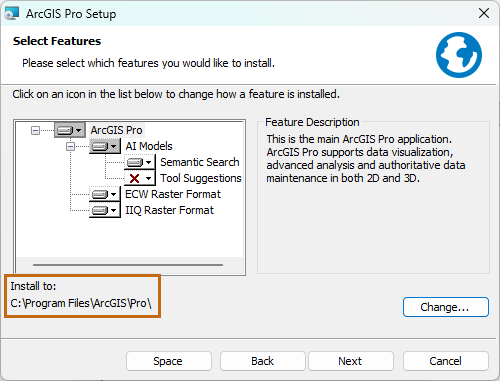
Note:
If you choose a location other than the default, it is recommended that the path include a folder and not be the root location of a drive. The modified path does not append
\ArcGIS\Pro\by default.Click Next.
Under Ready to Install the Program, accept or change the default settings to participate in the Esri User Experience Improvement program and submit error reports.
If you don't want to participate in the Esri User Experience Improvement program, uncheck the Anonymously participate in the Esri User Experience Improvement (EUEI) program to guide the design of ArcGIS check box.
If you don't want to send error reports when ArcGIS Pro or other ArcGIS products close unexpectedly, uncheck the Submit error reports to Esri check box.
Tip:
You can change these settings later in the ArcGIS Pro general options for application reporting.
Click Install.
When the installation is completed, the Run ArcGIS Pro now option is checked by default. Uncheck the box if you don't want to start the application immediately.
Click Finish.
Follow the same process to install optional components you downloaded, such as the offline help system.
Note:
You need an authorized license to use ArcGIS Pro. By default, you start ArcGIS Pro with a Named User license. However, if your organization uses a different license type, you may need to start ArcGIS Pro with a Single Use license.
Modify the setup
After installing ArcGIS Pro, you can modify the setup to install or uninstall AI models or support for raster formats.
In the Windows taskbar, in the search box, search for Installed Apps.
On the Settings page, in the list of installed applications, next to ArcGIS Pro, click More options
 and click Modify.
Click Yes on the User Account Control prompt to allow the app to make changes to your device.
In the ArcGIS Pro Setup wizard, on the Program Maintenance panel, click Modify. Click Next.
On the Select Features panel, click the drop-down arrow for an individual feature, and choose the setting you want.
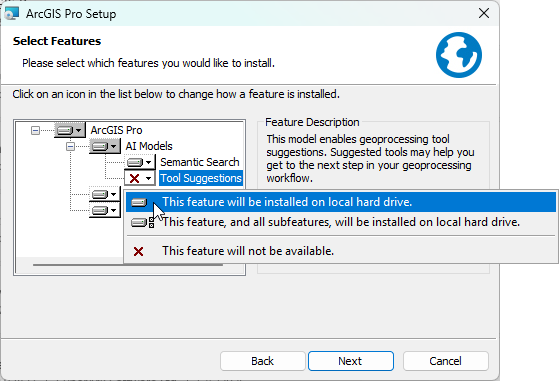
In this example, the setup is modified to enable the Tool Suggestions model. Click Next.
On the Ready to Modify the Program panel, click Install.
On the ArcGIS Pro has been successfully installed panel, click Finish.
Start ArcGIS Pro to confirm that the modifications were made. If ArcGIS Pro is running, it is not necessary to restart the application.
Uninstall ArcGIS Pro
If necessary, you can uninstall ArcGIS Pro.
In the Windows taskbar, in the search box, search for Installed Apps.
On the Settings page, in the list of installed applications, next to ArcGIS Pro, click More options
and click Uninstall.On the prompt, click Uninstall.
Click Yes on the User Account Control prompt to allow the app to make changes to your device.
On the Windows Installer prompt, click Yes.
The application is uninstalled from your computer.