Manage branch versions
You can manage branch versions using several tools in ArcGIS Pro. The Versions view displays all versions and their properties. Using the Versions view, you can perform the following tasks:
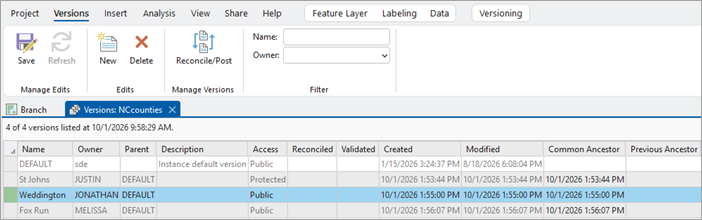
When you open the Versions view, it displays the versions and their properties. As shown in the image below, the user Jonathan has created a named version called Weddington and set the Access property to Public.
See the Open the Versions view section to learn how to access the Versions view for a web feature layer.
Version access
Version access is based on a combination of the active portal user's privileges, version ownership, and the access permission of the version.
To manage branch versions, access a web feature layer from the active ArcGIS Enterprise portal. The web feature layer's underlying feature service must have the version management capability enabled.
Portal user privileges
For branch versioning, version ownership and access are based on the user connected to the active portal. The version owner is the user connected to the active portal when the version is created.
When accessing named versions and the data they contain, the owner and access permission setting on the version determine which versions the current portal user can view and manage and whether they can view or edit the data in those versions as shown in the following table:
|
Who is connected to the active portal |
Version access |
|---|---|
|
Any portal user with access to the web feature layer* containing the version |
|
|
A member of a portal role with the privilege to edit features and access to the web feature layer* containing the version |
|
|
The version owner |
|
|
A member of a portal role with the privilege to manage all versions and access to the web feature layer* containing the version |
|
|
A member of the default administrator role |
|
*Access to a web feature layer is based on the sharing settings of the web feature layer. See Share items in the ArcGIS Enterprise help for more information.
The last two portal users listed in the table above can manage all named versions in a web feature layer. These portal users are also referred to as version administrators, as described in the next section.
Version administrator
Version administrators access branch versions through web feature layers. The following ArcGIS Enterprise portal users can serve as a version administrator:
The owner of the web feature layer (typically the user who publishes the web feature layer)
A portal user who has the default administrator role assigned
A portal user who is assigned a custom role with either of the following privileges:
Version administrators can do the following when they open the Versions view from a web feature layer published with the Version Management capability enabled:
View the properties of all versions in the web feature layer.
View and edit the data in all versions in the web feature layer.
Manage the named versions in the web feature layer regardless of who owns the version or what access permission is configured for the version.
Post edits from any named version in the web feature layer to the default version even if the Access permission on the default version is set to Protected.
If the Version Management capability is not enabled, the web feature layer will only access the default version. For those web feature layers, version administrators can view the properties of the default version and view and edit the data in the default version.
Note:
There are some version administration tasks that can only be performed by the geodatabase administrator. These must be completed using a database connection established as the geodatabase administrator that is configured for branch versioning.
The geodatabase administrator can complete the following tasks using the database connection data source:
Modify the access permission for the default version. See the Protect the default version section below for more information.
Delete versions for which the associated web feature layers were deleted. The geodatabase administrator must delete the version in this case because version administrators only access versions through the web feature layer.
Manage version locks. See Manage geodatabase locks for instructions.
Access permission
The access level of a version is set to protect it from being edited or viewed by users other than the version owner. Named versions support all three access levels, while the default version supports public or protected access.
You can set one of the following access permissions on a version:
Private—Only the version owner or the version administrator can view the version and its data, manage the version, and edit the data in the version. This setting is only supported for named versions.
Protected—Any user can view the version and the data it contains, but only the version owner or the version administrator can manage the version or edit the data in the version.
Public—Any user can view the version and its data. If the web feature layer is editable, any user with privileges to edit features can edit the data in the version.
When setting access permissions on versions, consider your version workflow strategy along with the needs of the various users working in that framework. Use version access permissions along with portal user privileges to control access to the data.
Open the Versions view
The Versions view can be accessed from the Versioning tab to manage versions for data in your active map.
To open the Versions view, complete the following steps:
Ensure that the map contains a web feature layer that has the Version Management capability.
Dive in:
The Versioning tab is available on the ribbon when the active map view contains a web feature layer that has the Version Management capability enabled.
On the Versioning tab, use the drop-down menu in the Data Source group to select the web feature layer data source
 .
In the Versioning group, click the Manage Versions button
 .
The Versions view opens.
Versions tab
The Versions tab is contextual and becomes available when the Versions view is active.
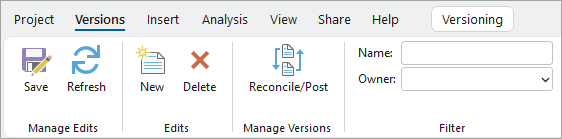
Review the groups and commands that are available on the Versions tab in the tables below.
Note:
Many of the commands on the Versions tab operate on the versions selected in the versions view grid.
Manage Edits group
| Command | Description |
|---|---|
| Save | The Save  command saves all pending edits in the active versions view. |
| Refresh | The Refresh  command refreshes the active versions view with the current state of the workspace. |
Edits group
| Command | Description |
|---|---|
| New | The New  command creates a named version. |
| Delete | The Delete  command deletes a named version. |
Manage Versions group
| Command | Description |
|---|---|
| Reconcile/Post | The Reconcile/Post  command reconciles and posts versions. |
Filter group
| Command | Description |
|---|---|
| Name | Name filters the version view based on the name of the version. |
| Owner | Owner filters the version view based on the owner of the version. |
Versions view properties
The Versions view table contains the following properties for branch versions:
|
Version property |
Description |
|---|---|
|
Service |
The name of the feature service for the version. Note:This property is only available in the Versions view for the geodatabase administrator when using a database connection data source configured for branch versioning. |
|
Name |
The name of the version. |
|
Owner |
The owner of the version. |
|
Parent |
The parent of the current version. |
|
Description |
A text description of the version. |
|
Access |
The permission access level for the version (Public, Private, or Protected). |
|
Created |
The date and time the version was created. |
|
Modified |
The date and time of the last modification to the version. Newly created versions inherit the modified time of the parent version. This includes operations such as editing, reconcile, and post. |
|
Validated |
The date and time of the last evaluation of geodatabase rules for the version with the Modified in this branch option set to true. This property is blank if the Evaluate Rules tool has never been called on the version. |
|
Reconciled |
The date and time of the last reconcile operation. If the version has never been reconciled, or it has not called reconcile since the last post operation, this column is empty. This property is only available for named versions. |
|
Common Ancestor |
The date and time when the version referenced the same moment as default. |
|
Previous Ancestor |
The previous date and time when the version referenced the same moment as default. |
Note:
Date and time fields will be displayed in UTC if no preferred time zone is specified for the service. For more information about preferred time zones, see Service parameters.
Search, filter, or refresh the versions displayed in the Versions view
To find and modify a specific version in the enterprise geodatabase or portal connection, you can filter the versions by owner, search for a specific version name, or refresh the view.
To filter the versions listed in the Versions view by owner, click the Owner drop-down arrow in the Filter Versions group on the Versions tab. The drop-down list includes users who own a version. Choose an owner name from the drop-down list; the Versions view displays only the versions owned by that user. To clear the filter and view versions owned by all users, choose the empty value at the top of the drop-down list.
To search for a version by version name, use the Name search box in the Filter Versions group on the Versions tab. As you type text, only those versions with matching text appear in the Versions view.
Click Refresh Versions in the Filter Versions group on the Versions tab to refresh the view to display the most recent information for all versions.
Modify version properties
Properties for named versions can be modified by the version owner or the version administrator when they open the Versions view from the web feature layer.
The following named version properties can be modified:
Name
Owner
Description
Only the geodatabase administrator can modify the Access property for the default version. See the Protect the default version section below for more information.
To modify properties of a version, complete the following steps:
Open the Versions view.
Double-click the column of the property you want to modify.
Note:
To modify the Name or Owner property, there must be no active connections to the version.
Click Save
on the Versions tab.
Protect the default version
The default version is the ancestor of every other version and the version that is published from when sharing branch versioned datasets in a geodatabase. The Access property for the default version is set to Public when a geodatabase is created.
Note:
To change the Access property of the default version, you must use a database connection established as the geodatabase administrator.
If you chose a strategy in which no one directly edits the data in the default version, the geodatabase administrator should set the Access level of the default version to Protected. With the access permission set to Protected, any user can view the default version and the data in it, but only a version administrator can edit the data in the default version and post edits from other versions to the default version.
To change the Access permission on the default version, complete the following steps:
Connect to the geodatabase as the geodatabase administrator.
For instructions on how to connect, refer to the information specific to the database you're using:
Change the database connection properties to use the branch version type.
See Configure the database connection for branch versioning for instructions.
Do one of the following to alter the default version's access setting:
Run the Alter Version geoprocessing tool. Use the database connection you created and altered in steps 1 and 2 for the Input Workspace value.
Follow the steps below to modify the access setting from the Versions view:
Right-click the database connection in the Catalog pane, point to Administration, and choose Versions to open the Versions view.
In the default version row in the Versions view, double-click the field in the Access column, and choose Protected.
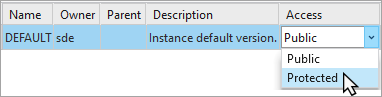
Click Save in the Manage Versions section of the Versions tab.