Customized LAS classification labels
LAS classification code labels and default symbology colors can be customized. This allows you to easily recognize and work with the features captured in your point cloud data. It is recommended to follow the ASPRS standard, but in certain situations and projects this may not be possible. For example, you may be working in an indoor environment where outdoor features are not present. You can change the class code labels and colors by applying a custom LAS classification scheme.
A LAS classification scheme can be applied to a LAS dataset. You can also set up a custom LAS scheme to individual LAS format files (*.las, *.zlas, and *.laz). Once you have established and applied a LAS classification scheme, the new class codes labels will appear throughout your project improving the overall experience for your point cloud data. This includes the labels displayed on the Statistics pane of the LAS Dataset Properties dialog, the Filter pane on the LAS Dataset layer’s Properties dialog, the dropdown list of classes on the interactive editing portion of the ribbon for a LAS Dataset layer, as well as the legend for the layer.
A LAS classification template file defines a LAS scheme and is used to apply the scheme to any LAS dataset. The custom LAS classification template can be shared and reused. The LAS classification template is defined in a simple, readable, JSON format file. You create the template file using the Symbology pane. Once the template file is created and stored on disk, you can import it into any LAS dataset using the LAS Dataset Properties dialog from the Catalog pane. Once the template is applied using the LAS dataset properties, the new labels and colors will appear throughout your project.
Create a LAS classification template:
Add your point cloud data into a map or scene view.
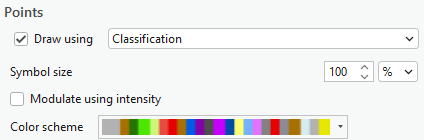
Open the Symbology pane and make sure that your points are being drawn using Classification.
From the Values section you can select the Label to modify by clicking the label two times. The first click will highlight the label and the second click will allow you to modify the text of the label.
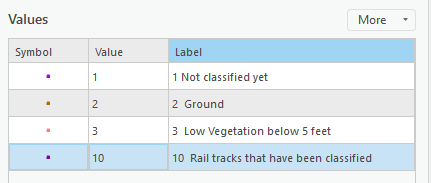
Make changes to the text and select Enter.
Additionally, click on any colors to change the color that the points will be displayed with.
Note:
The labels and colors will automatically change in the Contents pane.
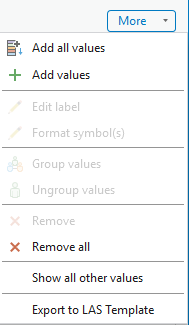
Once your changes have been made, you can create the LAS classification template. Click the More button.
From the More drop-down menu, click Export to LAS Template.
Browse to a location on disk where you want to save the template file.
LAS dataset properties
Once the LAS classification template file is created, you can import it to your LAS dataset or LAS format file using the LAS dataset Properties dialog from the Catalog pane. From the General tab, locate the Classification Scheme section and browse for the template file that you would like to apply to your point cloud data.
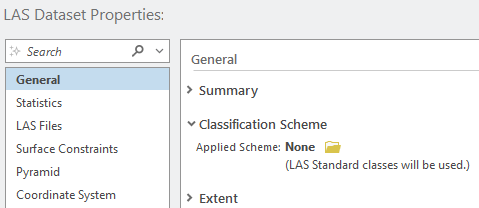
The imported LAS classification scheme is saved to the LAS dataset. If the LAS classification scheme is shared with others they will also be able to view the customized labels and colors, provided that the metadata file is also shared.
A LAS dataset does not remember the template file used to import its classification scheme. If a template file is updated or overwritten, a LAS dataset will have to re-apply the template to receive the changes.