Migrate an LRS from a file geodatabase to an enterprise geodatabase
 Available with the Linear Referencing license.
You may need to create a linear referencing system (LRS), LRS networks, LRS events, LRS intersections, domains, and attribute rules in a file geodatabase before moving the file geodatabase to an enterprise geodatabase to ensure that data is created and configured by a single user.
After you create these elements in a file geodatabase, you can migrate the LRS and related data items into an enterprise geodatabase, publish a feature service with the Linear Referencing and Version Management capabilities, and use the multiuser editing tools in ArcGIS Pro and the Linear Referencing widgets in Experience Builder.
To migrate an LRS and related data items from a file geodatabase to an enterprise geodatabase, complete the following steps:
Create and configure the LRS, LRS Networks, LRS events, and LRS intersections in a file geodatabase.
Legacy:
The LRS is created in a feature dataset. If you created an LRS in ArcMap or ArcGIS Pro 2.9 or earlier, move all the feature classes that are part of the LRS into a single feature dataset.
Follow the steps in Configure the database connection for branch versioning.
Note:
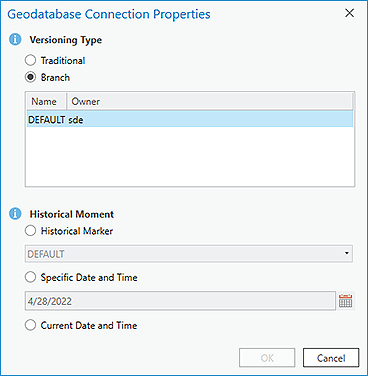
Ensure that Versioning Type is set to Branch in the Geodatabase Connection Properties dialog box.
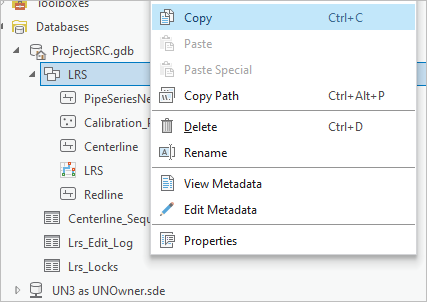
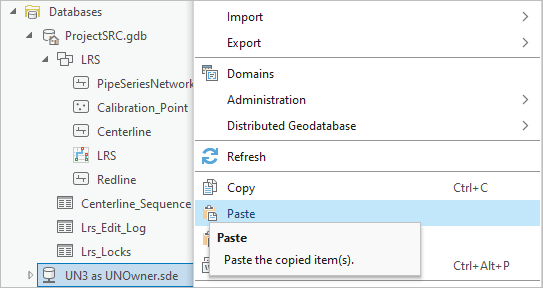
In the Catalog pane, copy the feature dataset that contains all the feature classes from the file geodatabase into the root level of the enterprise geodatabase.
Note:
If you have other feature classes outside the feature dataset or tables not managed by the LRS, copy them from the file geodatabase to the enterprise geodatabase.
Refresh the enterprise geodatabase.
The feature dataset with all the feature classes is now in the enterprise geodatabase. The tables managed by the LRS, as well as the domains and attribute rules, are also in the enterprise geodatabase.
Right-click the enterprise geodatabase in the Contents pane, choose Data Design > Domains, and on the Domains tab, verify that the dActivityType, dLRSNetworks, and dReferentMethod coded value domains are in the enterprise geodatabase.

If any of the domains are missing, ensure that they are imported from the file geodatabase to the enterprise geodatabase before proceeding.
Note:
The dLRSNetworks domain must be attached to the
Network IDfield in the centerline sequence table and the calibration point and redline feature classes. The dActivityType domain must be attached to theActivity Typefield in the Redline feature class.Verify that you copied any additional subtypes, coded value domains, and attribute rules used by the LRS Networks, events, or intersections.
Verify that all indexes are present in the LRS feature classes and tables.
Ensure that the data meets the requirements to register a dataset as branch versioned.
Register all the tables, feature classes, and feature datasets as versioned, with the exception of the LRS_Locks table, which must remain unversioned.
Legacy:
If the LRS was last accessed using ArcMap or ArcGIS Pro 2.5 or earlier, there are four tables with the LRS_ prefix: LRS_Edit Log, LRS_Event Behavior, LRS_Locks, and LRS_Metadata.
If you created the LRS in ArcMap or in ArcGIS Pro 2.6 or earlier, upgrade the LRS.
After you upgrade the LRS with the Modify LRS tool, you can remove the LRS_Event_Behavior and LRS_Metadata tables.
The migration steps are complete.