Set cartographic realignment options
 Available with the Linear Referencing license.
You can set cartographic realignment options for use with ArcGIS Pro editing tools. These options are available on the Linear Referencing tab in the Calibration Point Settings group.
Note:
You can use the tools on the Edit tab, such as the Move tool  , to update calibration. Editing is only available with feature services.
Cartographic realignment options
Set one of the following cartographic realignment options on the Linear Referencing tab in the Calibration Point Settings group before you perform cartographic realignment.
The option configured when cartographic realignment begins applies to calibration points in the cartographically realigned section. Only intermediate calibration points in the edited section are updated, based on the cartographic realignment option configured when you perform the edit.
|
Option |
Description |
|---|---|
|
Proportionally Snap |
Use this option to snap calibration points to the updated route. Proportionally Snap is the default snapping configuration. This snapping option is the only snapping option available with file geodatabase data. |
|
Ignore |
Use this option to ignore calibration points located on the cartographically realigned area. Note:Ignore is only available with feature services. When Ignore is set, calibration points remain in place when a route edit is performed. After the route edit, move calibration points manually to complete cartographic realignment. |
|
Delete |
Use this option to delete calibration points located on the cartographically realigned area. Note:Deleting calibration points is supported only in feature services (using Delete When Delete is set as the snapping option, calibration points are deleted during cartographic realignment. Subsequent edits are required to complete the cartographic realignment with calibration equivalent to calibration found before the edit. |
|
Snap To Vertex |
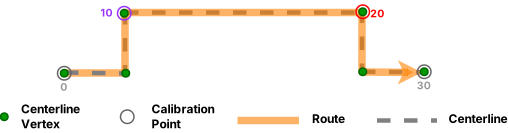
Use this option to keep any calibration points on the cartographically realigned area snapped to the vertex of the centerline. Setting Snap To Vertex ensures that the calibration point, both before and after cartographic realignment, stays on the same vertex of the centerline. Note:Snap To Vertex is only available with feature services. For this option to work as expected, the centerlines should have vertex IDs enabled. Existing centerlines associated with a network may not have their vertex IDs enabled. To solve this, run the Generate Routes tool on the network. This option is only available if the Update route measures in cartographic realignment property of the LRS Network is set to No. |
 on the Edit tab, in the Features group).
Cartographic realignment scenarios
The following scenario demonstrates the differing outcomes of a cartographic realignment for each of the following four cartographic realignment options:
Proportionally Snap
Delete
Ignore
Snap To Vertex
For all examples in this section, the Update route measures in cartographic realignment property of the LRS Network is set to No.
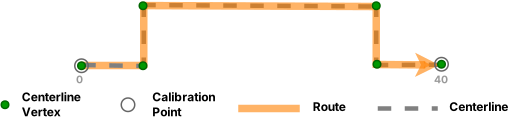
For most examples in this section, the Update route measures in cartographic realignment property of the LRS Network is set to No; for the Snap To Vertex option, it is set to Yes.
Note:
If you use the Modify Network Calibration Rules tool to enable the Update route measures in cartographic realignment property in the LRS Network, the route length may change, in which case the measures are updated during cartographic realignment. If you disable the Update route measures in cartographic realignment property, the measures are not updated during cartographic realignment even if the route length changes.
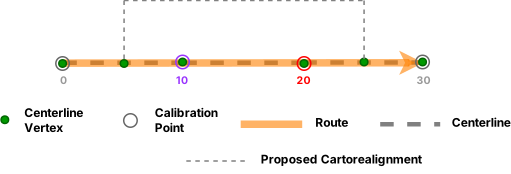
In the following example, Route 1 has two intermediate calibration points at measure 10 and measure 20 that fall within the cartographic realignment section. Only calibration points in the edited section are updated using the configured option after cartographic realignment. The underlying centerline for Route 1 is modified as shown in the following image:
Proportionally Snap option
If Proportionally Snap  is the configured cartographic realignment option before the route edit, the intermediate calibration points snap proportionally to the new location of their respective measures when the route edit occurs.


Ignore option
If Ignore  is the configured cartographic realignment option before the route edit, the intermediate calibration points do not move when the route edit occurs.


Delete option
If Delete  is the configured cartographic realignment option before the route edit, the intermediate calibration points are deleted when the route edit occurs.
Snap To Vertex option
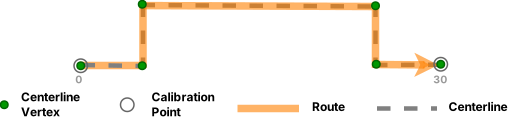
If Snap To Vertex  is the configured cartographic realignment option before the route edit, the intermediate calibration points snap to the vertex of the centerline when the route edit occurs.