Manage white space editing in a network diagram
You can adjust the spacing between diagram features at any time by editing and reshaping the features. White space editing in network diagrams is limited to the reshape of diagram features, that is, moving diagram features and editing vertices along diagram edges.
Editing a diagram feature automatically edits other visible diagram features topologically connected or related to it. For example, moving a diagram junction stretches all connected diagram edges. Moving a diagram polygon container moves all its contents at the same time.
Requirements and prerequisites
The following requirement must be met when editing features in a network diagram:
- This operation applies to a network diagram layer that is from either a utility network or trace network in a file or mobile geodatabase, or a network diagram service. When working with a utility network or trace network in an enterprise geodatabase, the input network diagram layer must be from a service.
Edit and reshape network diagram features
To edit and reshape features in a network diagram, complete the following steps:
Activate the network diagram you want to edit. Do one of the following depending on whether the diagram is currently open:
For a stored diagram that is not already open, run the Find Diagrams tool on the Network Diagram tab or on the Utility Network or Trace Network tabs in the ribbon to find and open the diagram you want to work with.
For a diagram that is already open, click a map view that references the diagram. If the map view is not related to a diagram map or is related to a diagram map that references several network diagrams, click the network diagram layer in the Contents pane.
Use the Move tool
 to move a diagram feature as follows:
Zoom in to the diagram feature you want to move.
On the Edit tab, click the Move tool
and click the diagram feature you want to move.The editing toolbar appears with construction tools:
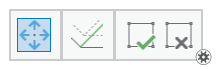
On this toolbar, click Stretch Topology
 to disable proportional topology stretching.
Editing while preserving relative shapes is generally not the expected behavior when working on a network diagram.
Drag the selected diagram feature to the desired location.
Click Finish
 on the Editing toolbar.
Moving a diagram junction stretches all connected diagram edges.
Moving a diagram edge moves its from and to diagram junctions and stretches the diagram edges that connect them.
Moving a diagram polygon container moves all the related containers.
Moving any content diagram feature causes the related container to be redrawn around all its contents.
Use the Vertices tool
 to edit vertices along diagram edges as follows:
On the Edit tab, click the Vertices tool
.The Modify Features pane appears.
Select the diagram edge or diagram polygon container you want to edit.
Drag any vertex to the desired location.
To add a new vertex, click the Add Vertex tool
 on the vertices toolbar and click the diagram edge at the location where you want to insert the new vertex.
To delete an existing vertex, click the Delete Vertex tool
 on the vertices toolbar and click the vertex you want to delete.
Click Finish
on the vertices toolbar.
Caution:
Once your edits are completed, you may need to recalculate the extent of diagrams and the geometry of diagram features as explained in the next section.
Recalculate the extent of diagrams and the geometry of diagram edges and containers
After manual editing operations, you may have a few additional steps to apply in the workflow.
Recalculate the extent of diagrams
The extent of the diagram is automatically updated and adjusted to fit its content after applying any layout and after any update diagram operation, such as update, extent, overwrite, append, and so one. However, the diagram extent is not recomputed on the fly after manual editing operations. This means that if you move diagram features out of the diagram extent, and click Full Extent or Zoom to Layer from the diagram layer, the moved features may not fit the diagram map extent.
To get the diagram extent updated after manual editing operations, you must apply the following steps:
Expand the Recalculate drop-down list in the Modify group of the Network Diagram tab.
Click Recalculate Diagram Extent.
Recalculate the geometry of the diagram containers
Prior to ArcGIS Pro 3.4, geometries of diagram containers that had been manually edited were kept when saving edits. However, they were systematically recomputed to display as rectangles around their related contents when running diagram update later. Starting with ArcGIS Pro 3.4, diagram updates preserve any saved diagram container geometry unless there are changes on its related contents; that is, unless the update completes with a newly added content or, on the contrary, with removed contents related to that container. However, you can force diagram containers to be redrawn as horizontal rectangles around all their related contents if you want by applying the following steps:
Expand the Recalculate drop-down list in the Modify group of the Network Diagram tab.
Click Recalculate Container Geometries.
Tip:
When you select diagram containers in the active diagram before applying the command, it only applies to the selected diagram containers and their container hierarchy; that is, it applies to any selected container, to any containers that it contains itself, and to its related parent containers when it is a content itself.
Recalculate the geometry of the diagram edges
Any diagram edge exists in the geodatabase with their from and to extremity junctions and its linear geometry should always connect these two diagram junctions. However, if during manual editing operations you disconnect diagram edges, you can apply the following workflow steps to force diagram edges to be reconnected to their diagram junction extremities:
Expand the Recalculate drop-down list in the Modify group of the Network Diagram tab.
Click Recalculate Edge Geometries.