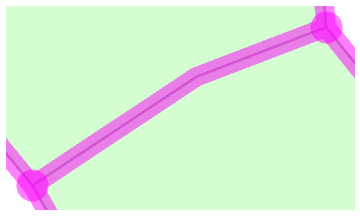
Align topological edges
The Align Edge tool  reshapes a topological edge to match an adjacent edge by clicking it when it highlights as a solid line. This tool is available in the Modify Features pane when topological editing is turned on.
For steps to reshape a complex boundary by tracing an adjacent feature, see Align features to a traced line.
To align a topological edge, complete the following steps:
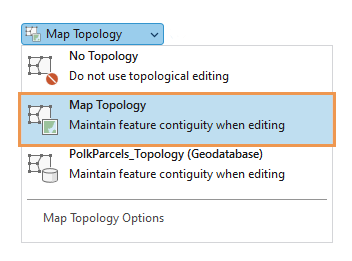
On the ribbon Edit tab, in the Manage Edits group, click the Map Topology drop-down arrow and choose Map Topology
 .
.
Tip:
To isolate topological editing to layers participating in a geodatabase topology rule in the active map, choose the Geodatabase Topology rule
 that appears in the Map Topology drop-down list.
In the Manage Edits group, in the Features group, click Modify Features
 .
.The Modify Features pane appears.
Click the Align Edge tool
.To find the tool, expand Alignment, or type Align Edge in the Search text box.
Tip:
To display the topology graph only when hovering over a feature, set the display style to Select Elements. To learn more, see Configure map topology options.
The topology graph highlights in the map.
Hover over the edge to be edited.
The edge to be edited highlights as a solid line.
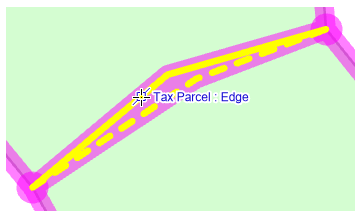
Click the edge highlighted as a solid line.
The edge snaps to the edge highlighted as a dashed line.