Page queries in a map series
Use page queries to specify which features of a layer draw in a map series. Page queries are queries between a field in the layer and the map series page name. Depending on how the query is set, if the data in the field either matches or does not match the map series page name, the query is applied. Page queries are supported for all map series types, but are most commonly used with spatial map series.
For example, in a spatial map series in which each page is a U.S. state showing national parks data, you can use a match page query to show only the national parks within that state on each page.
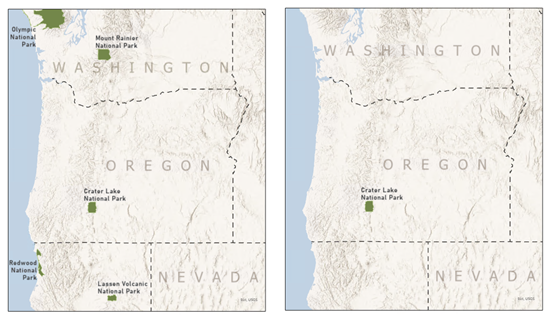
You can also use page queries to filter data that doesn't match the page name. For example, in a spatial map series in which each page is a U.S. state, you can use a don't match page query to draw a transparent masking layer over the other states. This allows the index feature to stand out.
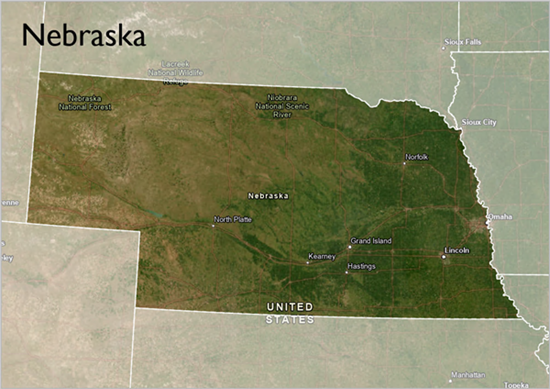
Page queries require an exact match between the attribute data and the map series page name. If the page query is not working as expected, check the field values against the map series page names and make updates if necessary. In a spatial map series the data type for the layer field and the map series name field must be the same. For fields with coded value domains or subtypes, the page query uses the realized values not the coded values.
Note:
If there is no map series, or the map series is disabled, the page query is ignored.
Create a page query
To create a page query, complete the following steps:
Right-click the layer in the Contents pane and click Properties.
On the Layer Properties dialog box, click Page Query.
Select a field from the drop-down list.
Under the Show features that heading, choose the Match option or the Don't Match option to determine which features show on the page.
Click Apply to apply the page query or OK to apply it and close the dialog box.
Refresh the map series to see the query applied.