Create a new task
A task is created in a task item. To create a new task, create a new task item. A new task can also be added to an existing task item.
- This video was created with ArcGIS Pro 3.3.
To create a new task, follow these steps:
Open and edit a task item. On the Catalog pane, right-click a task item in the Tasks folder and click Edit In Designer.
Click New Task
 on the Tasks pane to create a new task.
A new, empty task is created and selected in the Tasks pane, and the Task Designer pane displays the properties of the new task.
Tip:
The Task Designer pane displays the properties of the selected item in the Tasks pane. To display the properties of the task item, select the task item heading.
Make sure the new task is selected and type a task name and a description on the Task Designer pane.
The task description should describe what the task will achieve. For example, Create a road centerline.
If you do not want the task to display in the tasks list on the Tasks pane, choose Hide this task.
You would want to hide a task when the task is incomplete, or when the task is never used. For example, a person working with parcels may never create or edit condominiums and would not want to see tasks that work with condominiums.
Choose Restore map views and contents to their initial states if you want layer settings and step views to revert to their original states before the task was run.
In the Views pane map, layout and scene views can be opened and closed for steps in the task. In the Contents pane, layers can have their states (such as selectability and snappability) changed for a step.
Save the project to save the changes to your task item.
Close the Task Designer pane to exit task design mode or click New Step
 to create a new task step in the selected task.
Create a new task group
A task can be created as a stand-alone task or in a task group. A task group organizes a set of related tasks together. For example, a task item that contains tasks for managing address data may have a task group for managing public roads, and a task group for facilities.
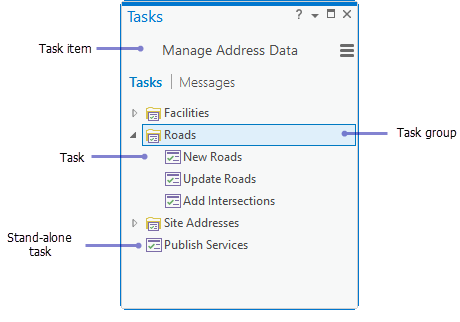
To create a new task group, follow these steps:
On the Tasks pane, click Options
 and click Edit In Designer to open the Task Designer pane.
Click New Group
 on the Tasks pane to create a new task group.
A new, empty task group is created and selected in the Tasks pane, and the Task Designer pane displays the properties of the new task group.
On the Task Designer pane, type a task group name and description.
Save the project to save the changes to your task item.
Close the Task Designer pane to exit task design mode or click New Task
to create a task in the selected task group.Tip:
When the Task Designer pane is open, you can drag and drop a task into a task group, and between task groups.