Configure a step to create a new version
When a versioned dataset is added to the map, the Versioning tab becomes available. Commands on the Versioning tab such as New Version  and Change Version
  can be configured as command actions on a task step. Some versioning commands when embedded in the Tasks pane can have preset parameters.
Learn more about preset parameters
For example, the New Version command has a preset parameter for the version name when it is embedded in the Tasks pane for a step. If the preset version name is set to GIS-, the version name will start with GIS- when the step runs the command. The user can erase the preset name or type additional characters. In the step instructions, you can inform the user to accept the preset version name and not change it.
Complete the following steps to configure a task step to create and switch to a new version with a predefined version name:
Open the Task Designer pane, select the task step, and click the Actions tab.
Click the Record button
 on the command action bar and click the New Version command on the Versioning tab.
The New Version command is added as the step command. If necessary, close the New Version dialog box that automatically opens when the command is clicked.
Click the Edit button
 on the command action bar to display the properties of the command loaded for the step.
In the Command/Geoprocessing pane in the Task Designer pane, check the Embed box so the New Version command will be embedded in the Tasks pane when the step runs.
Type a name and a description for the embedded New Version command under Preset Parameters.
When the step runs, the version name and description will be automatically populated with the preset values. The step instructions can inform the user to keep the default name or keep the preset name as a prefix.
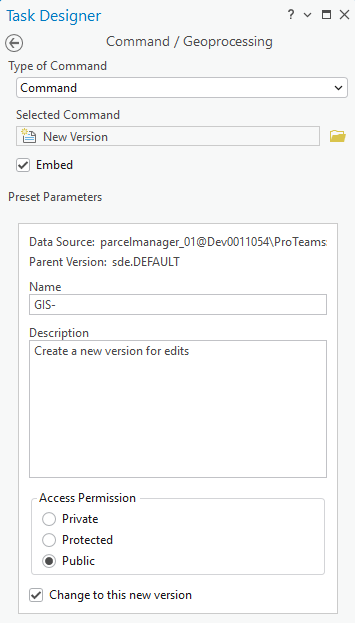
Choose the access permission type for the version and choose Change to this new version to create and automatically switch to the new version.
When the step is run, it will automatically create and switch to the new version.
Click Done to close the Command/Geoprocessing pane and continue configuring the task.
Subsequent steps can run the Reconcile, Post, and Change To Default commands.
Save the project to save the step configuration.
Configure a step to filter and change versions
The Change Version command can also be configured as a step command. Similar to the New Version command, the Change Version command has preset parameters that can be prepopulated when the step runs the command.
When adding the Change Version command to a task step, follow the steps listed above to populate the preset parameters for Filter by name and Filter by owner.
For example, when the step runs, if the preset value GIS is set for Filter by name, the embedded Change Version command will only display version names containing GIS in the list of versions.