ProConcepts CoreHost
This topic provides a brief introduction to building stand-alone apps with the ArcGIS Pro ArcGIS.CoreHost and ArcGIS.Core assemblies.
ArcGIS.CoreHost.dll
ArcGIS.Core.dll
Language:      C#
Subject:       CoreHost
Contributor:   ArcGIS Pro SDK Team <arcgisprosdk@esri.com>
Organization:  Esri, https://www.esri.com
Date:          04/20/2026
ArcGIS Pro:    3.7
Visual Studio: 2026
In this topic
ArcGIS.Core.dll
ArcGIS.Core.dll provides 64-bit access to the Geodatabase and Geometry classes used by ArcGIS Pro. This assembly can be referenced in either an ArcGIS Pro Add-in or embedded in a console or WPF app. Unlike in an add-in, when ArcGIS.Core.dll is used in a console app (or WPF app), you must first initialize the underlying environment by calling the static Host.Initialize method on the ArcGIS.Core.Hosting.Host class located in the ArcGIS.CoreHost assembly. After initialization, any of the ArcGIS.Core.dll types can be constructed and accessed. (Note: Attempting to access any of the ArcGIS Pro UI elements or types in other assemblies in an ArcEngine-like fashion will crash your program).
This topic walks you through the procedure for configuring your app to run ArcGIS.Core external to the ArcGIS Pro Add-in framework.
Prerequisites
- ArcGIS Pro must be installed on either the developer machine or the host machine on which your program will be run.
- You must configure your ArcGIS Pro license settings in one of the following ways:
- Single Use License
- Named User License --and--
- Either:
- Check the Authorize ArcGIS Pro to work offline check box on the Backstage tab --or--
- Check the Sign me in automatically check box on the ArcGIS Sign In pop-up.
Note: If you are using Single Use license mechanisms, you can configure Pro's licensing without a user interface (UI) by running the ArcGIS Pro setup program using Windows Installer command line parameters. Refer to the Install ArcGIS Pro silently documentation to configure Single Use licenses for an un-attended option.
Backstage Authorize ArcGIS Pro to work offline

ArcGIS Sign In Sign me in automatically (for Named User License)

Build a new CoreHost application
The ArcGIS Pro SDK provides a Project Template called "ArcGIS Pro CoreHost application" that can be used to create a new CoreHost application project with the minimal required code already stubbed out.
Host.Initialize
If you don't want to use the "ArcGIS Pro CoreHost application" project template, you can also manually create a new console application in Visual Studio. Add references to the following two DLLs, both located in the ArcGIS Pro bin folder:
- ArcGIS.CoreHost.dll
- ArcGIS.Core.dll
On the Build properties dialog box of your project, change the Platform Target combo box to be x64 (by default it will be Any CPU).

In your code, add the [STAThread] attribute above the console's static Main(string[] args) method. The presence of the STAThread attribute forces the application's primary thread to initialize as an STA thread the first time the application does any interoperability work with COM (for example, via the first call to a type in ArcGIS.Core.dll).
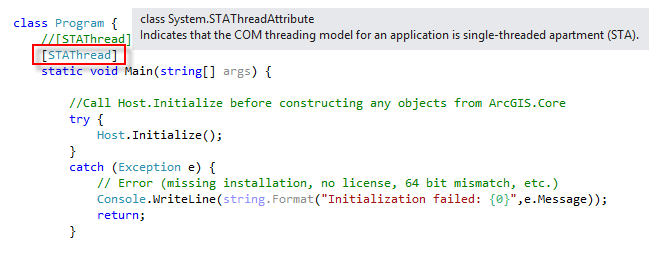
Initialize the Host class before accessing any types within the ArcGIS.Core assembly. To initialize the Host class, call its static Initialize method:
class Program {
        //[STAThread] must be present on the Application entry point
        [STAThread]
        static void Main(string[] args) {

            //Call Host.Initialize before constructing any objects from ArcGIS.Core
            try {
                Host.Initialize();
            }
            catch (Exception e) {
                // Error (missing installation, no license, 64 bit mismatch, etc.)
                Console.WriteLine(string.Format("Initialization failed: {0}",e.Message));
                return;
            }
There is no return value. If initialization is successful, program execution will continue, and ArcGIS.Core functionality can be accessed. If initialization fails, a System.Exception will be thrown on the Initialize call.
Note: You do not need to call a shutdown method to unload the ArcGIS.Core assembly (similar to IAoInitialize.Shutdown in ArcObjects).
Initialize sequence
Host.Initialize checks:
- Is the Program 64 bit?
- Is the process COM threading model single-threaded apartment (STA)?
- Is ArcGIS Pro installed?
- Can ArcGIS Pro licensing be initialized? (See prerequisites)
Any failure in the initialization sequence will result in a System.Exception. Check the returned message in the System.Exception from Host.Initialize, and take the appropriate corrective action.
Automating Pro
Automating ArcGIS Pro Mapping is supported in arcpy.mp. You can find more information in What is ArcPy?.
Editing Geodatabase Datasets
In order to edit datasets in a Geodatabase while running ArcGIS.Core external to the ArcGIS Pro Add-in framework, the ArcGIS.Core.Data namespace provides the Geodatabase.ApplyEdits method. See Editing in stand-alone mode for more details.
Building CoreHost applications with forward compatibility
The following discussion provides some guidelines you can follow to achieve forward compatibility with newer 3.x releases with your CoreHost standalone applications. To recap, "CoreHost" applications are simply .NET application exe's compiled against a target .NET framework matching the .NET version of the installed ArcGIS.Core.dll and ArcGIS.CoreHost.dll assemblies (at the time of compilation). They are named 'CoreHost' applications because of the dependency on the ArcGIS.CoreHost.dll to initialize the underlying Pro licensing and native libraries.
Deployment Mode
The default deployment mode in Visual Studio is Framework-dependent deployment. In Framework-dependent deployment, FDD, the resulting exe is configured to target a specific version of .NET and that targeted .NET runtime is required to be on the environment when the app (i.e. your "CoreHost" exe) runs. This is the most convenient way to compile and publish an exe as the app simply uses the runtime on the machine, assuming it is compatible, but does have the disadvantage in that it needs to be recompiled if the target runtime changes. In FDD, the dotnet.exe executable acts as the host for FDD applications. Dotnet.exe finds the correct runtime version, loads it, and then executes the application's entry point.
The converse publishing method is called Self-Contained Deployment, SCD, in which the application is compiled and published with all of the required .NET libraries, target runtime, and any app dependencies included with the exception of any native dependencies. SCDs have the advantage of not requiring the required .NET runtime to be installed on the target machine but they are much larger than an FDD application and probably need a custom installer to deploy them. Given that the Pro application must already be deployed on the target machine on which your CoreHost app exe will be running, the required .NET runtime will also be deployed, along with the ArcGIS.Core.dll and ArcGIS.CoreHost.dll assemblies, rendering any advantage of the self contained deployment method moot. SCD should not be used for CoreHost applications.
Assembly Resolving
Your CoreHost application requires references to the following ArcGIS Pro assemblies: ArcGIS.Core and ArcGIS.CoreHost. For purposes of forward compatibility, assembly resolution should be handled at runtime with an assembly resolver. To implement assembly resolving, you should:
- Set the Copy Local attribute to 'No'. The default is 'Yes'. (Right click on the
ArcGIS.Core.dllandArcGIS.CoreHost.dlldependencies in the VS solution explorer and select 'Properties') - Make sure 'Specific Version' is blank or set to 'No'.
- Do not add any Pro dependent code into your
Main(string[] args)method. Instead, delete the defaultHost.Initialize();line added in automatically by the CoreHost application project template and place it in a new method that your "Main" method will invoke. - Add the assembly resolution code from the CoreHostResolveAssembly sample into your application. Specifically, the line in Main that registers the assembly resolver:
currentDomain.AssemblyResolve += new ResolveEventHandler(ResolveProAssemblyPath);and the method/methods that contain the actual resolution code itself. - To update the target framework, the target framework should be changed in the Application properties and the CoreHost application recompiled.
Dotnet exec
Assuming you have followed all of the above steps for building your CoreHost app for forwards compatibility, you can potentially* avoid recompilation by invoking your (FDD) CoreHost application** directly from the command line or a script or shortcut via the dotnet exec command. Two options you can use with dotnet exec for this purpose are:
--fx-version <version>- where "version" is the (exact) installed .NET version to use to run the application. Usedotnet --list-runtimes --X64to list the installed runtimes.--roll-forward <value>where "value" is one ofLatestPatch,Minor,LatestMinor,Major,LatestMajor,Disable. Microsoft describes each value as follows:- LatestPatch: Rolls forward to the highest patch version with the same major and minor version.
- Minor: Rolls forward to the highest minor version if the requested minor version is missing.
- Major: Rolls forward to the highest major and minor version if the requested major version is missing.
- LatestMinor: Rolls forward to the highest available minor version, even if the requested version is present.
- LatestMajor: Rolls forward to the highest available major version, even if the requested version is present.
- Disable: Disables roll-forward; the application will only run if the exact specified version is found.
Generally speaking, "fx-version" will probably be the preferred option to use.
*It depends on what assemblies, Nugets, etc your application may be dependent on and "their" dependencies.
**You will be invoking the CoreHost output .dll, not the exe. When you compile a .NET application, there is both an output dll and exe. The dll is actually your compiled application code while the exe is the platform specific wrapper to launch it.
Here are some command line examples. The CoreHost application is called MyCoreHostApp. Refer to Select the .NET version to use for more information:
//Run MyCoreHostApp.dll using .NET version 10.0.5 - assumes 10.0.5 is installed on the machine or
//fx-version will fail
>dotnet exec --fx-version "10.0.5" "C:\Data\SDK\Test\MyCoreHostApp\bin\MyCoreHostApp.dll"

//Run MyCoreHostApp.dll using .NET with the highest patch version with the same major and minor version
//as MyCoreHostApp targets installed on the machine - assumes there is a patched version
//of the requested .NET MyCoreHostApp targets -with the same major and minor version- or "roll-forward" fails
>dotnet exec --roll-forward LatestPatch "C:\Data\SDK\Test\MyCoreHostApp\bin\MyCoreHostApp.dll"

//Run MyCoreHostApp.dll using .NET with whatever is the highest major version regardless of what the
//MyCoreHostApp targets. This will fail if the latest version of .NET on the machine is not compatible
//with MyCoreHostApp.dll
>dotnet exec --roll-forward LatestMajor "C:\Data\SDK\Test\MyCoreHostApp\bin\MyCoreHostApp.dll"

//Note:
//dotnet.exe is typically located at C:\Program Files\dotnet\dotnet.exe. If "C:\Program Files\dotnet" is
//not in your PATH you will have to add it or give a fullpath reference to dotnet.exe
Note: The community samples repository contains a command line app that allows you to automate the process of finding the correct release of .NET in order to ensure forward compatibility of your CoreHost application. You can find the sample here: RunCoreHostApp
Deployment
The prerequisites for deploying an executable taking advantage of ArcGIS.CoreHost.dll and ArcGIS.Core.dll are as follows:
- ArcGIS Pro must be installed on the host machine.
- The licensing prerequisites must be met when the program is run.