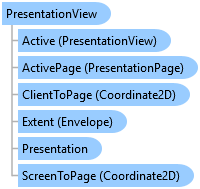
PresentationView Class
In This Topic
Represents the view of a presentation in a pane.
Object Model
Syntax
Public NotInheritable Class PresentationView
public sealed class PresentationView
Remarks
A project can contain multiple presentations. A presentation view is a pane that displays the view of a presentation. Presentation views are the primary interface used to display, navigate, and select presentation page elements. The presentation being visualized in the view can be accessed via the Presentation property.
There can be multiple presentation views open at a given time, but there can only be one active presentation view. The active presentation view will set the context for the ribbon and many of the dock panes in the application. The Active property will return null if there is no active presentation view.
The presentation view has several "ZoomTo" navigation methods and it also provides the context for managing selected items in the Contents pane. For example, the GetSelectedElements method returns a collection of selected page presentation elements.
Example
Activate a presentation view
{
  //Assume we want to open a view for a particular presentation or activate a view if one is already open

  //A presentation project item is an item that appears in the Presentation folder in the Catalog pane.
  PresentationProjectItem presentationItem = Project.Current.GetItems<PresentationProjectItem>()
                                             .FirstOrDefault(item => item.Name.Equals("Presentation Name"));
  //Note: Must be on QueuedTask.Run
  //Reference a presentation associated with a presentation project item
  if (presentationItem != null)
  {
    //Get the presentation associated with the presentationItem
    Presentation presentationToOpen = presentationItem.GetPresentation();

    //Next check to see if a presentation view is already open that references the presentation
    foreach (var pane in ProApp.Panes)
    {
      var prePane = pane as IPresentationPane;
      if (prePane == null)  // Not a presentation view, continue to the next pane
        continue;

      //if there is a match, activate the view
      if (prePane.PresentationView.Presentation == presentationToOpen)
      {
        (prePane as Pane).Activate();
        return;
      }
    }

    //No pane found, activate a new one - must be called on UI
    IPresentationPane iNewPresentationPane = await ProApp.Panes.CreatePresentationPaneAsync(presentationToOpen); //GUI thread
  }
}
Blank page
{
  Presentation presentationActive = PresentationView.Active.Presentation;
  // Note: Must be on QueuedTask
  // add a blank page with with title and paragraph body text element
  presentation.AddBlankPage(BlankPageTemplateType.TitleAndParagraph, -1);
}
Detect changes to the presentation view
{
  //For UI context changes associated with a presentation, subscribe to the PresentationView
  //event - views activated/deactivated, views opened/closed
  ArcGIS.Desktop.Presentations.Events.PresentationViewEvent.Subscribe((args) =>
  {
    //get the affected view and presentation
    var view = args.PresentationView;
    var presentation = args.PresentationView?.Presentation;
    if (presentation == null)
    {
      //FYI presentationview and/or presentation can be null...
      //eg closed, deactivation
    }
    //Check what triggered the event and take appropriate action
    switch (args.Hint)
    {
      case PresentationViewEventHint.Activated:
        // Presentation view activated
        break;
      case PresentationViewEventHint.Opened:
        //A PresentationView has been initialized and opened
        break;
      case PresentationViewEventHint.Deactivated:
        // Presentation view deactivated
        break;
      case PresentationViewEventHint.Closing:
        //Set args.Cancel = true to prevent closing
        break;
      case PresentationViewEventHint.ExtentChanged:
        //presentation view extent has changed
        break;
      case PresentationViewEventHint.DrawingComplete:
        break;
      case PresentationViewEventHint.PauseDrawingChanged:
        break;
    }
  });
}
Inheritance Hierarchy
System.Object
ArcGIS.Desktop.Presentations.PresentationView
Requirements
Target Platforms: Windows 11 Home, Pro, Enterprise (64 bit)
ArcGIS Pro version: 3.5 or higher.
See Also