Generate Facility Entryways (Indoors Tools)
Summary
Creates or updates points representing a facility's entry or exit locations.
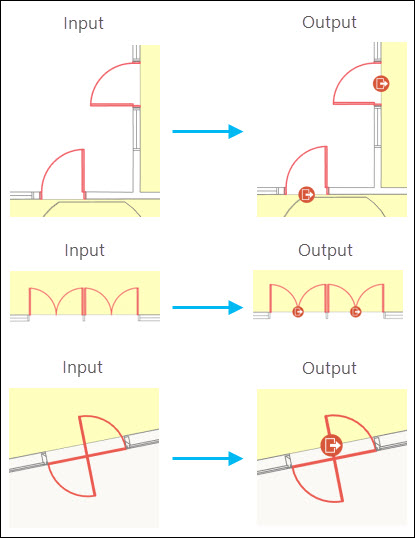
This tool analyzes input unit features to identify the exterior edges of a facility and generates point features for doors located in proximity to those edges. The ArcGIS Indoors network uses these entryway points when routing into, out of, and between buildings.
Illustration
Usage
The values for the following input parameters can be feature layers or feature classes from an indoor dataset (created using the Create Indoor Dataset tool) or Indoors geodatabase (created using the Create Indoors Database tool): Input Level Features, Input Unit Features, and Input Door Features.
The Input Level Features parameter value must be a polygon feature layer or feature class that conforms to the Indoors model for the Levels feature class. The generation of entryways can be limited to specific levels by making a selection on the input layer or by providing a definition query. Without a selection or definition query, the tool will create entryways for all levels in the input layer.
The Input Unit Features parameter value must be a polygon feature layer or feature class that conforms to the Indoors model for the Units feature class. This tool uses the unit features to identify a facility's outer edges.
Use the Exterior Unit Expression parameter to define which input unit features (such as patios or external stairways) will be treated as exterior to a facility. The tool identifies any doors or openings as entryways between the defined exterior unit features and interior unit features. This expression will be applied in addition to any definition query or selection on the input layer.
The Input Door Features parameter value must be a polyline feature layer that conforms to the Indoors model for the Details feature class. The layer must have one or more door features selected. Keep the following in mind regarding door features:
If no features are selected in the chosen layer, the tool will not run. Use the Select Layer By Attribute tool to make a selection.
This tool will identify and process different polyline feature representations of doors. This includes, but is not limited to, doors composed of single or multiple features, straight lines across an opening, curved lines representing door swings, and circular lines representing revolving doors.
For best results, resolve any geometry issues in the source feature class before selecting door features and running this tool. For example, remove unnecessary nodes, and delete small or extraneous door features. The ArcGIS Indoors Product Data installation package includes ArcGIS Data Reviewer batch jobs that can help identify features to fix.
The Buffer Size parameter defines the distance the tool will use to find entryway features along the outer edge of a building. The tool buffers inside and outside the outer edge to capture both in-swing and out-swing doors. The buffer does not need to encompass the entire door; it only needs to intersect at least one feature from it. Using a buffer that is too large may capture features in the building that are close to the outer edge but not actual entryways to the building.
The Entryway Use Type parameter value populates the
USE_TYPEfield of the new entryway features.The z-value of the output point feature is derived from the z-value of the level on which the door is located.
If multiple doorways are adjacent to each other, this tool may generate a single entryway point to represent them. If routing through each individual doorway is required, duplicate and manually position the generated entryway point.
The Level ID Field parameter value is used to determine the field to populate with level ID values in the Target Entryways parameter value. If the Input Level Features parameter value is a floor-aware layer, the Level ID Field parameter will default to the layer's configured Floor Field value. Otherwise, the parameter will default to the
LEVEL_IDfield.The field set for the Level ID Field parameter must be of data type text and have a field length of 255.
The Use Type Field parameter value is used to determine the field to populate with Entryway Use Type values for the new entryway features. By default, this will be the
USE_TYPEfield. If the defined field does not exist in the Target Entryways parameter value, a field with the name you provide will be created and populated with the Entryway Use Type values.The field set for the Use Type Field parameter must be of data type text and have a field length of 50.
Parameters
| Label | Explanation | Data type |
|---|---|---|
|
Input Level Features |
The input polygon features representing a level or levels in one or more facilities. In the Indoors model, this is the Levels layer. Only the levels represented by these features will be processed. |
Feature Layer |
|
Input Unit Features |
The input polygon features representing building spaces. In the Indoors model, this is the Units layer. The tool will use these features when identifying exterior edges of a facility. |
Feature Layer |
|
Input Door Features |
The input polyline features representing doors. In the Indoors model, this is a subset of features from the Details layer. The tool will use these features when identifying entryways along the exterior of a facility. Note:The layer must have one or more door features selected for the tool to run. Use the Select Layer By Attribute tool to make a selection. |
Feature Layer |
|
Target Entryways |
The feature class or feature layer to which generated entryway points will be written. |
Feature Layer |
|
Buffer Size (Optional) |
The distance, in meters, the tool will search inward and outward from a facility's exterior edge to identify potential entryways. The value must be greater than 0 and less than 10. The default is 0.5. |
Double |
|
Entryway Use Type (Optional) |
The value that will be used to calculate the |
String |
|
Exterior Unit Expression (Optional) |
An SQL expression that will be used to define which values from the Input Unit Features parameter value represent a facility's exterior spaces, such as patios or fire escapes. Spaces matching this expression will be treated as exterior features during entryway generation. |
SQL Expression |
|
Delete Existing Entryways (Optional) |
Specifies whether existing entryway features with a
|
Boolean |
|
Level ID Field (Optional) |
The field that will be updated with the associated level ID for the new entryway features. If the Input Level Features parameter value is a floor-aware layer, this parameter will default to the layer's configured Floor Field value. Otherwise, the parameter will default to the |
Field |
|
Use Type Field (Optional) |
The field that will be updated with the Entryway Use Type value for the new entryway features. The default is the |
Field |
Derived output
| Label | Explanation | Data type |
|---|---|---|
|
Updated Entryways |
The updated Target Entryways feature layer or feature class. |
Feature Class |
Environments
This tool does not use any geoprocessing environments.
Licensing information
- Basic: No
- Standard: No
- Advanced: Requires ArcGIS Indoors Pro or ArcGIS Indoors Maps and 3D Analyst