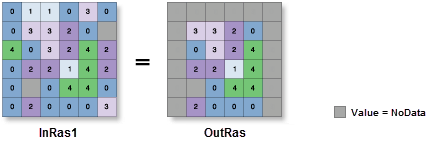
Extracts the cells of a raster based on a rectangle by specifying the rectangle's extent.
Illustration
OutRas = ExtractByRectangle(InRas1, Extent(1, 0, 5, 5), "INSIDE")
Usage
Additional attributes from the input raster, if any, will be carried over as-is to the output raster attribute table. Depending on the property being recorded, some of the attribute values may need to be recalculated.
When a multiband raster is specified as the Input Raster (in_raster in Python) value, all bands will be used.
To process a selection of bands from a multiband raster, first create a raster dataset composed of those particular bands using the Composite Bands tool. Then use the result as the Input Raster (in_raster in Python) value.
The default output format is a geodatabase raster. If an Esri Grid stack is specified as the output format, the name of the stack cannot start with a number, use spaces, or be more than nine characters in length.
The center of the cell is used to determine whether a cell is inside or outside a rectangle. If the center is within the outline of a rectangle, the cell is considered fully inside even if portions of the cell are outside the rectangle.
Cell locations that are not selected are assigned a value of NoData.
If the input raster is integer, the output raster will be integer. If the input is floating point, the output will be floating point.
The input raster from which cells will be extracted.
Raster Layer
Extent
A rectangle that defines the area to be extracted.
Current Display Extent—The extent will be based on the active map or scene.
Draw Extent—The extent will be based on a rectangle drawn on the map or scene.
Extent of a Layer—The extent will be based on an active map layer. Choose an available layer or use the Extent of data in all layers option. Each map layer has the following options:
All Features—The extent of all features.
Selected Features—The extent of the selected features.
Visible Features—The extent of visible features.
Browse—The extent will be based on a dataset.
Clipboard—The extent can be copied to and from the clipboard.
Copy Extent—Copies the extent and coordinate system to the clipboard.
Paste Extent—Pastes the extent and coordinate system from the clipboard. If the clipboard does not include a coordinate system, the extent will use the map's coordinate system.
Reset Extent—The extent will be reset to the default value.
When coordinates are manually provided, the coordinates must be numeric values and in the active map's coordinate system. The map may use different display units than the provided coordinates. Use a negative value sign for south and west coordinates.
The coordinates are specified in the same map units as the input raster.
Extent
Extraction area
(Optional)
Specifies whether cells inside or outside the input rectangle will be selected and written to the output raster.
Inside—Cells inside the input rectangle will be selected and written to the output raster. All cells outside the rectangle will receive NoData values on the output raster.
Outside—Cells outside the input rectangle will be selected and written to the output raster. All cells inside the rectangle will receive NoData values on the output raster.
String
Return value
Label
Explanation
Data type
Output raster
The output raster containing the cell values extracted from the input raster.
The input raster from which cells will be extracted.
Raster Layer
rectangle[extent,...]
A rectangle that defines the area to be extracted.
MAXOF—The maximum extent of all inputs will be used.
MINOF—The minimum area common to all inputs will be used.
DISPLAY—The extent is equal to the visible display.
Layer name—The extent of the specified layer will be used.
Extent object—The extent of the specified object will be used.
Space delimited string of coordinates—The extent of the specified string will be used. Coordinates are expressed in the order of x-min, y-min, x-max, y-max.
The coordinates are specified in the same map units as the input raster.
Extent
extraction_area
(Optional)
Specifies whether cells inside or outside the input rectangle will be selected and written to the output raster.
INSIDE—Cells inside the input rectangle will be selected and written to the output raster. All cells outside the rectangle will receive NoData values on the output raster.
OUTSIDE—Cells outside the input rectangle will be selected and written to the output raster. All cells inside the rectangle will receive NoData values on the output raster.
String
Return value
Name
Explanation
Data type
out_raster
The output raster containing the cell values extracted from the input raster.
Raster
Code sample
ExtractByRectangle example 1 (Python window)
This example extracts cells outside a rectangular extent to a new raster.
 —The extent will be based on the active map or scene.
 —The extent will be based on a rectangle drawn on the map or scene.
 —The extent will be based on an active map layer. Choose an available layer or use the Extent of data in all layers option. Each map layer has the following options:
 —The extent of all features.
 —The extent of the selected features.
 —The extent of visible features.
 —The extent will be based on a dataset.
 —The extent can be copied to and from the clipboard.
 —Copies the extent and coordinate system to the clipboard.
 —The extent will be reset to the default value.