Import shapefiles from SharePoint
You can add layers to ArcGIS for SharePoint by importing the shapefiles you have stored in a SharePoint document library or on your local machine.
In ArcGIS for SharePoint, use the Add layer pane to import a shapefile, and create either a SharePoint list or a hosted feature layer.
Note:
Files exceeding the maximum supported size of 25 MB cannot be imported.
Open and import the file
Open ArcGIS for SharePoint.
Activate Edit mode for the map.
Click Layers from the map tools.
In the Layers pane, click File.
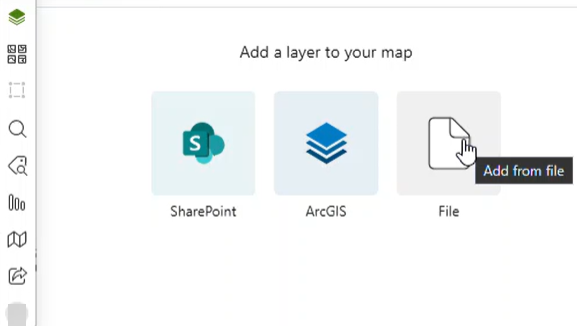
The File tab and pane appear.
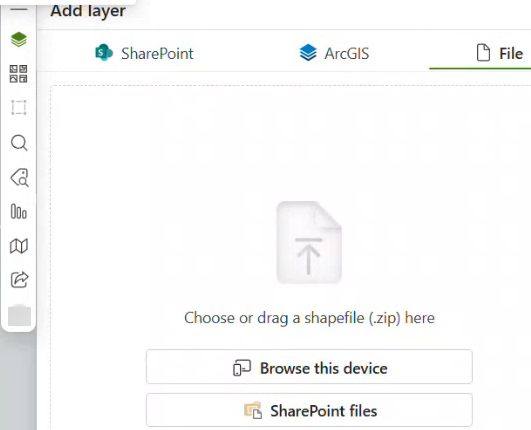
Optionally, in the Layers pane, click +Add if the layers are already added to your map, then click the File tab in the Add layer pane to begin uploading the shapefiles.
In the Add layer pane, click Browse this device, or SharePoint files. These options allow you to either browse files stored on your local machine, or in SharePoint document libraries and OneDrive. Optionally, you can also drag and drop a zipped shapefile from your local machine.
If you clicked SharePoint files, in the Choose a file pane, click the drop-down and browse the available document libraries in the current SharePoint site. Then select a document library that contains the shapefile. You can filter documents and sort them alphabetically or by the modified date.
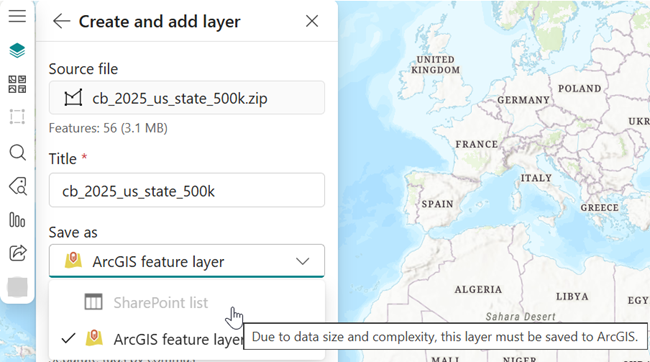
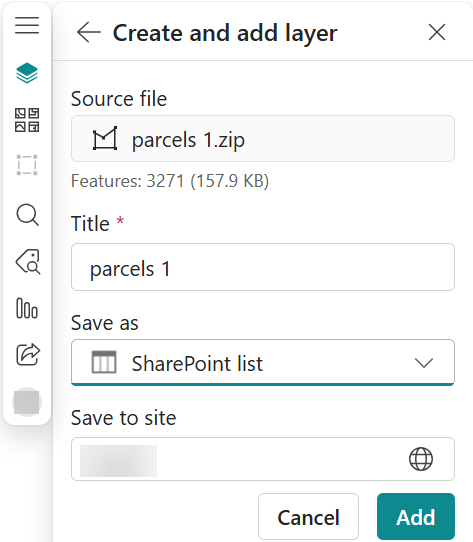
Once you choose a shapefile from your local machine, SharePoint document libraries, or OneDrive the Create and add layer pane appears.
The Source file is populated by default based on the shapefile you selected previously.
The Title is populated by default based on the selected shapefile. Optionally, you can enter a new title.
You can select how you would like to save the file from the Save as drop-down menu:
ArcGIS feature layer
SharePoint list
ArcGIS for SharePoint checks whether the specified SharePoint list name or ArcGIS feature layer name already exists. If a duplicate list name is found, an error message is displayed and the list cannot be created until a unique name is provided. Before importing, ArcGIS for SharePoint parses the shapefile and displays information about the dataset, such as the geometry type, number of features, and shapefile size.
This validation ensures the selected file is a valid shapefile before import begins.
When saving as an ArcGIS feature layer, you can assign Tags, provide a Summary, set the Sharing level, and assign Group sharing.
Click Add. A feature layer is created.
When saving as a SharePoint list, clicking Add saves the list on your SharePoint site as specified in Save to site.
If the uploaded shapefile exceeds the data size or complexity thresholds, you can save it as an ArcGIS feature layer.