Map view
Using Map view, you can edit location data, delete features, create features, and change feature geometries (such as coordinates or Esri JSON geometry) from a new or existing Microsoft SharePoint list or document library. If you have access to an ArcGIS organization, you can also sign in to use organization-specific basemaps. Selected basemaps persist between sessions.
Note:
If the list or library contains data in Esri JSON format, set the column type to Multiple lines of text, not Single line of text. This ensures that the data remains intact during edits to features.
To edit or delete points, polylines, or polygons, your SharePoint list or document library rows must contain coordinates or geometry data (Esri JSON format). When you choose one or more rows from a list, a message appears indicating the number of rows that are selected from the current page or view of the SharePoint list or library.
Access the Map view pane
To access the Map view pane, complete the following steps:
Open Microsoft SharePoint.
Access a new or existing SharePoint list or document library that contains location data.
Click ArcGIS.
Click the Map view button
 from the vertical drop-down.
The Map view pane appears.
Note:
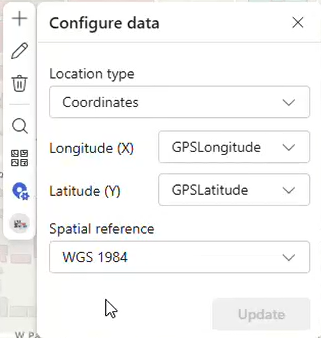
Map view does not support SharePoint lists or document libraries that contain only addresses. If you're using addresses, you must geocode the list before opening the Map view pane. Once the SharePoint list or document library has x,y or geometry data in Esri JSON format, the Map view pane appears with the selected rows displayed as features on the map. The map then zooms to the area of the features. If the SharePoint list or document library is not geocoded, or the column titles don't match recognized naming conventions or Esri JSON related field names, no features are rendered on the map, and you are prompted to use the Configure data pane. This pane allows you to map column or columns that contain location data by specifying the location type, x and y coordinates, and the spatial reference.
Note:
Four standard basemaps are available without signing in to ArcGIS. Sign in to ArcGIS to access basemaps in your organization.
Create features
Note:
To create features, you must have permission to add items to the list or library. If you do not have the required permissions, the Create tool is unavailable.
You can create features in a new or existing SharePoint list or document library from the Map view pane. To add a feature to a list or library, complete the following steps:
Click the Create button
 .
.
Click Add features.
Do one of the following, based on the feature class type:
Points—Click the map to add a point feature.
Lines or polygons—Click the map to add the start point and vertices for line and polygon features. To finish drawing the line or polygon features, double-click the map to add the final vertex and apply the changes.
Enter the attributes or add any attachments for the new feature.
Click Create to create the feature.
Repeat steps 2 through 4 to create additional features.
Click Save.
The feature is added to the SharePoint list or document library.
Edit features
You can edit the geometry (point features, polylines, or polygons) with the Edit tool. Map view respects item-level SharePoint permissions. Only features that you can edit are available for editing. Features that you cannot edit appear disabled on the map.
On the Map view toolbar, click the Edit button
 .
.
The Edit pane appears.
Select a point feature on the map to start editing. The selected feature is highlighted while editing.
Note:
If you want to select another feature to edit, click on the map, or click Done to return to the Edit Features pane.
When you begin editing, the Cancel and Update buttons become visible. If you click on the map, another feature, on the Map view toolbar, or click Cancel, you are prompted to click Discard your unsaved changes, or Keep working.
Note:
If you click Update the feature is updated and you return to the Edit features pane.
When you save edits to the point feature, the list or library refreshes with the updates.
Click Done to return to the Edit Features pane, and select another feature to edit.
Click the Close button to return to the Map view pane.
Click the Close button
 to return to the SharePoint list.
Delete features
Map View respects item-level SharePoint permissions when deleting features. Only features that you can delete are available for selection. Features that cannot be deleted appear disabled.To delete a feature or features, complete the following steps:
Click the Delete button
 .
.The Delete feature pane appears.
Choose a selection tool from the Select a location on the map section, and make a selection on the map.
Click Delete.
If applicable, check the Delete entire row in the list check box, click Cancel, or proceed with the deletion. Deleting a feature from the map also deletes its location data from the list or library.
Change the basemap
You can change the basemap that appears while you are editing locations. When you click the Basemap button  , the Basemap Gallery pane appears with four default basemaps. You can view a map in the Edit locations pane using the default (Topographic) basemap, or you can view any of the other standard basemaps. You can sign in to ArcGIS Online or ArcGIS Enterprise to access basemaps available in your organization.
Note:
The selected basemap is applied to the map. When you have permission to edit the list or library, the selected basemap is saved and reused the next time Map View is opened for the same item.
Navigate the map
Click the Zoom in or Zoom out buttons to view the map features depending on the map extent. Click the Enter fullscreen button  to view the map in full screen.
Search for locations
Use the Search tool to find a location on the map. The search experience works the same way as the search widget in the ArcGIS for SharePoint Map web part.
Click the Map view button
.Click the Search button.
This widget works exactly like the Search from the map tools. Learn more about search in ArcGIS for SharePoint.
Enter a location, address, or place name in the widget.
Select a search result.
The map zooms to the selected location.
Configure location data
Use Configure data to specify the fields that contain location information.
Click the Map view button
.Click Configure data.
Select a field from the drop-down:
Coordinates
Esri JSON geometry
Click Update.
The map refreshes using the selected location field.
Honor item-level permissions
Map view honors SharePoint item-level permissions and provides visual feedback throughout the editing workflow. Features that you cannot edit or delete remain visible, but appear disabled. Permission-restricted items are identified with a SharePoint indicator. Create, Edit, and Delete actions are enabled only when you have the required permissions, thus helping prevent unauthorized edits while preserving visibility of all mapped content.