Troubleshoot
This page contains known issues that can occur while using Survey123 Mobile to complete a survey and provides suggestions to resolve them.
Unexpected behavior in surveys that work as expected in the field app
Survey123 Mobile is a recently introduced app that doesn’t yet have all the features available in the field app. Survey authors are encouraged to review surveys that work in the field app, and ensure that they work as expected in Survey123 Mobile. For information about what features are available and planned for Survey123 Mobile, see Functionality status.
Send error
The following error may appear if your completed survey could not be submitted:
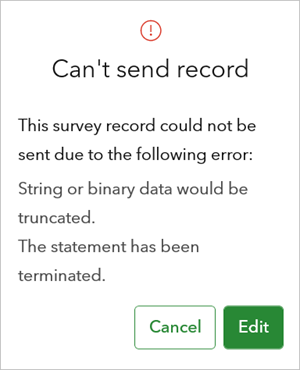
Tap Edit in the message box to go back and edit your answers before submitting. Tapping Cancel closes the error message and returns you to the outbox.
Some common send errors are listed in the following table:
|
Error number |
Error description |
Diagnosis |
|---|---|---|
|
None |
Feature service requirements not met. supportsApplyEditsWithGlobalIds must be true. |
The feature layer does not have the |
|
None |
Failed to send record |
The record could not be sent because the request timed out. Click Send now to retry. All records in the Outbox will be sent. |
|
400 |
Invalid URL |
The feature layer specified when the form was loaded is no longer present, which can occur due to a schema-altering change to the form. The only solution to this is to manually migrate the data using recovery techniques. |
|
498 |
Invalid token |
The token that the app is attempting to pass to ArcGIS is being rejected. This is often because the token the app is trying to pass has expired. In this case, repeat the action, and the error shouldn't recur. |
|
1000 |
String or binary data would be truncated |
The result of a question is too long for the field in the feature layer. Edit your answer to fit the character limit. |
|
1000 |
Invalid column name 'Shape__Extents' |
The point being submitted is outside the full extent of the feature layer. If this is a repeated problem, and the location you're attempting to submit is correct, the feature survey should be republished with a larger extent. However, doing this will cause you to lose the information already saved in the feature layer. |
|
1003 |
Survey123 Operation rolled back |
This can occur when a survey has hidden or calculate questions with the wrong data type. The data type of a calculation is dependent on the data type of each element of the calculation. The XLSForm default binding type for hidden and calculate questions is |
Autosave
If your device or app crashes while you're completing a survey, the survey response is recoverable. Answers in the survey are automatically saved to a recovery file on the device.
On startup, Survey123 Mobile checks for the presence of the recovery file. If found, you are notified that a survey response has been recovered and you must choose one of the following options:
Save in Drafts—Saves the recovered record to the Drafts folder.
Continue the survey—Opens the survey, populating it with the recovered data.
Discard changes—Discards the changes to the survey record.
The recovery file is automatically deleted when the recovered survey is saved as a draft, successfully completed, or discarded.
Enable diagnostic logging
If you observe error messages that aren't listed in this topic, or other unexpected behavior, it may be useful to record a log of information from the app to share with someone else (such as Esri Technical Support) to troubleshoot.
To enable logging, open the menu on the app's home page, tap Settings, and tap the Diagnostics tab.
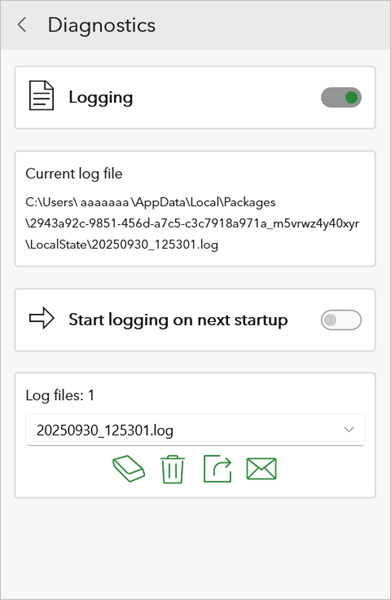
To capture messages to a file, turn on the Logging toggle button. The current log file name and location is shown. You can edit this file path.
If the error you are observing crashes the app, it can be useful to turn on the Start logging on next startup option.
Log files can be shared or sent by email. When you send the log using the share button  or email button
 , the app version number, operating system name, and the system locale will be included in the email body, and the log will be included as an attachment. You can also delete the current or selected file using the delete button
 , or erase all log files using the erase button
 .