Add Polygons
A polygon feature is an enclosed planar region represented by a shape comprised of straight and curved lines.
Description
Creating a polygon feature helps identify an area of focus on an map. This workflow teaches how to add polygons to a project, use the edit pane, and how to edit fields.
Prerequisites
- None
Tools and commands used
Mapview toolbar
Edit tab > New Polygon layer
Steps
Click Map tab.
Click Edit
 in the Features group.
Click the Edit tab
Click New Polygon Layer
 in the New Features group.
A polygon feature class appears in the Contents pane. Edit mode enables and the Edit tab and Edit Feature pane appears.
The line tool activates and the Construction toolbar appears.
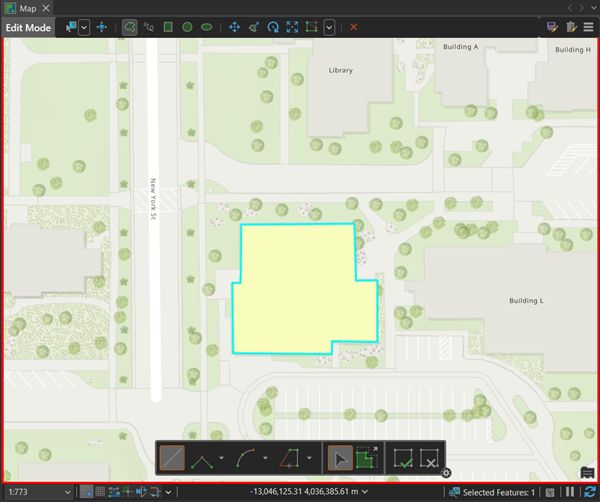
On the Map, create a polygon by clicking to create vertices.
Once finished, the Edit pane updates to reflect the attributes of a selected feature.
When a feature is first created, it has two fields automatically. The OBJECTID to keep track of each feature as they are created and the label field.
The feature created exists as a memory feature class. This means that it is not saved to the project geodatabase.
Right-click the line feature layer in the Contents pane.
Click Save
 .
.The feature class is saved in the project's geodatabase.
While any pending edits are still waiting to be saved, a red line appears around the edges of map. The feature class is stored in a geodatabase, the red line indicates there are current edits within the feature class that must be saved.
Click Save Edits
 on the Mapview toolbar.
Click Edit tab
Click Select by Rectangle
 in the Selection group.
Select the polygon feature on the map.
Name the feature in the label text box on the Edit Feature pane.
Click Edit Fields
 .
.The Fields view opens with the map view and a Fields tab opens on the ribbon.
In the Fields view, click in the last row in Click here to create a new field.
Type a new Field Name.
Choose a Data Type.
Optionally, type a field alias in Alias.
Click the Fields tab.
Click Save
in the Manage Edits group.Click Edit Fields pane.
The new fields are added to the Edit Fields pane and can also be edited on the Edit Feature pane.