Service deployment modes
GIS services are designed to perform as efficiently as possible. When a request is made to a GIS service, such as to pan a map or navigate to an address, a number of factors determine the response time. For example, each service consumes memory and CPU to run. When organizations run many services concurrently and the use exceeds available system memory, their GIS users may experience performance issues.
ArcGIS Enterprise administrators should monitor service usage in their organization and limit resources when performance is impacted by memory usage.
Your users should experience quick results when they interact with your services (including products built on services, such as web maps and apps). Adequate resources are necessary to handle the traffic your services receive.
Strive to limit resources to only those that are needed without affecting performance. This can be done by monitoring service usage, allocating service resources, and setting service modes to isolate resources for services that require dedicated resources and distributing shared resources for those that don't.
ArcGIS Enterprise on Kubernetes includes the following two service modes:
Shared
Dedicated
The type of mode that each service uses determines the impact on system memory consumption and, for services that receive heavy traffic, its potential impact on service performance. Learn how to update the service mode for a service or set of services.
Shared mode
When you configure a service to run in shared mode, it shares a single set of pods with all other services of that type run in shared mode. For example, the work for every map service that is designated to use shared mode is performed by a single set of pods. The following types of services can run in shared mode:
Feature service
Tile service
Map service
Image service
When a client makes a request to a service in shared mode, the request is routed to a pod from the shared deployment that will then proceed to process the request. Using shared mode can save on resource usage costs, as the resources are shared between several services that use shared mode.
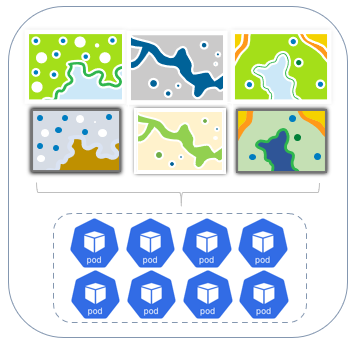
In the example above, six individual map services are set to shared mode and are supported by eight pods in a shared map service deployment. Any traffic received by these six services can be supported by any of the pods in the shared service deployment.
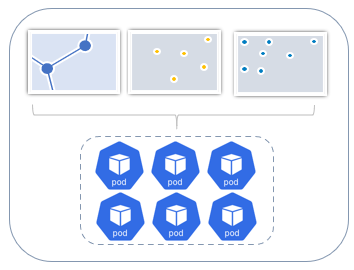
In the following example, three individual hosted feature services are supported by six pods in a shared feature service deployment.
Configure shared resources
You can use Enterprise Manager to configure shared resources for a service type. When you use this option, you are configuring resources for all services of that particular type running in shared mode.
Sign in to ArcGIS Enterprise Manager as an administrator.
Click the Services button.
On the GIS services tab, click Configure shared resources.
Click the tab for the service type to configure shared resources for, such as Feature service.
To manually scale a deployment, provide new values for Number of pods and Resource limits.
To automatically scale a deployment, enable Auto scaling and provide new values for the automatic scaling parameters:
Note:
To take advantage of horizontal pod automatic scaling in ArcGIS Enterprise on Kubernetes, the metrics server is required to scrape pod resource consumption metrics from the kubelet process on each running node. For more information, see Kubernetes Metrics Server.
Minimum number of pods—The minimum number of pods that are allocated to run for a service.
Maximum number of pods—The maximum number of pods that are allocated to run for a service.
Set threshold—Threshold for CPU or memory use. This value is used to determine when pods must be scaled up or down. CPU and memory usage is averaged across all running pods for a service deployment and is expressed as a percentage of the resource requests for CPU and memory.
Note:
CPU is commonly used to determine automatic scaling requirements. For more information about scaling values, see Setting scaling values
To specify timeouts for all shared map services and image services, provide new values for Maximum time a client can use a service and Maximum time a service will take to be started.
Note:
For feature services and tile services running in shared mode, you can change the timeouts by specifying them separately for each individual service.
To restart all the shared pods for a service type and the services that use those pods, click Refresh.
Click Save settings to persist changes to shared resource settings.
Click Pod placement to view or edit Node affinity or Tolerations.
For more information about node affinity and tolerations, see Pod placement
If configuring new Node affinity or Tolerations, click Add.
Click Save pod placement to persist changes to shared pod placement settings.
Dedicated mode
When you use dedicated mode for a service, a set of one or more pods is designated exclusively to process requests for that service. For example, when you publish a map service that is configured in dedicated mode, one map service deployment is created for this service, and it will include one or more pods dedicated to serving that map service.
A dedicated map service deployment contains a defined number of pods. Each service can be configured independently of others to handle service requests as needed. Scenarios in which services are receiving high traffic consistently are potential candidates for moving the services to using dedicated mode.
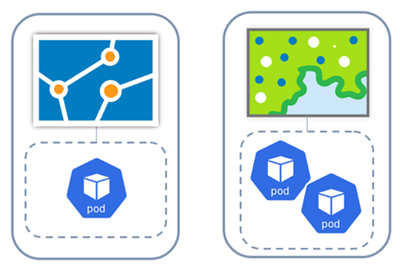
In the example above, two distinct services are configured for dedicated mode; a map service is supported with one pod and another map service is supported with two pods.
Configure dedicated resources
When you want to allocate dedicated resources to a GIS service, you can update the service to run in dedicated mode.
On the GIS services tab on the Services page, select the service that you want to configure dedicated resources for.
Click the Settings tab.
Click Edit mode.
Enable the option to run in Dedicated mode to run using its own dedicated resources.
Optionally, set timeouts, scale the service deployment, and configure pod placement for the service.