Control access in ArcGIS Server
The security of your GIS resources relies on proper, stringent authentication and authorization of your users. Authentication is the process of verifying the identity of a user, while authorization is the process of verifying that an authenticated user has the permission to access the requested resource or perform the requested operation. To enforce permissions for secured resources and operations, a user is first authenticated, then their authorization is verified. These terms are defined by your security model.
The security model of your ArcGIS Server site determines who can access the site's services, who can publish, modify, and delete services, and who can perform administrative tasks in the site. There are multiple security models available, depending on the configuration of your GIS deployment and whether you want to integrate your organization-specific identity provider with your deployment.
Users, roles, and permissions
When a resource in ArcGIS Server is secured, only authorized users can access that resource. ArcGIS Enterprise, including stand-alone ArcGIS Server, manages access to a secured resource by using a role-based access control system. There are three main components in a role-based access control system: users, roles, and permissions.
Users
A user is any person or software agent accessing a server resource. An identity store is a list of users who can make resource requests. Both ArcGIS Server and ArcGIS Enterprise have built-in identity stores, and you may also use the identity stores of an organization-specific identity provider.
Roles
A role is a set of users with a specific level of access. Users who comprise a role are usually related by function, title, or some other relationship. For example, users who will perform administration of an ArcGIS Server site could be grouped into a role called Administrator, and users who only need to view and explore GIS resources could be assigned a role called Viewer. In the ArcGIS Server built-in identity store, a user can belong to more than one role. In the ArcGIS Enterprise built-in identity store, a user is only granted a single role.
Permissions
Permissions grant authority to perform a certain task or access a certain resource. A permission can only be assigned to a role. Individual users can only acquire permissions by inheriting them from their roles. Role-based access control provides the ability to enforce, manage, and audit an organization's access control policies efficiently and effectively. Permissions are managed internally by ArcGIS Server.
Available security models
ArcGIS Server is a primary component of ArcGIS Enterprise, which provides your organization with a comprehensive Web GIS system. ArcGIS Server can be deployed as a stand-alone system, or it can be integrated with ArcGIS Enterprise through federation.

The security model of a stand-alone ArcGIS Server site is determined by the server administrator. In a federated ArcGIS Enterprise deployment, sharing and security models are determined by the portal administrator, superseding those of the server site.
Both ArcGIS Server and ArcGIS Enterprise offer robust and effective built-in authentication and identity stores that are enforced by default. ArcGIS Enterprise and stand-alone ArcGIS Server sites also support web-tier authentication and external identity providers. When such a provider is configured, user authentication is done through its identity store.
Stand-alone ArcGIS Server sites
ArcGIS Server uses a role-based access model. Users are assigned one or more roles, to which certain permissions have been granted.
To manage these users and roles, ArcGIS Server sites in a stand-alone configuration can use the built-in identity store, as well as several types of third-party identity providers. You can change these settings using the Security Configuration Wizard in ArcGIS Server Manager.
Authentication to a stand-alone ArcGIS Server site can be done at the server tier or at the web tier.
The table below describes the identity store configurations that are supported for the type of authentication chosen:
|
Authentication mechanism |
Supported identity store configurations |
|---|---|
|
ArcGIS Server authentication |
|
|
Web-tier authentication |
Any user store for which the web server has built-in or extensible support For example, if your web server has built-in support for Active Directory, LDAP, and custom identity stores, you may use one of the following configurations:
|
As the below diagram illustrates, server-tier authentication takes place entirely within the server site, while web-tier authentication relies on the external identity store to validate the user's credentials.
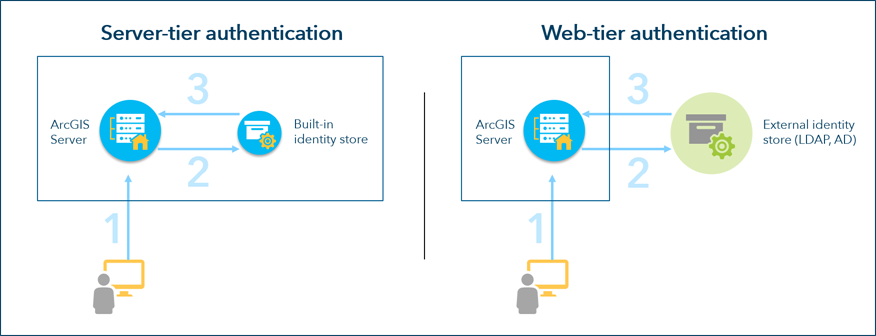
The built-in identity store is managed in ArcGIS Server Manager when it is configured. Information about users and roles is kept in the server's configuration store, and only ArcGIS Server has access to that information. Users authenticate to the identity store using tokens—strings of encrypted information that contain the user's name, the token expiration time, and other proprietary information.
Many types of web-tier authentication systems can be configured with stand-alone ArcGIS Server sites. These include Lightweight Directory Access Protocol (LDAP) directories, public key infrastructure (PKI)-based client certificate authentication, and Integrated Windows Authentication (IWA).
If your ArcGIS Server site will remain a stand-alone site, and you are not configuring web-tier authentication, see Configure server-tier authentication.
If you are configuring web-tier authentication, as through an LDAP directory, IWA, or client certificate authentication with your stand-alone ArcGIS Server site, see Configure web-tier authentication.
Federated server sites
After you have federated your server site with ArcGIS Enterprise, the ArcGIS Enterprise security model will replace the server's identity store, including all users and roles you have configured in ArcGIS Server Manager.
Fine-grained access control of federated server sites
You can update a federated server to restrict publishing and administrative access. Once updated, all portal administrators will still have administrative privileges on the server. Portal members with publisher privileges will not be granted publishing access to the server by default. Instead, publisher access to the server is controlled by a group named [federated server name]_Publishers or the item [federated server name]_Publishers.
Note:
The default group and item names must not be changed.
To gain publisher privileges to the server, the organization member must be either a member of the [federated server name]_Publishers group or a member of a group that the [federated server name]_Publishers item has been shared with. Likewise, additional administrative access to the server is controlled by a group named [federated server name]_Administrators or the item [federated server name]_Administrators. A member must be either a member of this group or a member of the group that the item has been shared with to gain administrative access to the server.
Fine-grained access control is configured in the ArcGIS Portal Administrator Directory. Once you have federated a server, follow the steps below to update the server to enable this control.
Sign in to the Portal Administrator Directory as a portal member with administrative privileges.
The URL to the Portal Administrator Directory is in the format
https://portal.example.com/arcgis/portaladmin.Go to Federation > Servers and click the server you want to edit.
Click Update.
From the Server role drop-down menu, choose Federated Server With Restricted Publishing.
Click Update Server.
You will now see the [federated server name]_Administrators and [federated server name]_Publishers groups as well as the corresponding items on the My content page. These will be owned by the portal member who updated the server.